

Updated October 2026 — Windows 10 and Windows 11
If you spend much time troubleshooting Windows computers, you know how frustrating it can be to find a particular configuration setting. Some options are in the modern Windows Settings application, others remain in the traditional Control Panel, and a few are buried several levels deep.
Wouldn’t it be nice to have a single place where you could access many of these configuration options without remembering exactly where Microsoft put them?
There is a little-known Windows feature commonly called GodMode that does exactly that.
I’ve written about this before, back in 2014, but the technique is still useful today, including on Windows 11. Let’s explore what it actually does, how to access it, and whether it is safe to use.
What Is Windows GodMode?
Despite its rather dramatic name, GodMode is not a special operating mode, a security bypass, or a way to gain administrator privileges.
It is simply a convenient way to display a collection of Windows configuration and management tasks in one window.
The feature is associated with a Windows Shell component known as All Tasks, which provides access to many traditional Control Panel functions.
For example, depending on your Windows version and configuration, the resulting window may provide access to:
- Network and Internet configuration
- Power management options
- Devices and printers
- User account settings
- Troubleshooting utilities
- File Explorer options
- System maintenance and administrative tools
- Backup and recovery settings
Instead of navigating through several Control Panel categories, you can browse or search the available tasks from one location.
For those of us who routinely troubleshoot Windows systems, this can be a useful time-saver.
There is one important limitation. GodMode does not expose every possible Windows setting. Microsoft has steadily migrated many functions from Control Panel into the modern Settings application, so some options may be missing or may redirect you to Settings.
Still, there are plenty of useful functions available.
How to Enable GodMode in Windows 10 or Windows 11
The process is surprisingly simple. There is no software to install, no Registry modification required, and no special download.
Step 1 — Create a new folder
Right-click an empty area of your Windows desktop and select New → Folder.
You can also create this folder elsewhere, such as inside your Documents directory.
Step 2 — Rename the folder
Copy and paste the following exact name:
GodMode.{ED7BA470-8E54-465E-825C-99712043E01C}
Press Enter.
Be certain that you include the period, braces, hyphens, and all the characters in the identifier.
Step 3 — Open the folder
Windows should recognize the special folder name and change its appearance to a Control Panel-style icon.

Double-click the folder.
Instead of displaying an ordinary directory, File Explorer should present a categorized collection of Windows configuration tasks:
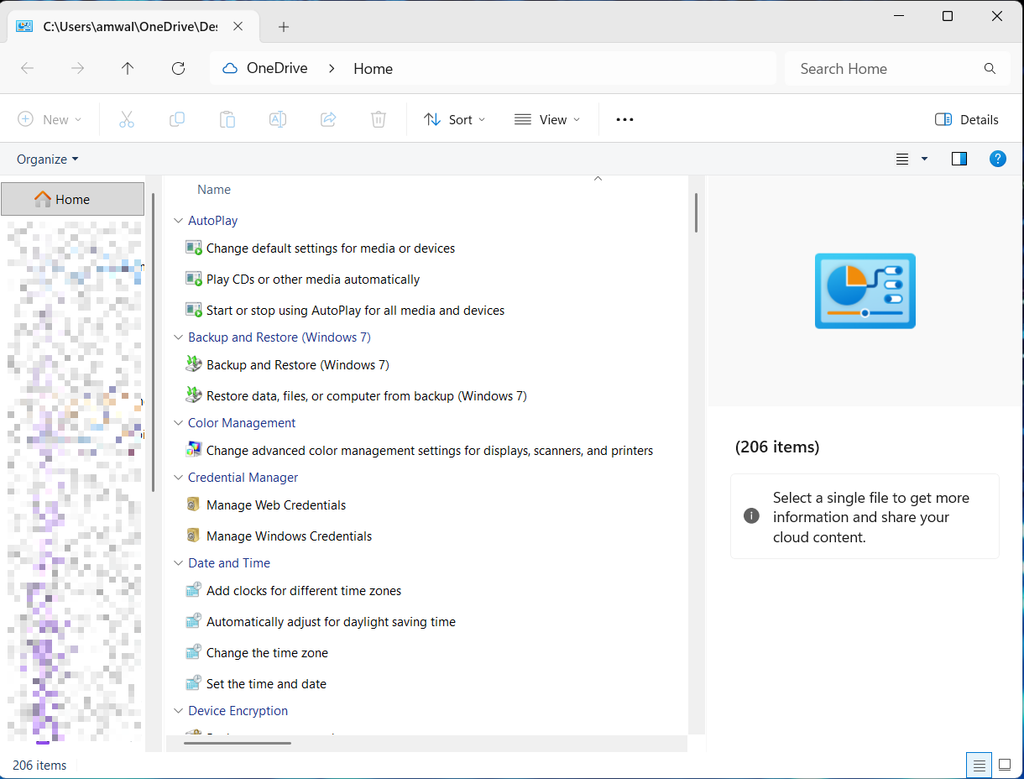
That’s it!
One additional tip: the word GodMode is not required. You can replace it with something more descriptive, such as:
WindowsTools.{ED7BA470-8E54-465E-825C-99712043E01C}
The identifier after the period is what matters. The text before it is simply the folder’s name.
An Even Easier Method: Use the Windows Run Command
If you don’t want to create a permanent folder, there is another way to access the same functionality.
Press Windows + R to open the Run dialog.
Enter the following command:
explorer.exe shell:::{ED7BA470-8E54-465E-825C-99712043E01C}
Press Enter.
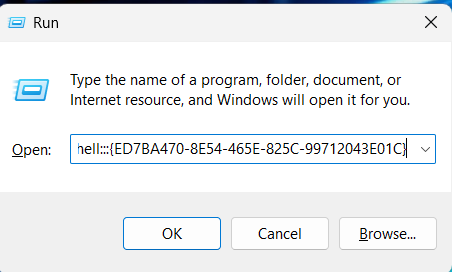
Windows File Explorer should open the All Tasks view directly.
This is actually my preferred method when working on a computer that I don’t use regularly. I can access the tools without creating an additional desktop folder.
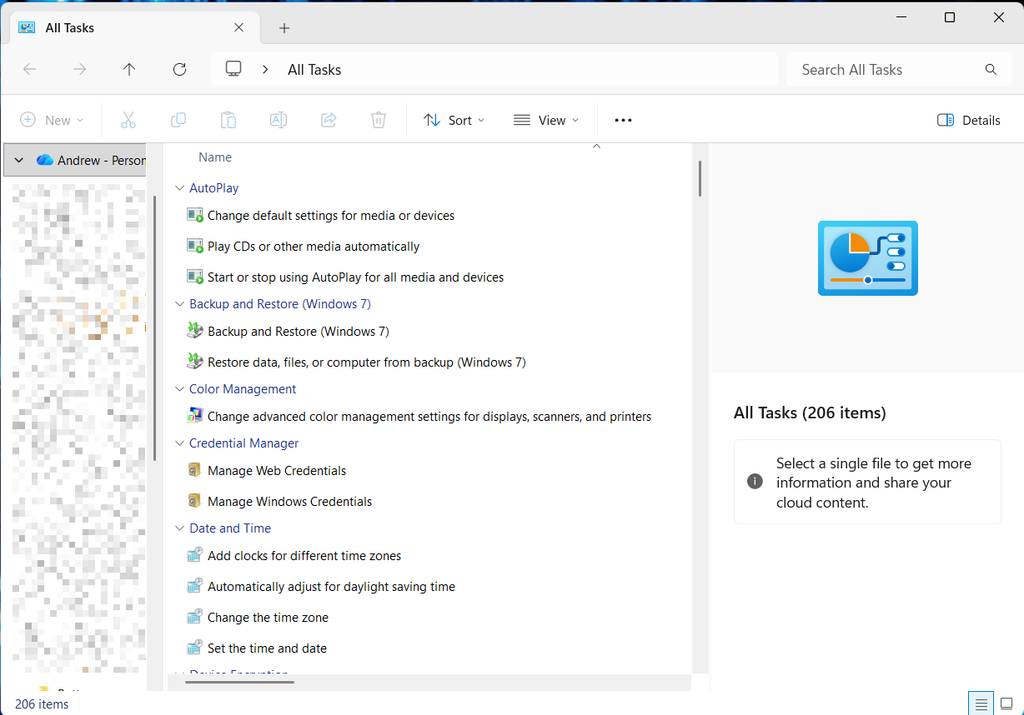
You can also create a conventional Windows shortcut that runs this command if you prefer.
How Does GodMode Actually Work?
Here’s where things become interesting from a technical perspective.
Windows File Explorer does more than display files and directories stored on a disk. It also supports something called the Windows Shell namespace.
The Shell namespace provides a way for Windows to represent objects that aren’t necessarily physical files or folders. This includes locations such as This PC, Recycle Bin, Control Panel, and other system components.
These objects can be identified using a Class Identifier (CLSID).
A CLSID is a globally unique identifier used by Windows to identify particular components or classes.
In our example, the identifier is:
{ED7BA470-8E54-465E-825C-99712043E01C}
This identifier references the All Tasks Shell component.
When you create a folder whose name contains a period followed by this CLSID, File Explorer recognizes the naming convention and presents the corresponding Shell namespace object instead of treating the folder as an ordinary directory.
That explains the unusual folder name and why the technique works without installing anything.
It is also why the word GodMode is somewhat misleading. You aren’t enabling a hidden administrative mode. You are simply accessing an existing Windows component using its identifier.
Why Is This Useful for Troubleshooting?
For a network engineer or technical support professional, one of the more frustrating parts of troubleshooting Windows is remembering where a particular setting has been placed.
For example, you might need to examine network adapter configuration, modify power management behavior, inspect firewall settings, or change device-related options.
Some functions remain accessible through familiar Control Panel interfaces, while others now reside in Settings.
GodMode provides another way to locate many of these functions.
The window also includes a search facility, allowing you to look for available configuration tasks without manually navigating every category.
I wouldn’t suggest that GodMode replaces Windows Settings, PowerShell, Device Manager, or the other tools we use to troubleshoot computers. Rather, think of it as an additional shortcut in your Windows troubleshooting toolkit.
Is Windows GodMode Safe?
Yes, using the GodMode folder itself is generally safe.
It does not:
- Disable Windows security.
- Bypass User Account Control (UAC).
- Give a standard user administrator privileges.
- Install third-party software.
- Automatically modify system settings.
However, some of the administrative tools accessible through the folder can make significant changes to your Windows configuration.
Those operations remain subject to the normal Windows permissions and security controls.
As with any system administration tool, know what a setting does before changing it.
What About Other Special Windows Folders?
When I originally wrote this article in 2014, I included a batch script that created numerous special Windows folders using different CLSIDs.
The underlying technique was legitimate, and Windows contains many Shell objects that can be accessed using identifiers.
However, Windows has changed significantly since those days.
Some older Shell components have been replaced, deprecated, or redirected to modern Settings pages. Others may behave differently depending on the version of Windows installed.
Rather than recommend creating a large collection of questionable legacy shortcuts, I suggest sticking with the All Tasks identifier described above.
It provides a useful collection of settings without cluttering the desktop with multiple special folders.
Does GodMode Still Work in Windows 11?
Yes. The All Tasks Shell component remains accessible in Windows 11, although its contents and behavior may differ across Windows releases and builds.
Remember that Microsoft continues moving functionality from the traditional Control Panel to the newer Settings application.
Consequently, GodMode should not be considered a complete replacement for either interface.
It is simply another useful way to find and access many Windows configuration tasks.
If the special folder doesn’t work as expected, double-check the identifier and try the Run command described earlier.
Final Thoughts
I’ve always appreciated the small Windows tricks that save time when working on computers, particularly when diagnosing network or system configuration issues.
GodMode is one of those tricks.
The name is a bit over the top, but the underlying Windows Shell mechanism is interesting, and the resulting collection of management tasks can be quite handy.
Whether you’re supporting Windows computers professionally or just maintaining your own systems, this is a useful addition to your collection of Windows troubleshooting techniques.
And the best part? It takes only a few seconds to set up.
If you have used GodMode, or have another useful Windows configuration shortcut, share your experience with the community.
For reference, the technique and Shell behavior are described in these current resources: Windows 11 God Mode technical explanation and Windows 11 All Tasks instructions.
Did you find this useful? Would you change or modify this file in any way? If you would like to help support the continued development of independent networking, broadband, Wi-Fi, VoIP, and packet analysis content, please consider joining our Patreon community where you will gain access to exclusive technical resources, downloadable labs and PCAPs, bonus course content, troubleshooting guides, and additional member-only material. You can also leave comments at our Discord server. You can also support our work by simply buying us a coffee — every contribution helps us continue creating practical, real-world network science education for professionals and enthusiasts alike.