

Have you ever wondered exactly what hardware is inside your computer? Not just how much memory you have or what processor Windows says you’re running, but the actual manufacturer and model of your motherboard, the type and speed of your RAM, the BIOS or UEFI firmware version, and the details of your graphics processor?
Knowing this information can be extremely useful when you’re troubleshooting a problem, considering a hardware upgrade, checking driver compatibility, or simply trying to understand what your computer is capable of.
Fortunately, you don’t have to open the computer case to find most of this information.
There are several excellent tools available, including utilities already built into Windows and a few free third-party applications that provide considerably more detail.
Let’s explore some of my favorites.
1. CPU-Z: A Great Place to Start
Back in December 2010, I originally recommended a utility called CPU-Z. More than fifteen years later, it’s still one of my favorite tools for identifying the hardware inside a Windows PC.
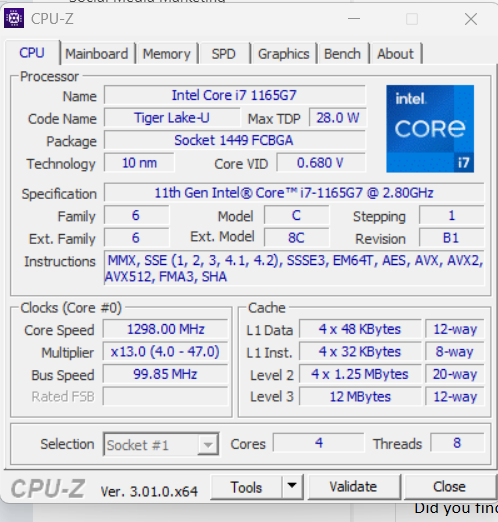
Developed by CPUID, CPU-Z is a lightweight utility that collects detailed information about your computer’s processor, motherboard, memory, and graphics hardware.
You can download it directly from the developer:
CPU-Z is available for modern Windows systems, including Windows 11. The developer also provides a separate version for Windows on ARM64.
Once installed, launch CPU-Z and you’ll find several tabs, each focusing on a different part of the system.
The CPU Tab
This is where things get interesting.
CPU-Z identifies your processor and displays information such as:
- Processor manufacturer, model, and architecture.
- CPU package and manufacturing process.
- Core and logical processor information.
- Core speed, multiplier, and bus-related clock information.
- Supported processor instruction sets.
- Cache information.
One thing worth understanding is that modern processors dynamically adjust their clock speeds. Depending on processor workload, temperature, power management, and other conditions, the speed displayed by CPU-Z may change from moment to moment.
Don’t assume something is wrong just because the displayed clock speed is lower than the processor’s advertised maximum.
The Mainboard Tab
Ever tried to determine exactly what motherboard is installed in a computer without opening the case?
The Mainboard tab can help.
CPU-Z identifies the motherboard manufacturer, model, chipset, and available firmware information.
This is particularly useful when you’re looking for BIOS or UEFI firmware updates, troubleshooting compatibility issues, or trying to determine whether a system supports a particular hardware upgrade.
Remember that your computer manufacturer’s support website should be your primary source for firmware updates.
The Memory and SPD Tabs
These are two of my favorite areas of CPU-Z.
The Memory tab provides information about the system’s installed memory, including its type, capacity, operating frequency, and timing characteristics.
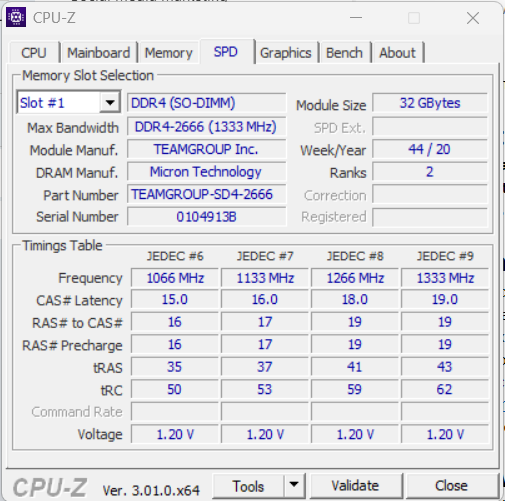
The SPD tab goes a step further by examining information stored on individual memory modules when the platform makes that data available.
SPD stands for Serial Presence Detect. It allows a memory module to describe its capabilities and supported operating parameters.
Depending on your motherboard and memory configuration, you may be able to identify the module manufacturer, part number, capacity, supported timings, and memory profiles.
This becomes particularly useful when upgrading memory.
For example, suppose you have a computer with 16 GB of RAM and want to increase it to 32 GB. Before purchasing additional memory, wouldn’t it be useful to know exactly what modules are installed?
CPU-Z can help answer that question.
One important detail: DDR memory transfers data twice per clock cycle. As a result, the actual memory clock shown in a utility may be approximately half the advertised transfer rate in MT/s. Don’t confuse the two measurements.
Also, some laptops and systems with soldered memory may not expose all the expected SPD information.
The Graphics Tab
CPU-Z also provides basic information about your installed graphics processor.
This can help identify the graphics hardware in a desktop or laptop, particularly when a system contains both integrated and dedicated graphics.
For more advanced graphics diagnostics, there are other tools specifically designed for GPUs.
The Bench Tab
CPU-Z includes a benchmarking capability that lets you run basic single-threaded and multithreaded CPU performance tests.
Benchmark results can be useful for comparing systems or checking for significant performance differences.
However, a benchmark result by itself does not identify the cause of a performance problem. Processor temperature, background activity, power management, and cooling can all influence the outcome.
2. Windows Already Has Some Excellent Tools
Before installing any third-party software, remember that Windows includes several hardware identification and diagnostic utilities.
These won’t always provide the same level of detail as CPU-Z, but they’re often sufficient for routine troubleshooting.
Windows System Information
One of the most useful built-in utilities is Microsoft System Information.
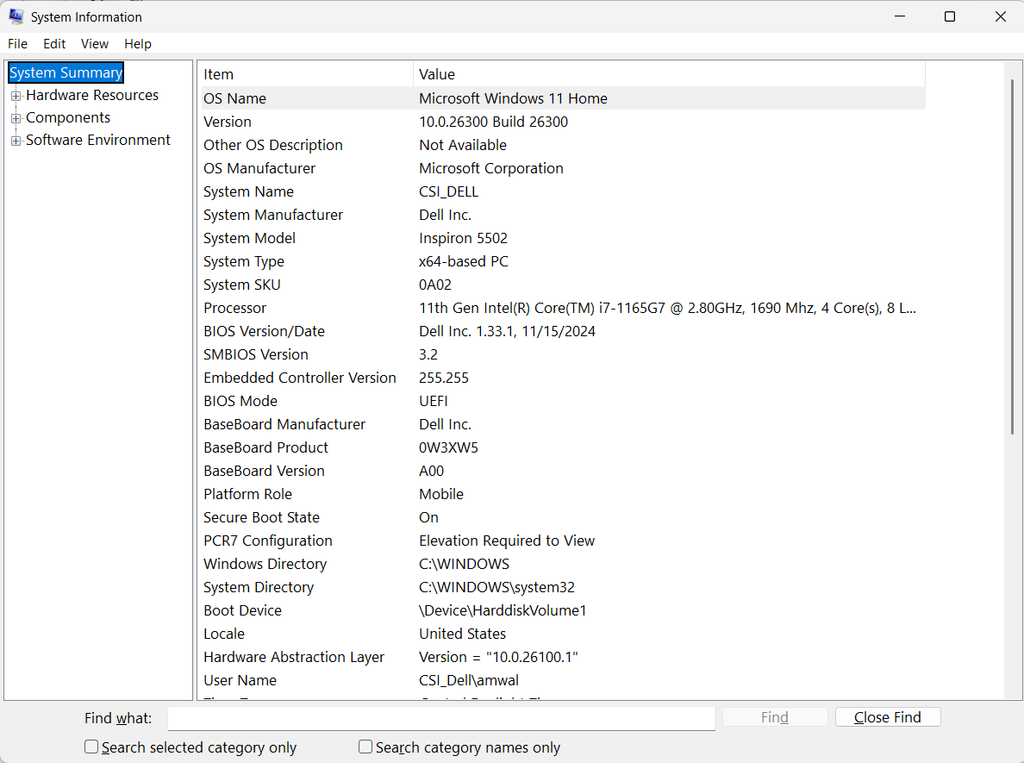
To open it, press Windows + R, type:
msinfo32
Then press Enter.
The System Information utility displays a comprehensive overview of your Windows system, including:
- Operating system and build information.
- Computer manufacturer and model.
- Processor information.
- Installed physical memory.
- Motherboard and firmware information.
- Hardware resources.
- Device and driver information.
- Software environment details.
The navigation panel lets you explore the different categories.
For example, expand Components and examine Network, Storage, or Display to investigate specific areas of your system.
This can be especially useful when you’re trying to determine which network adapter is installed or whether Windows recognizes a particular hardware device.
You can also export System Information results for future reference or troubleshooting documentation.
Device Manager
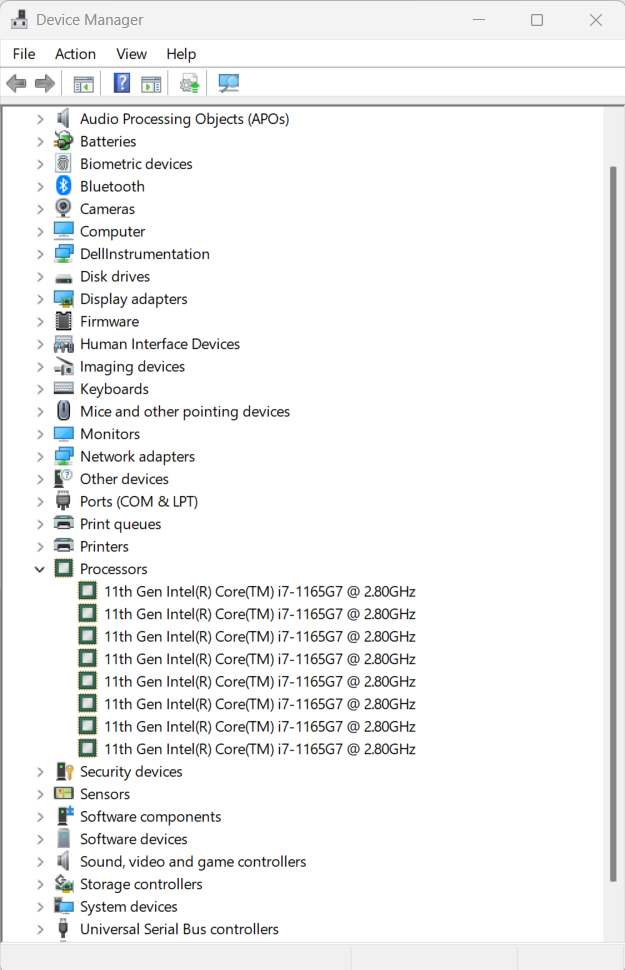
Another useful tool is Device Manager.
Right-click the Start button and select Device Manager, or press Windows + R and enter:
devmgmt.msc
Device Manager organizes hardware into categories such as Network adapters, Display adapters, Disk drives, and Universal Serial Bus controllers.
It is particularly useful for checking device status, examining driver versions, and identifying hardware that Windows hasn’t recognized correctly.
A device displaying a warning symbol may indicate a driver or hardware configuration problem.
Device Manager is not a comprehensive hardware inventory tool, but it’s indispensable for troubleshooting.
Windows Task Manager
Task Manager is another tool worth remembering.
Press Ctrl + Shift + Esc, then select the Performance section.
Here you can observe real-time information about CPU utilization, memory, storage, graphics activity, and network activity.
Depending on the hardware and drivers, Windows may also display processor speed, core counts, memory speed, storage device models, and GPU information.
Task Manager is particularly useful when you want to connect hardware identification with actual system performance.
3. HWiNFO: When You Need More Detail
If CPU-Z isn’t giving you enough information, another excellent utility is HWiNFO.
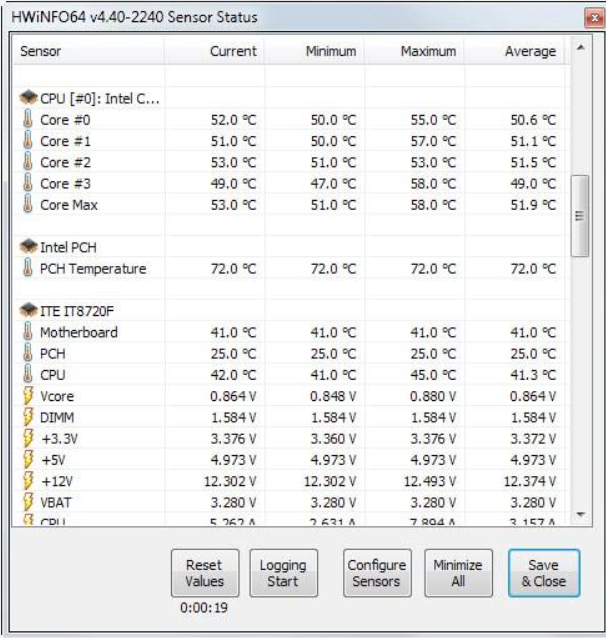
HWiNFO provides extensive hardware identification, system monitoring, and reporting capabilities.
It’s particularly useful when you’re troubleshooting problems that may involve temperature, power consumption, or hardware operating conditions.
Depending on the system’s available sensors, HWiNFO may display:
- Processor temperatures and operating frequencies.
- GPU temperatures and utilization.
- Motherboard and chipset information.
- Fan speeds.
- Voltage and power measurements.
- Storage device information and health indicators.
- Detailed hardware inventory information.
One of the most valuable features is real-time sensor monitoring.
For example, suppose a computer performs normally at first but slows down significantly after running a demanding application for several minutes.
Is the processor overheating? Are temperatures increasing? Is the processor reducing its clock speed?
HWiNFO can help you investigate those possibilities.
Keep in mind that sensor availability and accuracy depend on the hardware. Not every computer exposes every possible measurement.
HWiNFO is free for personal, noncommercial use, while some commercial uses and advanced capabilities require licensing.
4. PowerShell: Hardware Information From the Command Line
For readers who prefer a command-line approach, Windows PowerShell provides another way to inspect system hardware.
Open PowerShell or a Windows Terminal session with PowerShell selected.
To identify your processor:
Get-CimInstance Win32_Processor | Select-Object Name,NumberOfCores,NumberOfLogicalProcessors
To identify your computer’s manufacturer and model:
Get-CimInstance Win32_ComputerSystem | Select-Object Manufacturer,Model,TotalPhysicalMemory
To examine BIOS or UEFI firmware information:
Get-CimInstance Win32_BIOS | Select-Object Manufacturer,SMBIOSBIOSVersion,ReleaseDate
To identify installed physical memory modules:
Get-CimInstance Win32_PhysicalMemory | Select-Object BankLabel,Manufacturer,PartNumber,Capacity,Speed,ConfiguredClockSpeed
And to identify physical storage devices:
Get-CimInstance Win32_DiskDrive | Select-Object Model,InterfaceType,Size
These commands query Windows management information and are useful when collecting data from multiple computers or documenting a system configuration.
They don’t require third-party software, and most of these basic queries can be performed without administrator privileges.
Be aware that some details depend on what the system firmware and hardware manufacturers report. You may occasionally encounter missing, incomplete, or generic information.
[Screenshot placeholder: PowerShell displaying processor and physical memory details.]
5. What About Linux?
Linux users have some excellent built-in and installable command-line utilities for examining hardware.
For example, to identify the processor:
lscpu
To display block storage devices:
lsblk -o NAME,SIZE,MODEL,TRAN,TYPE
To list PCI devices, including many network controllers, storage controllers, and graphics adapters:
lspci
For a broader hardware inventory:
sudo lshw -short
And for motherboard, system, and BIOS information:
sudo dmidecode -t system -t baseboard -t bios
Some of these utilities may need to be installed from your Linux distribution’s package repositories.
On Ubuntu and Linux Mint, for example, you can install several of them with:
sudo apt update
sudo apt install lshw pciutils dmidecode
The dmidecode command requires elevated privileges and reads hardware information supplied through SMBIOS/DMI tables. Like Windows management information, that data depends on the manufacturer and may not always be complete or accurate.
Also, if you’re running Linux inside a virtual machine or Windows Subsystem for Linux (WSL2), the hardware presented to Linux may be virtualized. Don’t expect every utility to report the physical host’s components directly.
6. Why Is All This Information Useful?
There are several practical situations where knowing exactly what hardware is installed can save considerable time.
Planning upgrades: Before adding memory, replacing storage, or upgrading a graphics card, identify the existing hardware and its supported specifications. Confirm compatibility with the manufacturer before buying parts.
Troubleshooting device problems: Knowing the exact network adapter, chipset, or storage controller makes it much easier to locate appropriate drivers and investigate known issues.
Diagnosing performance problems: Combining hardware identification with real-time measurements can help determine whether CPU utilization, temperature, memory pressure, or storage activity is contributing to poor performance.
Documenting your computer: Keeping a basic hardware inventory is a good practice, particularly when maintaining multiple systems or preparing to reinstall an operating system.
Security and maintenance: Knowing your motherboard model and firmware version makes it easier to determine whether relevant manufacturer firmware updates are available.
One final consideration: hardware reports can contain serial numbers, device identifiers, and other information you may not want to publish. Review any exported reports or screenshots before sharing them online.
Final Thoughts
When I first wrote about CPU-Z in 2010, I was impressed by how much hardware detail such a small, free utility could provide.
I’m still impressed today.
CPU-Z remains a very useful first stop when you want to learn more about the hardware inside your Windows computer. Combined with Windows System Information, Device Manager, PowerShell, and HWiNFO, you have an excellent collection of utilities for hardware identification and troubleshooting.
And if you’re a Linux user, there’s no shortage of capable tools available from the command line.
The next time you’re troubleshooting a computer, considering an upgrade, or trying to identify an unfamiliar hardware component, don’t guess. Take a few minutes to find out exactly what’s installed.
It may save you a great deal of time later.
If you would like to help support the continued development of independent networking, broadband, Wi-Fi, VoIP, and packet analysis content, please consider joining our Patreon community where you will gain access to exclusive technical resources, downloadable labs and PCAPs, bonus course content, troubleshooting guides, and additional member-only material. Comments and technical discussion are always welcomed at our Patreon community or on our Discord server. You can also support our work by simply buying us a coffee — every contribution helps us continue creating practical, real-world network science education for professionals and enthusiasts alike.