

One of the challenges of owning and maintaining a Windows PC has always been keeping the operating system, installed applications, device drivers, and other software up to date.
I originally wrote this article back in September 2013 and made a few updates in 2020. A lot has changed since then! Fortunately, keeping software updated has become easier, although there are still a few things every Windows user should understand.
Software updates are not just about getting new features. Updates frequently correct programming defects, improve compatibility, resolve stability problems, and, most importantly, address security vulnerabilities.
Whether you use your PC for work, school, gaming, networking, or simply browsing the Internet, keeping your software current is one of the simplest things you can do to help protect it.
Let’s examine the tools and techniques I recommend today.
1. Start with Windows Update
Windows Update remains the first place to begin.
Microsoft uses Windows Update to distribute operating system patches, security fixes, feature updates, and many hardware device drivers.
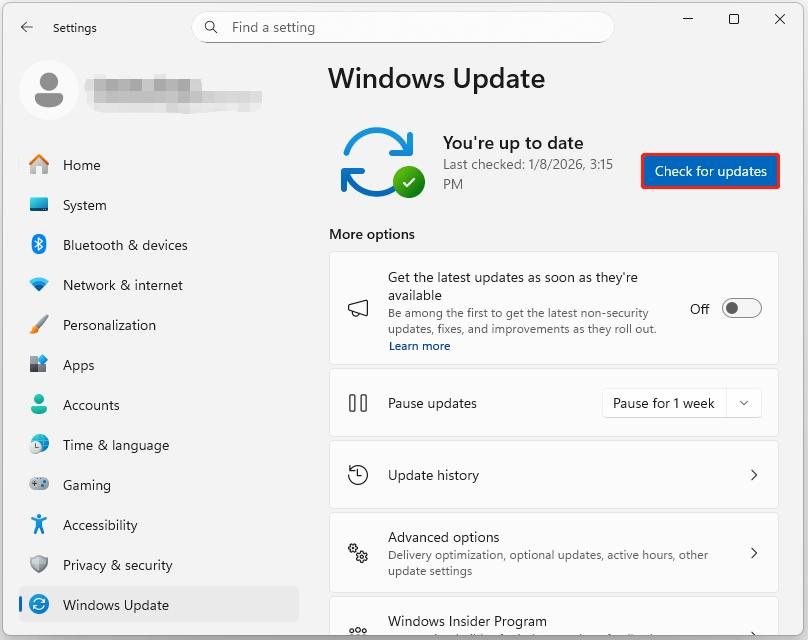
For Windows 11, the process is straightforward:
- Click the Start button and open Settings.
- Select Windows Update.
- Click Check for updates.
- Install the available updates.
- Restart your computer if required.
I recommend checking Windows Update regularly, even when automatic updates are enabled. You may occasionally discover pending updates or a restart that Windows has not yet completed.
You should also examine Advanced options within Windows Update. There you will find additional update settings, including options for receiving updates to other Microsoft products.
A word about Windows 10: Microsoft’s standard support for Windows 10 ended on October 14, 2025. The one-year consumer Extended Security Updates program also reached its scheduled conclusion on October 13, 2026. If you are still using Windows 10, you should be planning your transition to a supported operating system. Commercial and certain specialized Windows editions have different support arrangements.
Microsoft Windows Update documentation
2. Don’t Forget Your Installed Applications
Windows Update does not necessarily update every application installed on your computer.
Think about the software you use regularly: web browsers, PDF readers, video conferencing applications, network troubleshooting utilities, multimedia players, development tools, and many others.
Some applications have their own automatic updating mechanisms. Others require you to initiate updates manually.
This is where Windows Package Manager and third-party application updaters can save considerable time.
3. Windows Package Manager (WinGet)
One of the best additions to Windows software maintenance is Windows Package Manager, commonly called WinGet.
WinGet is a Microsoft-supported command-line utility that allows users to search for, install, update, and remove applications.
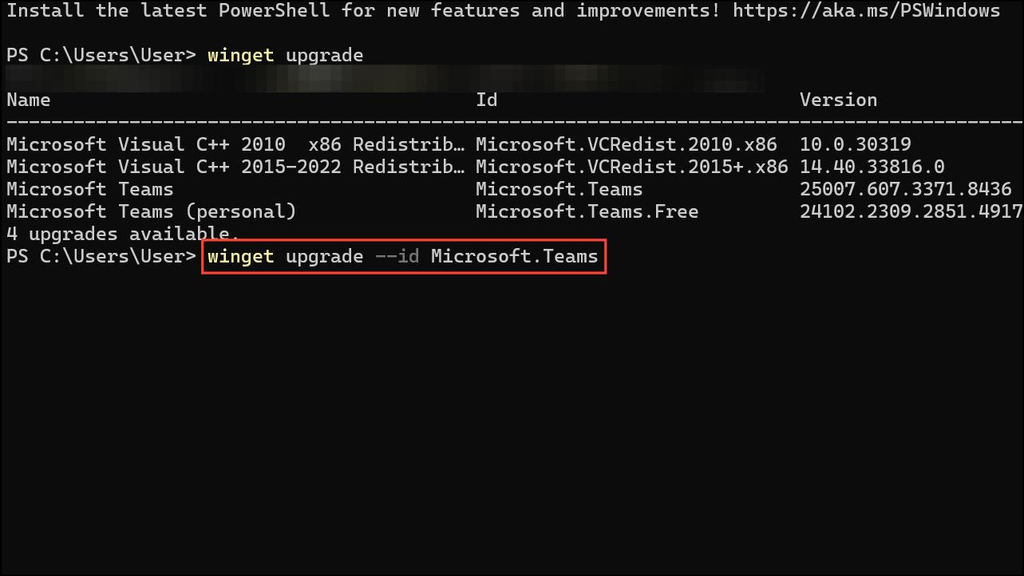
If you are comfortable using Windows Terminal, PowerShell, or the Command Prompt, this is an incredibly useful tool.
WinGet is generally included with Windows 11 through Microsoft’s App Installer package.
Open a Windows Terminal or PowerShell window and enter:
winget --version
If WinGet is installed, the command displays its version.
Now enter:
winget upgrade
This displays applications that WinGet recognizes as having updates available.
Here is where things become particularly useful. To attempt to update all eligible applications, enter:
winget upgrade --all
WinGet will work through the available application upgrades, downloading and launching the appropriate installers.
How convenient is that?
You can also update individual applications. For example:
winget upgrade --id WiresharkFoundation.Wireshark
WinGet can be used to install applications, too:
winget search wireshark
winget install --id WiresharkFoundation.Wireshark -e
The search command looks for matching packages. The install command identifies the exact package using its package ID.
A few cautions: WinGet does not manage every installed application, and some software may require special handling. You may encounter installer prompts, administrator permission requests, applications that must be closed, or updates that cannot be completed automatically.
I recommend running winget upgrade first so that you can review the proposed updates before executing winget upgrade --all.
Learn more about WinGet from Microsoft
4. Patch My PC Home Updater
One of the utilities I recommended in the original version of this article was Patch My PC Home Updater.
The good news is that it is still available, and it has evolved considerably since 2013.
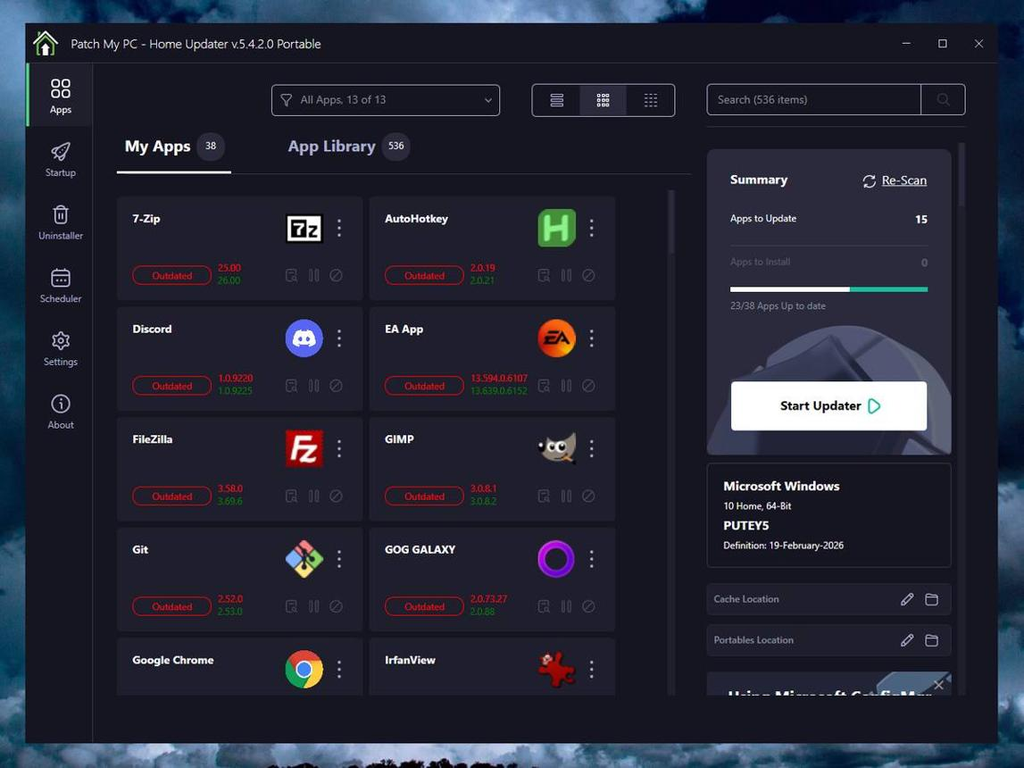
Patch My PC Home Updater provides a graphical interface for identifying outdated applications and installing available updates. This is particularly useful for individuals who prefer not to work at the Windows command line.
The current generation is Version 5. The older Version 4 was officially deprecated in August 2025.
The program supports a catalog of commonly used Windows applications and can simplify updating multiple programs.
I particularly like the concept of being able to examine installed applications in one place rather than opening each application and hunting through its menus for an update function.
However, remember that Patch My PC, like WinGet, does not necessarily manage every application installed on your system.
Visit the Patch My PC Home Updater website
For many home users, this is an excellent alternative to working directly with WinGet.
5. What About Hardware Drivers?
In my original article, I recommended a third-party utility called Driver Booster.
I no longer recommend using a generic driver updater as a routine maintenance tool.
Why the change?
Hardware drivers operate at a different level from ordinary applications. They allow Windows to communicate with devices such as your network interfaces, graphics adapters, sound hardware, printers, and storage controllers.
Installing an incorrect or incompatible driver can cause considerably more trouble than leaving a properly functioning driver alone.
Windows Update already delivers many recommended hardware drivers.
You can also check for optional drivers by navigating to:
Settings → Windows Update → Advanced options → Optional updates
My recommendation is to use Windows Update as your primary driver maintenance mechanism.
If you have a particular hardware problem or need a newer driver for specific functionality, visit the computer or component manufacturer’s official support website.
For example, Dell, Lenovo, HP, Intel, AMD, and NVIDIA maintain driver and software support resources for their products.
I would not recommend installing every optional driver simply because a newer version exists.
If the device is functioning properly, there may be little practical benefit in replacing its current driver.
The exception is when a driver update addresses a relevant security vulnerability, compatibility problem, or defect that affects your system.
6. Microsoft Store Applications
There is one more software update location worth checking: the Microsoft Store.
Applications installed through the Microsoft Store can receive updates independently of the operating system.
Open the Microsoft Store, navigate to its update or download management area, and check for available application updates.
You should also verify that automatic application updating is enabled in the Store settings.
Keep in mind that some application publishers use their own updating systems, even when their applications are available through the Store.
Microsoft Store application update instructions
7. A Few Additional Maintenance Recommendations
There are several other things I recommend when maintaining a Windows PC.
Restart your computer periodically. Some updates cannot finish installing until the computer restarts. Putting a system to sleep every day is not necessarily the same as restarting it.
Keep your web browsers current. Browsers handle untrusted Internet content every day, making security updates particularly important. Most modern browsers update automatically, but a browser restart may be required.
Avoid unofficial software download sites. Whenever practical, download applications from the publisher’s official website, Microsoft Store, or a trusted package manager.
Remove applications you no longer use. Unused applications consume storage, may run background processes, and can introduce unnecessary security exposure. If you no longer need an application, uninstall it rather than continuing to maintain it.
Maintain reliable backups. Updates normally work without problems, but there is always the possibility of a failed installation, driver conflict, or other unexpected behavior. Important files should be backed up independently of the computer being maintained.
Remember application-specific updates. Some specialized tools, plug-ins, firmware utilities, and portable applications may not be covered by Windows Update, WinGet, or Patch My PC.
8. My Recommended Windows Maintenance Routine
Here is the simple routine I suggest for most Windows users.
| Frequency | Recommended activity |
|---|---|
| Automatically | Allow Windows and application security updates to install |
| Weekly | Check Windows Update and complete pending restarts |
| Weekly or monthly | Run winget upgrade or Patch My PC Home Updater |
| Monthly | Check Microsoft Store updates and applications with separate update mechanisms |
| As needed | Check manufacturer drivers, BIOS/UEFI firmware, and device utilities |
| Periodically | Review installed applications and remove software no longer needed |
| Continuously | Maintain reliable backups of important data |
The objective is not to install every new software version the moment it appears. The objective is to keep the computer secure, compatible, reliable, and reasonably current without creating unnecessary maintenance problems.
Final Thoughts
When I originally wrote this article in 2013, maintaining a Windows PC often involved several separate utilities and a lot of manual checking.
Today, we have much better options.
Windows Update handles the operating system and many drivers. Microsoft Store manages many installed applications. WinGet provides a powerful command-line package management capability, while Patch My PC offers an easy-to-use graphical alternative.
For my own purposes, I particularly like having WinGet available. Being able to identify outdated applications with a single command is extremely useful, especially when maintaining multiple Windows systems.
Regardless of which utilities you prefer, the important thing is to establish a regular maintenance routine and not ignore security updates.
What utilities do you use to keep your Windows computers up to date? Have you tried WinGet or the newer versions of Patch My PC?
Enjoy!
If you would like to help support the continued development of independent networking, broadband, Wi-Fi, VoIP, and packet analysis content, please consider joining our Patreon community where you will gain access to exclusive technical resources, downloadable labs and PCAPs, bonus course content, troubleshooting guides, and additional member-only material. Comments and technical discussion are always welcomed at our Patreon community or on our Discord server. You can also support our work by simply buying us a coffee — every contribution helps us continue creating practical, real-world network science education for professionals and enthusiasts alike.