

Originally published August 7, 2018 | Updated October 2026
Several years ago, during a video call with a service provider technical lead, I noticed something interesting. Almost every question I answered, whether it concerned Wi-Fi, network testing, troubleshooting, or packet analysis, involved demonstrating something on my Linux laptop.
Eventually, the technical lead asked why I was using Linux instead of Windows.
My response was simple: Linux provides an extraordinary collection of network troubleshooting, diagnostic, and analysis tools, often at little or no software cost. I encouraged the provider to consider adding Linux to its technical team’s toolkit.
That conversation led to the original version of this article in 2018.
Fast-forward to 2026, and I believe the argument for using Linux is even stronger. However, the choices for deploying Linux have changed considerably. We now have mature virtualization solutions, excellent Linux desktop distributions, and perhaps most importantly, Microsoft’s Windows Subsystem for Linux (WSL).
Today, a technician doesn’t necessarily have to choose between Windows and Linux. They can use both on the same computer, often at the same time.
Let’s look at why that matters to broadband service providers and their technical teams.
Why Linux?
Linux has long been an important operating system in the networking industry. It is widely used in servers, routers, firewalls, embedded systems, cloud infrastructure, network appliances, and telecommunications platforms.
That alone makes it worth learning.
But for a field service technician, NOC technician, or network engineer, the real advantage is access to an extensive collection of tools for examining how networks actually operate.
Need to examine an interface configuration? Use ip.
Need to troubleshoot DNS? Try dig.
Want to identify open TCP connections and listening sockets? Use ss.
Need to perform a packet capture? Use tcpdump or tshark.
Want to investigate packet loss and latency across a network path? Try mtr.
Linux provides many of these capabilities directly through its command-line environment, with additional tools available through software repositories.
And there is another important advantage: many of these tools work consistently across different Linux distributions. Once a technician understands the basic commands, those skills transfer to other Linux systems, including servers, cloud environments, and many network appliances.
This is not an argument that Windows is a bad operating system. Windows has excellent networking tools, including Wireshark, PowerShell, and numerous commercial diagnostic applications.
My argument is that technicians who know only Windows are missing an important collection of troubleshooting capabilities.
Linux Tools Every Network Technician Should Know
Here are some examples of Linux tools that I believe deserve a place in the broadband technician’s toolkit.
| Tool | What it helps you investigate |
|---|---|
ip | IPv4/IPv6 addressing, interfaces, routing, and neighbors I have a post on this in particular: https://www.cellstream.com/2026/10/17/linux-ip-command/ |
ping and ping -6 | IPv4/IPv6 reachability |
tracepath / traceroute | Network paths and possible routing issues |
ss | TCP and UDP sockets, connections, and listening ports |
dig | DNS queries and DNS troubleshooting |
tcpdump | Packet capture directly from the command line |
tshark | Packet capture and protocol analysis using Wireshark’s CLI |
iperf3 | TCP/UDP throughput and performance testing |
mtr | Repeated path probing and latency/loss investigation |
nmap | Authorized network discovery and service identification |
ethtool | Ethernet interface, driver, and link information |
iw | Wireless interface and Wi-Fi information on supported hardware |
Some tools must be installed separately, and certain capabilities require administrative privileges or appropriate hardware access.
Notice that these tools don’t simply report whether the Internet is working. They help us examine what is actually happening in the network.
For broadband service providers, that distinction is important.
A customer might complain about slow Internet performance, but the underlying problem could be DNS resolution, TCP retransmissions, a wireless issue, routing instability, or something else entirely.
Having access to the right tools helps us investigate these possibilities rather than guess.
Choosing a Linux Distribution
One of the first questions people ask is, “Which version of Linux should I use?”
There is no single correct answer. Linux comes in many distributions, commonly called distros, each with its own software choices, desktop environment, and intended audience.
For general broadband troubleshooting and technical training, I would consider the following.
Ubuntu Linux
Ubuntu remains an excellent choice for technicians learning Linux. It is widely documented, well supported, and offers a substantial collection of networking applications through its package repositories.
It is also one of the easiest Linux distributions to deploy using WSL on Windows.
Website: https://ubuntu.com
Linux Mint
Linux Mint is another excellent choice, particularly for technicians who want a traditional graphical desktop environment.
Its interface is familiar to many Windows users, making it relatively easy to transition between the two operating systems.
I particularly like Linux Mint for a dedicated Linux laptop used for networking experiments, troubleshooting, and GNS3 lab environments.
Website: https://linuxmint.com
Debian Linux
Debian is a well-established distribution known for its emphasis on stability and reliability.
It is an excellent choice for servers, lab environments, and technicians who want to learn Linux in an environment commonly associated with networking infrastructure.
Website: https://www.debian.org
Kali Linux
In the original version of this article, I suggested Kali Linux as a possible distribution for broadband technicians.
I would qualify that recommendation today.
Kali Linux is a Debian-based distribution designed primarily for penetration testing, security assessments, and digital forensics. It includes many specialized security tools, but most broadband technicians will not need all of them.
I still believe Kali is valuable for security-oriented troubleshooting and education, but I would not make it the default operating system for a general-purpose technical team.
Website: https://www.kali.org
For most service provider technical teams, I would start with Ubuntu or Linux Mint and install additional networking tools as needed.
How Should We Deploy Linux?
This is where the discussion has changed most significantly since 2018.
Back then, my primary recommendation was to configure technicians’ laptops for dual-booting between Windows and Linux.
Dual-booting still works, but it is no longer my first recommendation for everyone.
There are now four practical ways to give technicians access to Linux.
Option 1: A Dedicated Linux Laptop or Desktop
A dedicated Linux computer provides the most direct access to Linux and its networking capabilities.
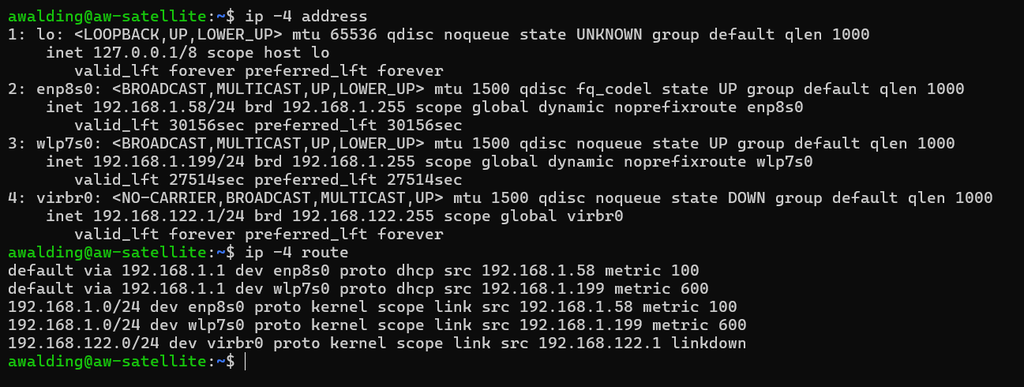
The operating system communicates with supported Ethernet and Wi-Fi hardware directly, without relying on a Windows host or a virtual network adapter.
This is particularly useful when working with:
- Wi-Fi interfaces and monitor-mode packet captures.
- Ethernet packet capture and interface troubleshooting.
- USB network adapters and specialized hardware.
- Network simulation environments such as GNS3.
- Linux networking features that need direct interface or kernel access.
There are also opportunities to reuse older hardware that may no longer be suitable for current Windows releases.
For example, Windows 10 reached its normal end of support on October 14, 2025. Older machines that cannot support Windows 11 may still make excellent Linux workstations, provided the hardware and chosen Linux distribution remain supported.
For a technician who spends considerable time doing network testing and analysis, a dedicated Linux computer can be a very useful investment.
Option 2: Dual-Boot Windows and Linux
With dual-booting, both Windows and Linux are installed on the same computer. The technician chooses which operating system to start when the machine boots.
The principal advantage is that Linux gets direct access to the system hardware.
The disadvantage is that moving between operating systems requires a reboot.
Dual-booting also introduces some additional considerations involving disk partitioning, encryption, firmware settings, and maintaining two operating systems.
I still consider it a reasonable option, particularly for technicians who need native Linux hardware access but cannot justify a second laptop.
However, make sure the computer is properly backed up before modifying its partitions or boot configuration.
Option 3: Linux in a Virtual Machine
Another option is to install Linux in a virtual machine using a virtualization platform such as VirtualBox, VMware, or another suitable hypervisor.
This allows Windows and Linux to run simultaneously.
Virtual machines are particularly useful for:
- Learning Linux without modifying the primary operating system.
- Creating isolated network troubleshooting environments.
- Running multiple Linux instances.
- Building networking laboratories.
- Testing configurations and software without affecting the host system.
Virtualization has improved substantially since the original article was written.
However, there are still limitations.
Virtual Ethernet adapters are not necessarily equivalent to physical Ethernet interfaces. Bridged networking can provide useful connectivity, but the guest may not have unrestricted access to everything occurring on the physical network.
Wi-Fi analysis introduces additional complications. A virtual machine generally does not obtain native 802.11 monitor-mode capabilities simply because the host computer uses Wi-Fi.
For specialized wireless analysis, a compatible USB Wi-Fi adapter passed through to the guest operating system may be necessary.
The VM also consumes memory, storage, and processing resources.
Nevertheless, virtual machines remain an excellent choice for learning and lab environments.
Option 4: Windows Subsystem for Linux — WSL2
Perhaps the most important change since the original article was published is the continued development of Microsoft’s Windows Subsystem for Linux.
WSL allows Windows users to run a Linux environment directly alongside their existing Windows applications.
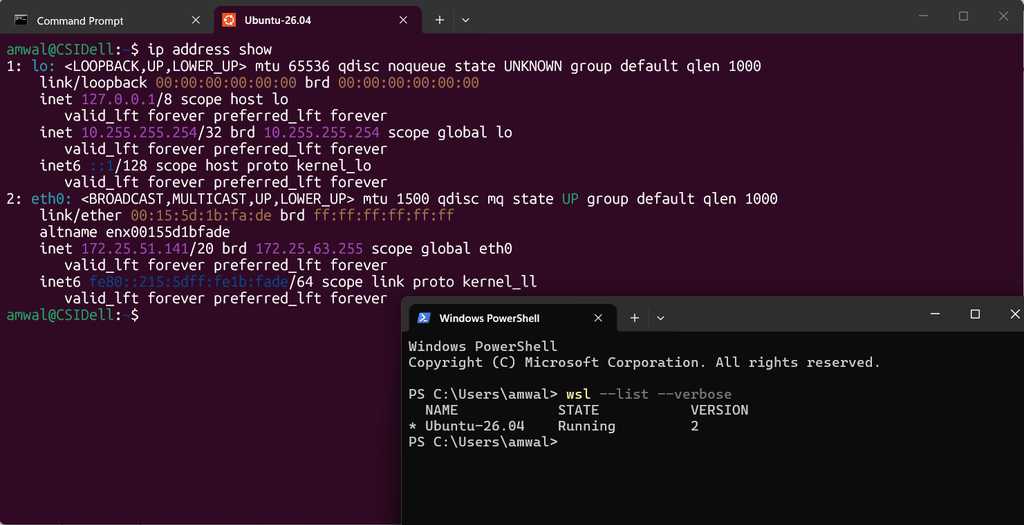
In particular, WSL2 uses an actual Linux kernel running inside a lightweight, Microsoft-managed virtual machine.
That is a major advantage compared with older solutions that attempted to reproduce Linux functionality through compatibility layers.
Today, WSL2 is an excellent way for a Windows-based technician to begin using Linux without replacing Windows or configuring a conventional virtual machine.
Imagine a technician using Wireshark in Windows while simultaneously running Linux commands in a terminal.
That technician could execute DNS queries, examine routes, run scripts, connect to remote systems using SSH, or use Linux-based diagnostic utilities without rebooting the computer.
For many everyday activities, this is extremely convenient.
Installing WSL2
On a supported Windows 11 computer, installing WSL is usually straightforward.
Open PowerShell as Administrator and enter:
wsl --install
By default, this enables the required Windows components and installs Ubuntu using WSL2.
A restart may be required.
When Ubuntu starts for the first time, complete the initial user setup as prompted.
You can verify which Linux distributions are installed and whether they use WSL1 or WSL2 by entering the following command in PowerShell:
wsl --list --verbose
You can also update the WSL components with:
wsl --update
Once Ubuntu is installed, launch it from the Windows Start menu or Windows Terminal.
Inside the Linux terminal, update the available package information and installed packages:
sudo apt update
sudo apt upgrade
You now have a working Linux environment.
For the current Microsoft installation instructions, see: https://learn.microsoft.com/windows/wsl/install
Installing Networking Tools in WSL
Let’s install a useful collection of networking utilities.
From an Ubuntu terminal, execute:
sudo apt install iproute2 iputils-ping dnsutils traceroute mtr-tiny tcpdump tshark iperf3 nmap ethtool
You can then begin exploring your Linux environment.
For example, enter:
ip address show
This displays the IPv4 and IPv6 addresses assigned to the available Linux interfaces.
Next try:
ip route show
This displays the IPv4 routing table.
For IPv6 routing information:
ip -6 route show
You can also investigate DNS using:
dig www.cellstream.com
Or examine socket information using:
ss -tunap
These are useful commands to learn, even if you eventually decide to use a dedicated Linux system.
One of the nice things about WSL is that you can continue running Windows applications while experimenting with Linux commands in another window.
Understanding WSL2’s Networking Limitations
There is one important qualification I want to make.
WSL2 is not a complete replacement for a dedicated Linux troubleshooting workstation.
Although it runs a genuine Linux kernel, its networking environment is virtualized and integrated with Windows.
Under the traditional default configuration, WSL2 uses Network Address Translation (NAT). Consequently, the Linux environment may have its own IP address, routing table, and virtual network interfaces that differ from those of the Windows host.
For example, executing:
ip address show
inside WSL2 does not necessarily display the physical Ethernet and Wi-Fi interfaces exactly as they exist on the Windows computer.
Similarly, a packet capture performed from inside WSL2 may observe traffic associated with the virtualized Linux environment rather than all traffic on the physical network adapter.
This distinction is critically important for packet analysis.
Suppose a technician wants to troubleshoot a Wi-Fi association or authentication problem by examining 802.11 management frames.
Installing Wireshark or tcpdump inside WSL2 does not automatically provide access to the wireless radio in monitor mode.
Likewise, a capture from a WSL2 virtual Ethernet interface should not be confused with a capture directly from a physical Ethernet adapter.
Microsoft has introduced a mirrored networking mode for supported Windows 11 systems that improves aspects of WSL networking, including IPv6 support and compatibility with certain network configurations.
However, mirrored networking is not the same as giving Linux unrestricted physical access to network hardware.
For ordinary IP troubleshooting, shell commands, DNS testing, SSH, scripting, and many other tasks, WSL2 is excellent.
For specialized packet capture, wireless monitoring, hardware-driver troubleshooting, or experiments requiring direct network interface control, a native Linux installation may be more appropriate.
The key is understanding which environment you are actually testing.
Microsoft provides more information about WSL networking here: https://learn.microsoft.com/windows/wsl/networking
What About Wireshark?
Naturally, I need to address Wireshark because packet analysis is such an important part of broadband troubleshooting.
Wireshark is available for Windows, Linux, and macOS.
You do not need Linux to run Wireshark successfully, and I would not recommend moving to Linux solely for that reason.
However, Linux provides several complementary tools that make packet analysis more flexible.
For example, tcpdump can capture packets on remote Linux systems without a graphical desktop, while tshark can perform command-line protocol analysis and extract selected fields from capture files.
Both are valuable when investigating network issues on servers, appliances, and remote systems.
A technician might capture packets on a Linux system, save them to a PCAP or PCAPNG file, and then analyze the results using Wireshark on a Windows workstation.
WSL can also be helpful for processing existing packet capture files using Linux scripts and command-line utilities.
My recommendation is to learn the tools and understand their capabilities rather than assume one operating system is the best solution for every capture scenario.
A Practical Linux Adoption Strategy for Broadband Providers
If I were advising a rural broadband provider today, I would not recommend immediately replacing every technician’s Windows laptop with Linux.
That approach introduces unnecessary disruption and may interfere with existing Windows-based applications, provisioning utilities, equipment management tools, and support workflows.
Instead, I would recommend a gradual introduction.
First, introduce Linux fundamentals.
Technicians should become comfortable with the Linux terminal, file system, package management, permissions, network interface commands, routing information, DNS tools, and basic packet capture.
Second, introduce WSL2 on compatible Windows workstations.
This allows technical teams to develop Linux skills while continuing to use familiar Windows applications.
Third, provide dedicated Linux systems or virtual machines for advanced technical needs.
These systems can support packet capture, Wi-Fi analysis, network simulations, GNS3 environments, security exercises, and other laboratory activities.
Finally, integrate Linux tools into troubleshooting procedures.
Rather than teaching a command simply because it exists, demonstrate how it helps solve real problems.
For example, investigate why DNS works from one client but not another. Compare routing tables. Examine TCP retransmissions. Test IPv6 connectivity. Capture DHCP messages. Investigate why an application cannot connect to a particular TCP port.
These are the kinds of exercises that transform Linux familiarity into practical troubleshooting skills.
Don’t Forget the Training
There is one final point from the original article that I want to emphasize.
Installing Linux is relatively easy.
Learning to use Linux effectively is where the real value comes from.
A technician who knows how to execute ping has learned one command.
A technician who understands how to examine routing decisions, test IPv4 and IPv6 reachability, inspect DNS queries, examine socket states, and correlate packet captures with application behavior has developed a much more valuable troubleshooting skill set.
The goal isn’t to turn every broadband technician into a Linux system administrator.
The goal is to make technical teams more capable, more confident, and better equipped to troubleshoot modern networks.
Final Thoughts
Back in 2018, I argued that Linux should become a standard tool for rural broadband service provider technical teams.
I still believe that.
What has changed is that adopting Linux is now considerably easier and more flexible.
A dedicated Linux laptop is still an excellent choice. Dual-booting remains an option. Virtual machines are useful for training and laboratory work. And WSL2 makes it possible for Windows users to explore Linux without abandoning their existing operating system.
For many technicians, WSL2 may be the easiest first step.
But regardless of the deployment method, the underlying message hasn’t changed:
If you are working in broadband networking, telecommunications, network operations, or network troubleshooting, Linux is a skill worth developing.
At CellStream, we help service providers and technical teams develop the skills needed to understand and troubleshoot modern IP networks, including practical Linux networking, IPv4, IPv6, Wi-Fi, and packet analysis.
Visit https://www.cellstream.com for more information about our technical training and consulting services.
If you would like to help support the continued development of independent networking, broadband, Wi-Fi, VoIP, and packet analysis content, please consider joining our Patreon community where you will gain access to exclusive technical resources, downloadable labs and PCAPs, bonus course content, troubleshooting guides, and additional member-only material. Comments and technical discussion are always welcomed at our Patreon community or on our Discord server. You can also support our work by simply buying us a coffee — every contribution helps us continue creating practical, real-world network science education for professionals and enthusiasts alike.