

Originally published October 26, 2018 | Updated October 2026
If you have spent much time working with Linux, you probably remember commands such as ifconfig, route, and arp. For years, these utilities were commonly used to examine network interfaces, IP addressing, routing tables, and other networking information.
Those commands may still be available on some Linux systems, but modern Linux distributions generally provide a much more capable alternative: the ip command.
Part of the iproute2 suite of networking utilities, the ip command allows us to examine and manage network interfaces, IPv4 and IPv6 addresses, routing tables, neighbor information, multicast addresses, and much more.
What I particularly like about the ip command is that it lets us examine the Linux networking stack from several different perspectives. We can start with the interface itself, move into IP addressing, examine routing decisions, and even watch network state changes as they happen.
In this article, we’ll explore these capabilities using actual examples from two Linux environments: Ubuntu running under Windows Subsystem for Linux 2 (WSL 2), and a native Linux Mint computer.
We’ll also look at a few unexpected results that illustrate why troubleshooting requires more than simply checking whether an interface is UP.
Let’s explore!
1. Our Linux Environments
For this article, we’re using two systems.
The first is Ubuntu 26.04 LTS running under WSL 2 on a Windows computer. This provides a genuine Linux kernel environment without requiring a dedicated Linux workstation.
The second is a computer named aw-satellite running Linux Mint 22.3, with both wired Ethernet and Wi-Fi interfaces connected to the network.
| Environment | Operating System | Networking |
|---|---|---|
| WSL 2 | Ubuntu 26.04 LTS | Virtual Ethernet interface |
| aw-satellite | Linux Mint 22.3 | Physical Ethernet, Wi-Fi, and virtual bridge |
The distinction is useful. WSL provides a relatively simple environment for learning the commands, while native Linux exposes additional information about physical network interfaces and more extensive IPv6 configuration.
One caution: WSL networking can differ from native Linux. For example, our WSL configuration has an IPv4 default route but no IPv6 default route. That is a property of this particular configuration, not a limitation of the Linux ip command itself.
Microsoft also offers mirrored networking support for WSL 2, which can provide additional IPv6, multicast, and network compatibility capabilities.
2. Getting Started with the ip Command
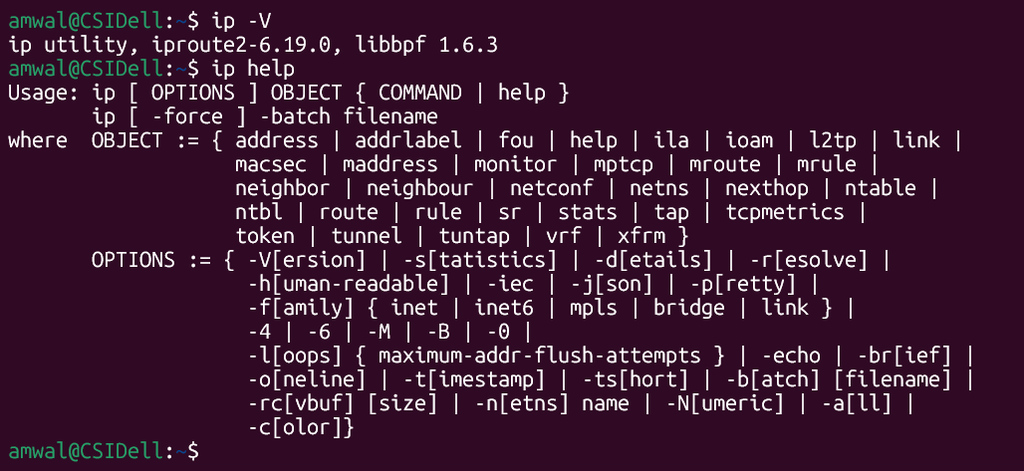
Open a terminal and enter:
ipLinux displays the command syntax and available objects.
We can also request help:
ip helpAnd check the installed version:
ip -VOn our WSL system, the version command returned:
ip utility, iproute2-6.19.0, libbpf 1.6.3The ip command provides numerous objects, including:
| Object | Purpose |
|---|---|
address | IP addressing information |
link | Network interface and link-layer information |
route | Routing information |
neigh | IPv4 and IPv6 neighbor information |
maddress | Multicast address memberships |
rule | Routing policy rules |
monitor | Live networking events |
Many commands also have abbreviated forms. For example, ip address, ip addr, and ip a can all be used to examine interface addressing.
We’ll concentrate on displaying information rather than making configuration changes. Most of the commands in this article can be executed without administrator or root privileges.
3. Displaying Network Interfaces and IP Addresses
Let’s begin with one of the commands you’ll probably use most frequently:
ip addrOr simply:
ip aThis command displays network interfaces and their associated addressing information.
Depending on the Linux system, you might see physical Ethernet interfaces, wireless adapters, virtual interfaces, bridges, tunnels, and the loopback interface.
On our native Linux Mint system, we have four interfaces:
| Interface | Description |
|---|---|
lo | Loopback interface |
enp8s0 | Wired Ethernet interface |
wlp7s0 | Wireless network interface |
virbr0 | Virtual network bridge |
Our Ethernet interface has IPv4 address 192.168.1.58/24, while the Wi-Fi interface has 192.168.1.199/24.
Both are on the same IPv4 subnet, an interesting configuration we’ll return to when discussing routing.
The loopback interface uses the familiar IPv4 address 127.0.0.1/8 and IPv6 address ::1/128.
The IPv4 addresses appear after the inet keyword, while IPv6 addresses appear after inet6.
The number following the slash is the prefix length. For example, /24 indicates that the first 24 bits identify the IPv4 network prefix, while /64 indicates a 64-bit IPv6 prefix.
Use:
ip -4 addr show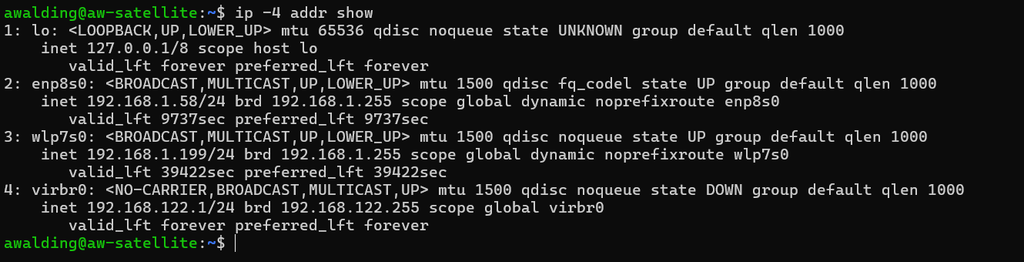
Understanding Linux Network Interface Names
If you are accustomed to older Linux systems, names such as enp8s0 might look unfamiliar.
Historically, Ethernet interfaces were commonly named eth0, eth1, and so forth.
Modern Linux distributions often use predictable network interface naming based on available hardware and firmware information.
For example:
| Interface | General meaning |
|---|---|
lo | Loopback |
eth0 | Traditional or virtual Ethernet interface |
eno1 | Ethernet interface using onboard firmware numbering |
ens3 | Ethernet interface using a firmware or hotplug slot index |
enp8s0 | Ethernet interface associated with PCI bus 8, device slot 0 |
wlp7s0 | Wireless interface associated with PCI bus 7, device slot 0 |
These names are not universal, and interface naming can be affected by distribution policies and system configuration.
For troubleshooting, the critical first step is identifying which interface corresponds to the connection we’re investigating.
4. Using the Brief Output Format
The full output of ip addr contains considerable detail, but sometimes we need a quick summary.
Try:
ip -br addrThe -br option requests brief output.
We can also execute:
ip -br linkOn our WSL system, these commands produced:
lo    UNKNOWN  127.0.0.1/8 10.255.255.254/32 ::1/128
eth0  UP       172.25.51.141/20 fe80::215:5dff:fe0b:11c0/64
The results are considerably easier to read than the complete interface output.
Notice that WSL has a virtual Ethernet interface named eth0, while our native Linux Mint system uses enp8s0.
Also notice that WSL’s IPv4 address is in the private 172.16.0.0/12 address range. In our configuration, this is consistent with WSL’s default virtualized NAT networking architecture.

ip -br addr
ip -br link
This is one of my favorite ways to begin troubleshooting an unfamiliar Linux system.
5. Examining IPv4 and IPv6 Separately
Linux can display addressing information for a specific protocol family.
For IPv4:
ip -4 addrFor IPv6:
ip -6 addrWe can also combine the options:
ip -4 -br addr
ip -6 -br addr
Our native Linux Mint system has several IPv6 addresses assigned to each physical network interface.
For example, the Ethernet interface includes a link-local address:
fe80::1e13:fa66:a514:ae0f/64It also has global unicast IPv6 addresses from:
2603:8081:1800:b447::/64And Unique Local Addresses (ULAs) from:
fd00:582f:f773:4832::/64This illustrates an important difference between IPv4 and IPv6. An IPv6-enabled interface commonly has several IPv6 addresses, each potentially serving a different purpose.
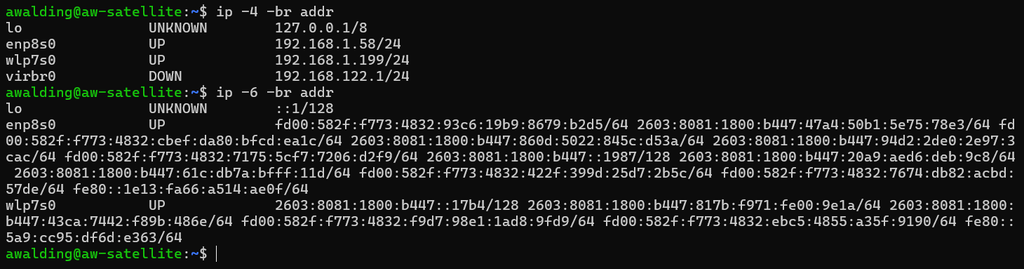
ip -4 -br addr
ip -6 -br addr
The IPv6 output may be lengthy.
Why Does My Linux Interface Have So Many IPv6 Addresses?
Our Ethernet interface has 12 IPv6 addresses!
At first glance, that might look like a configuration problem, but examining the detailed address information explains much of what we’re seeing.
Try:
ip -6 addr show dev enp8s0One of our addresses is marked:
scope global temporary dynamicAnother is marked:
scope global temporary deprecated dynamicLinux supports temporary IPv6 privacy addresses, which can change over time to reduce address-based tracking.
An address marked temporary is a privacy address.
An address marked deprecated is no longer preferred for new communication, although it can remain valid for a period of time.
Two additional fields help explain this behavior:
preferred_lftindicates how much longer an address remains preferred.valid_lftindicates how much longer the address remains valid.
An address with a preferred lifetime of zero may still have a substantial valid lifetime remaining.
This is normal IPv6 behavior and an important consideration when analyzing IPv6 connectivity and packet captures.
The mngtmpaddr flag also appears on some of our addresses. It indicates that the address can serve as a template for managing temporary addresses.
The presence of numerous IPv6 addresses does not, by itself, indicate a problem.
6. Understanding Network Interface Status
Let’s move from IP addressing to the network interfaces themselves.
Execute:
ip linkOr examine a specific interface:
ip link show dev enp8s0On our Linux Mint system, we received:
2: enp8s0: <BROADCAST,MULTICAST,UP,LOWER_UP>
    mtu 1500 qdisc fq_codel state UP
    mode DEFAULT group default qlen 1000
    link/ether 2c:60:0c:0c:97:bc
    brd ff:ff:ff:ff:ff:ff
There is quite a bit of useful information here.
First, BROADCAST and MULTICAST indicate capabilities of the interface.
The UP flag indicates that the interface has been administratively enabled.
LOWER_UP means the driver reports an operational lower-layer connection.
These are not the same thing!
An Ethernet interface can be administratively UP but have no working physical link.
And even when LOWER_UP is present, that does not guarantee that IP addressing, routing, DNS, or Internet communication is working.
The mtu 1500 field identifies the configured Maximum Transmission Unit.
The link/ether field identifies the interface’s Ethernet MAC address, followed by the Ethernet broadcast address.
You may also notice qdisc fq_codel.
This identifies the queueing discipline associated with the interface. FQ-CoDel combines flow queueing with active queue management and is designed to help control queueing delays.
That is a useful connection to broadband troubleshooting, particularly when discussing latency and bufferbloat.

ip link show dev enp8s07. Examining Interface Statistics
Another valuable capability is displaying interface traffic statistics.
Execute:
ip -s linkOr examine a specific interface:
ip -s link show dev enp8s0Our Linux Mint Ethernet interface reported:
RX: bytes       packets errors dropped missed mcast
    9365452418  7462279      0       0      0 434640

TX: bytes       packets errors dropped carrier collsns
     814174551  4145098      0       0       0      0
The interface has received more than 9 billion bytes and transmitted more than 814 million bytes since its counters were initialized.
The output also includes packet counts, errors, drops, missed packets, multicast packets, carrier errors, and collision counters.
In our example, the reported receive and transmit error counters are zero.
That’s encouraging, but it does not guarantee that the network is operating perfectly.
For one thing, the meaning and availability of some statistics can vary by network driver.
Also, these counters represent information accumulated over time. They are not measurements of current bandwidth utilization.
If we want to calculate a traffic rate, we need to sample byte counters at two different times and calculate the difference divided by the measurement interval.
This is a fundamental distinction in network performance analysis.

ip -s link show dev enp8s08. Examining ARP and IPv6 Neighbor Discovery
Before a device can send an Ethernet frame toward a local IPv4 destination or next-hop router, it generally needs to resolve the corresponding link-layer address.
IPv4 uses Address Resolution Protocol (ARP).
IPv6 performs address resolution using ICMPv6 Neighbor Discovery.
Linux maintains neighbor information that can be examined using:
ip neighWe can also separate IPv4 and IPv6:
ip -4 neigh
ip -6 neigh
On our native Linux computer, we examined the Ethernet interface:
ip -4 neigh show dev enp8s0One entry identified the IPv4 default gateway:
192.168.1.1 lladdr 58:2f:f7:73:48:32 REACHABLEFor IPv6, we executed:
ip -6 neigh show dev enp8s0And observed:
fe80::5a2f:f7ff:fe73:4832
    lladdr 58:2f:f7:73:48:32 router REACHABLE
Notice that both entries identify the same MAC address.
The IPv6 entry also identifies the neighbor as a router.
These examples demonstrate how IPv4 and IPv6 can maintain separate neighbor information for the same physical networking device.
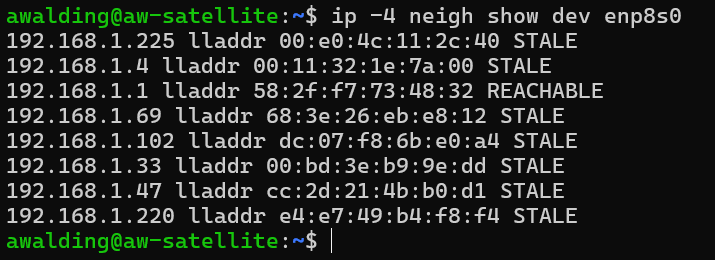
ip -4 neigh show dev enp8s0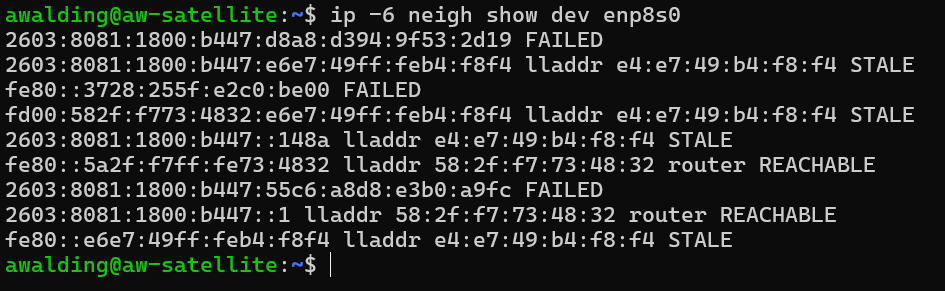
ip -6 neigh show dev enp8s0Understanding Neighbor States
The neighbor table provides more than IP addresses and MAC addresses.
Each entry can also contain information about the current neighbor reachability state.
| State | Interpretation |
|---|---|
| REACHABLE | Reachability has recently been confirmed |
| STALE | Reachability has not been confirmed recently |
| DELAY | Waiting briefly before active probing |
| PROBE | Actively attempting to confirm reachability |
| INCOMPLETE | Address resolution has not completed |
| FAILED | Neighbor resolution or reachability confirmation failed |
One of the most important points is that STALE does not mean a device is offline.
It simply means that reachability has not recently been confirmed.
Similarly, a FAILED entry represents an unsuccessful neighbor operation, not necessarily proof that the destination device itself is permanently unreachable.
The distinction becomes especially important with IPv6 because Neighbor Discovery is responsible for several functions beyond address resolution.
For additional background, see RFC 4861, which specifies IPv6 Neighbor Discovery.
9. Examining Multicast Addresses
Another interesting capability of the Linux ip command is the ability to examine multicast information associated with network interfaces.
Execute:
ip maddressOr specify an interface:
ip maddress show dev enp8s0The output contains three categories:
| Category | Description |
|---|---|
link | Link-layer multicast MAC addresses |
inet | IPv4 multicast group memberships |
inet6 | IPv6 multicast group memberships |
Our Ethernet interface included:
link  01:00:5e:00:00:fb
link  33:33:00:00:00:fb

inet  224.0.0.251

inet6 ff02::fb
These are interesting because 224.0.0.251 and ff02::fb are used by multicast DNS (mDNS), which uses UDP port 5353.
The IPv4 multicast group maps to Ethernet MAC address 01:00:5e:00:00:fb.
The IPv6 multicast group maps to 33:33:00:00:00:fb.
Notice that IPv6 multicast Ethernet destination addresses generally begin with 33:33.
IPv6 Solicited-Node Multicast
One of the most useful examples involves IPv6 solicited-node multicast addresses.
Our Ethernet interface has this IPv6 link-local address:
fe80::1e13:fa66:a514:ae0fIts solicited-node multicast address is:
ff02::1:ff14:ae0fThis uses the final 24 bits of the assigned IPv6 address.
The corresponding Ethernet multicast MAC address is:
33:33:ff:14:ae:0fSolicited-node multicast addresses play an important role in IPv6 Neighbor Discovery, including address resolution and Duplicate Address Detection.
Instead of using ARP broadcasts as IPv4 does, IPv6 typically sends Neighbor Solicitation messages to solicited-node multicast groups.
One important technical note: although ip maddress displays IP multicast memberships, its add and delete operations are intended for link-layer multicast address management. They are not a general-purpose method for joining arbitrary IP multicast groups.
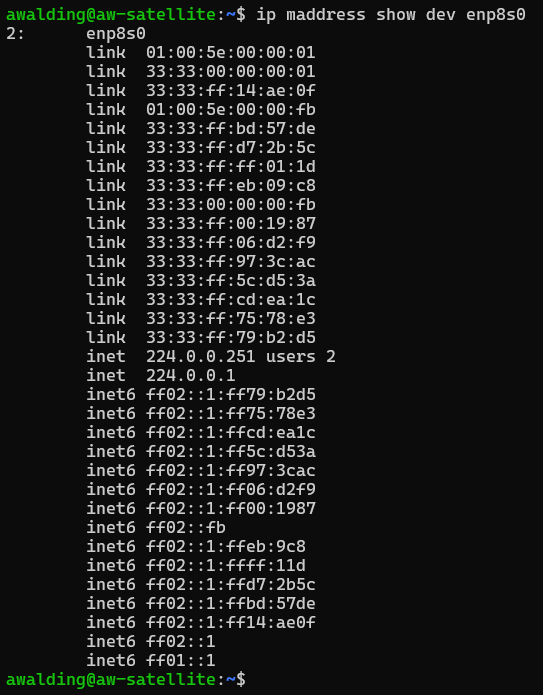
ip maddress show dev enp8s0Note the IPv4 mDNS group, IPv6 mDNS group, an IPv6 solicited-node multicast address, and its corresponding Ethernet MAC address.
10. Examining IPv4 and IPv6 Routing Tables
Let’s move up to the network layer.
One of the most useful capabilities of the ip command is displaying routing information.
Execute:
ip routeThis normally displays IPv4 routes from the main routing table.
We can explicitly select IPv4:
ip -4 routeOr IPv6:
ip -6 routeOn our WSL system, we received:
default via 172.25.48.1 dev eth0 proto kernel
172.25.48.0/20 dev eth0 proto kernel scope link src 172.25.51.141
There are two routes here.
The first is the default route, which uses gateway 172.25.48.1 through interface eth0.
The second identifies the directly connected 172.25.48.0/20 IPv4 subnet.
We can also examine IPv6 routing.
Our WSL system reported:
fe80::/64 dev eth0 proto kernel metric 256 pref mediumNotice what is missing: there is no IPv6 default route.
Although our WSL interface has an IPv6 link-local address, this routing table does not provide a route toward the global IPv6 Internet.
This is a useful reminder that merely having an IPv6 address does not guarantee IPv6 Internet connectivity.
Our native Linux Mint system is different. It has IPv6 global unicast addresses and default routes learned through IPv6 Router Advertisements.

ip -4 route
ip -6 route
11. Determining Which Route Linux Will Select
Displaying the routing table is useful, but suppose we want to know exactly which route Linux will select for a particular destination.
We can ask the kernel to perform a routing lookup.
For IPv4:
ip -4 route get 8.8.8.8On our native Linux Mint computer, the result was:
8.8.8.8 via 192.168.1.1 dev enp8s0
    src 192.168.1.58 uid 1000
    cache
Linux selected the Ethernet interface, enp8s0, and gateway 192.168.1.1.
It also selected 192.168.1.58 as the source address.
Now let’s try IPv6:
ip -6 route get 2001:4860:4860::8888Our result was:
2001:4860:4860::8888 from ::
    via fe80::5a2f:f7ff:fe73:4832
    dev enp8s0 proto ra
    src 2603:8081:1800:b447:47a4:50b1:5e75:78e3
    metric 100 pref high
There are several interesting things here.
First, Linux selected Ethernet again.
Second, the next-hop router uses a link-local IPv6 address beginning with fe80::. This is normal for IPv6 routing.
Third, proto ra indicates that the route was learned through IPv6 Router Advertisement information.
Fourth, notice the selected source IPv6 address. It is one of the temporary privacy addresses assigned to our Ethernet interface.
This provides a useful demonstration of IPv6 source-address selection.
The operating system has several IPv6 addresses available, but it must select an appropriate source address when performing the routing lookup.
The selected address depends on IPv6 source-address selection policy and the available address characteristics.
One important caution: ip route get performs a route lookup. It does not send a test packet to the destination and does not prove that the destination is reachable.

ip -4 route get 8.8.8.8
ip -6 route get 2001:4860:4860::8888
An Interesting Routing Problem We Discovered
While examining our Linux Mint system, we discovered something unusual.
Both Ethernet and Wi-Fi were connected to the same IPv4 subnet, but Linux selected different interfaces depending on the destination.
For Internet traffic:
ip -4 route get 8.8.8.8Linux selected Ethernet.
But for the local gateway:
ip -4 route get 192.168.1.1Linux selected Wi-Fi.
Why?
Our Ethernet interface had the IPv4 address 192.168.1.58/24, but its address configuration included the noprefixroute flag.
This flag prevents the kernel from automatically creating the corresponding connected prefix route.
In our routing table, the connected 192.168.1.0/24 route was present only through Wi-Fi.
Consequently, traffic destined for 192.168.1.1 matched the more specific Wi-Fi subnet route, while traffic toward 8.8.8.8 selected the Ethernet default route.
This illustrates one of the most important principles in IP routing: longest-prefix matching.
A more specific matching route generally takes priority over a less specific route, even when the less specific route has a lower metric.
The example also demonstrates why checking an interface’s IP address alone is not enough. We need to examine the routing table to understand how the system will actually forward packets.
The reason our NetworkManager configuration omitted the Ethernet connected route was not fully established, but the resulting routing behavior was clear.
12. Monitoring Network Changes in Real Time
So far, most commands have provided a snapshot of the network at a particular moment.
But what if we want to observe network changes as they happen?
The Linux ip command has a monitoring capability.
Try:
ip monitor linkThis monitors network interface changes.
We can also monitor routing:
ip monitor routeAddress changes:
ip monitor addressOr neighbor information:
ip monitor neighWe used the last command on our Linux Mint computer and captured some fascinating IPv6 behavior.
Our IPv6 router neighbor transitioned through the following states:
STALE
PROBE
REACHABLE
These were reported for the same IPv6 link-local router address on the same Ethernet interface.
Let’s examine what happened.
First, the neighbor was marked STALE, meaning reachability had not recently been confirmed.
Next, it entered PROBE, indicating that Linux was actively attempting to confirm reachability.
Finally, it became REACHABLE, indicating that reachability confirmation succeeded.
We also observed another IPv6 neighbor transition from PROBE to FAILED on the Wi-Fi interface.
That tells us the reachability confirmation was unsuccessful through that interface at that moment. It does not necessarily mean that the router itself was offline.
Neighbor reachability is tracked separately for each interface and protocol address.
These state changes are part of IPv6 Neighbor Unreachability Detection (NUD).
The actual state machine includes additional states, such as DELAY, which may not appear in every monitoring session.

ip monitor neighThe important thing is that we were able to observe these changes without repeatedly executing ip neigh.
The monitor remained active and displayed networking events as the kernel reported them.
Also, ip monitor is not a packet capture tool. It displays networking state changes reported through the Linux networking interface.
If we want to examine the actual ICMPv6 Neighbor Solicitation and Neighbor Advertisement packets, we can use Wireshark or tcpdump.
Both approaches are useful, but they provide different information.
Press Ctrl+C to stop monitoring.
13. A Practical Linux Network Troubleshooting Workflow
We’ve examined quite a few commands, so let’s put them together into a simple troubleshooting process.
Suppose a Linux computer cannot access a network resource. Rather than immediately blaming DNS, the network interface, or the default gateway, let’s gather some evidence.
Step 1 — Examine the interfaces
ip -br linkAre the expected network interfaces present? Are they administratively enabled? Does the driver report an operational link?
Step 2 — Examine IPv4 and IPv6 addressing
ip -br addrDoes the system have the addresses we expect? Is it using IPv4, IPv6, or both?
Step 3 — Examine the routing tables
ip -4 route
ip -6 route
Are there routes toward the destination? Is there a default gateway for the relevant protocol family?
Step 4 — Determine the selected route
ip -4 route get 8.8.8.8For IPv6:
ip -6 route get 2001:4860:4860::8888Which outgoing interface, next-hop gateway, and source address will Linux select?
Step 5 — Examine neighbor information
ip neighAre local neighbors resolving to link-layer addresses? Are there repeated INCOMPLETE or FAILED entries worth investigating?
Step 6 — Examine interface statistics
ip -s linkAre interface errors or drops being reported? Are the counters increasing?
Step 7 — Monitor changes if necessary
ip monitor allAre interfaces changing state, routes disappearing, or neighbor entries repeatedly failing?
This workflow won’t solve every network problem, but it provides a structured starting point.
Once we’ve established what the Linux operating system knows about its interfaces, addresses, neighbors, and routing decisions, we can move to additional tools such as ping, traceroute, ethtool, tcpdump, or Wireshark.
That is the key to effective troubleshooting: collect evidence, eliminate possibilities, and narrow the problem systematically.
14. Linux ip Command Quick Reference
Here is a summary of the commands explored in this article.
| Command | Purpose |
|---|---|
ip -V | Display iproute2 utility version |
ip help | Display command help |
ip addr | Display IP addresses |
ip -br addr | Brief address summary |
ip -br link | Brief interface summary |
ip -4 addr | IPv4 addresses only |
ip -6 addr | IPv6 addresses only |
ip link | Interface information |
ip link show dev IFACE | Examine a specific interface |
ip -s link | Interface traffic statistics |
ip -4 neigh | IPv4 neighbor table |
ip -6 neigh | IPv6 neighbor table |
ip maddress | Multicast memberships |
ip -4 route | IPv4 main routing table |
ip -6 route | IPv6 main routing table |
ip route get ADDRESS | Perform a routing lookup |
ip monitor link | Monitor interface changes |
ip monitor route | Monitor routing changes |
ip monitor neigh | Monitor neighbor changes |
ip monitor all | Monitor multiple networking event types |
15. Final Thoughts
The Linux ip command is one of those tools that becomes more useful the more time you spend working with it.
At first, you may only use it to display an IP address or determine whether an interface is UP. But it can provide much more information than that.
We can examine Layer 2 characteristics, IPv4 and IPv6 addressing, multicast memberships, neighbor reachability, routing decisions, and network state changes.
Perhaps the most important lesson from our examples is that a network interface being operational does not necessarily mean network communication will work correctly.
Our WSL system had IPv6 link-local addressing but no IPv6 default route. Our native Linux system had multiple interfaces on the same IPv4 subnet and selected different interfaces for different destinations. We also observed IPv6 Neighbor Discovery changing neighbor states in real time.
All of those observations came from the Linux ip command.
Combine this information with actual protocol testing and packet captures, and you have a much more complete picture of what is happening within the network.
My advice is to open a Linux terminal and try these commands on your own system. Compare your output with the examples here. Don’t worry if your interface names or addresses differ—that is part of the learning experience.
I hope this article helps you add another practical tool to your network troubleshooting toolkit.
Additional Resources
- Linux ip Command Manual
- Linux ip-address Manual
- Linux ip-neighbour Manual
- Linux ip-monitor Manual
- Microsoft WSL Networking
- RFC 4861 — Neighbor Discovery for IPv6
- RFC 6724 — Default Address Selection for IPv6
CellStream, Inc. — Instruction. Knowledge. Skills.
If you would like to help support the continued development of independent networking, broadband, Wi-Fi, VoIP, and packet analysis content, please consider joining our Patreon community where you will gain access to exclusive technical resources, downloadable labs and PCAPs, bonus course content, troubleshooting guides, and additional member-only material. Comments and technical discussion are always welcomed at our Patreon community or on our Discord server. You can also support our work by simply buying us a coffee — every contribution helps us continue creating practical, real-world network science education for professionals and enthusiasts alike.