
Originally published January 3, 2011 | Updated November 5, 2026
Remember WordPerfect and those keyboard templates that sat above the function keys? They listed dozens of shortcuts, and if you used the program regularly, you probably learned quite a few of them.
Okay, maybe I’m dating myself a bit.
Back in January 2011, I published a fairly extensive list of Windows 7 keyboard shortcuts. Some were genuinely useful, others were obscure, and a few were specific to Windows features that have long since disappeared.
Fast-forward to Windows 11, and keyboard shortcuts remain one of the easiest ways to get things done without constantly reaching for the mouse.
And for those of us who spend considerable time troubleshooting computers and networks, certain shortcuts are particularly valuable.
Let’s update that original list, eliminate the obsolete combinations, and concentrate on shortcuts that are worth remembering.
First, the Windows Key
Most modern Windows keyboards include a key with the Windows logo, generally located between the Ctrl and Alt keys.
Throughout this article, I’ll refer to it as Win.
For example, Win + E means holding down the Windows key while pressing E.
Some laptops use compact keyboard layouts or require the Fn key for certain functions. Additionally, remote desktop software, virtualization platforms, and individual applications may intercept or redefine some keyboard combinations.
With that in mind, let’s start with the shortcuts I use most frequently.
1. Essential Windows Shortcuts
If you learn only a dozen Windows keyboard shortcuts, these would be my starting point.
| Shortcut | What It Does |
|---|---|
Win + E | Open File Explorer |
Win + R | Open the Run dialog |
Win + I | Open Windows Settings |
Win + L | Lock the computer |
Win + D | Show or hide the desktop |
Win + X | Open the Quick Link menu |
Win + S | Open Windows Search |
Alt + Tab | Switch between open applications |
Alt + F4 | Close the active application or window |
Ctrl + Shift + Esc | Open Task Manager |
Ctrl + Alt + Delete | Open the Windows security screen |
Win + Shift + S | Open the screen capture interface |
A few deserve additional explanation.
Win + R is particularly useful for technicians because it provides quick access to Windows management utilities and diagnostic commands.
Win + X opens a menu containing shortcuts to useful system administration features, including Device Manager, Disk Management, Terminal, and other options depending on the Windows version and configuration.
And Ctrl + Shift + Esc opens Task Manager without requiring you to navigate through the Start menu.
I use these regularly.
2. File Explorer Shortcuts
If you’re constantly working with files, folders, downloads, screenshots, and documents, these shortcuts can save considerable time.
| Shortcut | What It Does |
|---|---|
Win + E | Open File Explorer |
Ctrl + N | Open another File Explorer window |
Ctrl + T | Open a new File Explorer tab |
Ctrl + W | Close the current tab or window |
Ctrl + Tab | Move to the next tab |
Ctrl + Shift + Tab | Move to the previous tab |
Ctrl + Shift + N | Create a new folder |
F2 | Rename the selected file or folder |
Alt + Enter | Display properties of the selected item |
Alt + Up Arrow | Move to the parent folder |
Alt + Left Arrow | Navigate to the previous location |
Alt + D | Select the address bar |
Ctrl + E | Focus the File Explorer search box |
F5 | Refresh the current view |
One shortcut I particularly like is Alt + D.
Suppose you’re navigating a complicated folder structure and want to enter a path directly. Rather than clicking through folders, press Alt + D, enter the path, and press Enter.
For example:
C:\Windows\System32
Another useful trick is entering a Windows environment variable into File Explorer’s address bar.
Try:
%TEMP%
This opens the current user’s temporary folder.
These little shortcuts are useful when you’re working through a troubleshooting procedure or helping someone locate a particular file.
3. Window Management and Multitasking
Windows 11 includes excellent window management capabilities, especially when using large monitors or multiple displays.
| Shortcut | What It Does |
|---|---|
Win + Left Arrow | Snap the active window to the left |
Win + Right Arrow | Snap the active window to the right |
Win + Up Arrow | Maximize the active window |
Win + Down Arrow | Restore or minimize the active window |
Win + Z | Open Snap Layouts |
Win + Shift + Left Arrow | Move the active window to the monitor on the left |
Win + Shift + Right Arrow | Move the active window to the monitor on the right |
Win + M | Minimize all windows |
Win + Shift + M | Restore windows minimized using Win + M |
Win + Home | Minimize or restore windows other than the active one |
Win + P | Choose a display or projection mode |
The Win + Z shortcut is especially useful in Windows 11.
It opens Snap Layouts, which allows you to arrange compatible application windows into predefined layouts.
For example, you could display a browser on one side of the screen, Wireshark on the other, and perhaps a terminal session underneath.
For anyone working through technical documentation while running diagnostic tools, this is a particularly convenient feature.
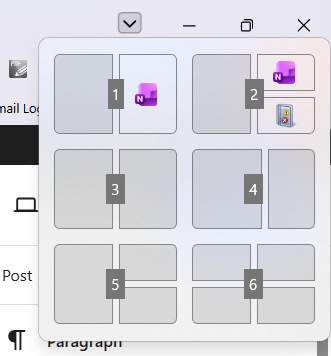
Windows 11 Snap Layouts, accessed using Win + Z, makes it easy to organize multiple applications on the desktop.
Microsoft has additional information in its Windows Multitasking Guide.
4. Virtual Desktop Shortcuts
Here’s a Windows feature that many users overlook.
Windows 11 supports multiple virtual desktops, allowing you to organize application windows into separate workspaces without needing additional physical monitors.
For example, you might create one desktop for email and everyday applications, another for network troubleshooting, and a third for documentation or training materials.
| Shortcut | What It Does |
|---|---|
Win + Tab | Open Task View |
Win + Ctrl + D | Create a new virtual desktop |
Win + Ctrl + Right Arrow | Switch to the next desktop |
Win + Ctrl + Left Arrow | Switch to the previous desktop |
Win + Ctrl + F4 | Close the current virtual desktop |
Closing a virtual desktop does not normally close its application windows. Windows moves those windows to another desktop.
If you frequently jump between multiple projects, this feature is worth exploring.
5. Screenshots and Clipboard Management
For technical documentation, training materials, and troubleshooting reports, screenshots are essential.
Windows includes several convenient keyboard shortcuts for capturing and managing screen information.
| Shortcut | What It Does |
|---|---|
Win + Shift + S | Open the screen capture interface |
Win + PrtScn | Capture the screen and save the image |
Alt + PrtScn | Copy an image of the active window |
PrtScn | Open screen capture or copy the screen, depending on configuration |
Win + V | Open Clipboard History |
Ctrl + C | Copy selected content |
Ctrl + X | Cut selected content |
Ctrl + V | Paste clipboard content |
Ctrl + Z | Undo the previous action |
Ctrl + Y | Redo an action in supported applications |
I particularly recommend learning Win + Shift + S.
It allows you to select a region, window, or screen for capture without requiring a separate third-party screenshot utility.
Once captured, you can paste the image into documentation, an email, or an image-editing application.
Clipboard History is another useful feature.
Press Win + V to access recently copied items. If the feature has not been enabled, Windows offers an option to turn it on.
Be aware that clipboard history can contain sensitive information. Think carefully about what you copy, especially on shared computers or systems used to handle customer information.
6. Troubleshooting and Administration Shortcuts
Now let’s concentrate on shortcuts particularly useful to technicians.
| Shortcut | What It Does |
|---|---|
Win + R | Open Run |
Win + X | Open the Quick Link menu |
Ctrl + Shift + Esc | Open Task Manager |
Ctrl + Alt + Delete | Access the Windows security screen |
Win + I | Open Settings |
Win + U | Open Accessibility settings |
Win + Ctrl + Shift + B | Request recovery from a blank or black display |
Win + L | Lock Windows |
Win + Ctrl + Q | Open Quick Assist |
One shortcut worth knowing is Win + Ctrl + Shift + B.
Microsoft documents this combination as a way to wake or recover a device displaying a blank or black screen.
It can sometimes help when the display appears unresponsive, although it is not a general-purpose fix for a frozen computer.
If you’re troubleshooting a machine that isn’t responding normally, also see my article: Shutting Down or Restarting an Unresponsive Windows Computer
The article covers Task Manager, command-line restart options, and how to distinguish an application problem from a completely frozen operating system.
For deeper process investigation, see: Microsoft Process Explorer: Advanced Windows Troubleshooting
Process Explorer provides additional visibility into running processes, CPU utilization, memory usage, open file handles, and other Windows internals.
7. My Favorite Shortcut: Win + R
Of all the Windows shortcuts, Win + R deserves special attention.
It opens the Run dialog, allowing you to launch programs and Windows management utilities directly.
For technicians, this is an especially convenient way to access commonly used tools.
Here are several commands worth remembering.
| Enter in Run | What It Opens |
|---|---|
cmd | Command Prompt |
powershell | Windows PowerShell |
wt | Windows Terminal, if installed |
devmgmt.msc | Device Manager |
eventvwr.msc | Event Viewer |
services.msc | Services management console |
diskmgmt.msc | Disk Management |
taskmgr | Task Manager |
msconfig | System Configuration |
msinfo32 | System Information |
perfmon | Performance Monitor |
perfmon /rel | Reliability Monitor |
ncpa.cpl | Network Connections |
control | Control Panel |
sysdm.cpl | System Properties |
regedit | Registry Editor |
A few of these require administrative privileges for certain operations.
Also, be careful with tools such as Registry Editor, Disk Management, and Services. Opening a utility is harmless, but making changes without understanding the consequences can create additional problems.
For network troubleshooting, I regularly recommend opening the Network Connections interface using:
ncpa.cpl
This is a quick way to inspect network adapters and access their properties without navigating through several Windows Settings screens.
If you want to explore more Windows networking utilities, see the CellStream Windows Networking Toolkit.
I’ve collected many of the commands I use for Windows networking diagnostics into that free toolkit.
8. Keyboard Shortcuts for Remote Desktop
For technicians supporting remote Windows computers, Remote Desktop introduces another set of useful shortcuts.
One complication is that certain keyboard combinations may be processed by the local computer rather than the remote computer.
Microsoft provides shortcuts specifically designed for Remote Desktop sessions.
| Shortcut | What It Does |
|---|---|
Ctrl + Alt + End | Open the Windows security screen in the remote session |
Ctrl + Alt + Break | Switch between full-screen and windowed Remote Desktop |
Alt + Page Up | Switch between remote applications from left to right |
Alt + Page Down | Switch between remote applications from right to left |
Alt + Home | Open the remote Start menu |
These apply to supported Remote Desktop Connection sessions. Other remote access products may use different keyboard combinations.
The distinction is important because Ctrl + Alt + Delete typically affects the local computer rather than the remote desktop session.
9. Accessibility Shortcuts
Windows also includes keyboard shortcuts designed to make the computer easier to use.
Some are valuable even if you don’t ordinarily use Windows accessibility features.
| Shortcut | What It Does |
|---|---|
Win + U | Open Accessibility settings |
Win + Plus (+) | Turn on Magnifier or zoom in |
Win + Minus (-) | Zoom out using Magnifier |
Win + Esc | Exit Magnifier |
Win + Ctrl + Enter | Start or stop Narrator |
Win + H | Open voice typing |
Shift pressed five times | Toggle the Sticky Keys prompt or feature, depending on settings |
Right Shift held for eight seconds | Toggle the Filter Keys prompt or feature, depending on settings |
Keyboard accessibility settings can be particularly useful when working with someone who has difficulty using a conventional keyboard or mouse.
Some shortcuts may be disabled or modified by Windows settings or organizational policies.
10. What Happened to the Windows 7 Shortcuts?
The original version of this article contained a number of shortcuts specific to Windows 7.
Several are now obsolete or behave differently.
For example, Windows 7 included Aero Flip 3D, which allowed users to cycle through open applications in a three-dimensional interface.
That feature is no longer part of Windows 11.
The old Windows 7 shortcut:
Win + Tab
now opens Task View instead.
Similarly, some shortcuts associated with Windows 7 desktop gadgets, the Mobility Center, and older Windows Explorer functionality no longer behave as originally documented.
This is why I don’t recommend using an old Windows 7 shortcut list as a current Windows reference.
Some combinations have remained unchanged for decades. Others have been reassigned or removed as Windows has evolved.
11. A Few Shortcuts Worth Practicing
If you’re new to Windows keyboard shortcuts, don’t try to memorize everything in this article.
Start with these:
For everyday productivity:
Win + E, Win + R, Win + D, Alt + Tab
For troubleshooting:
Ctrl + Shift + Esc, Win + X, Win + I
For screenshots and documentation:
Win + Shift + S, Win + V
For managing multiple applications:
Win + Z, Win + Tab
Use them regularly for a week or two, and they will quickly become second nature.
Once you’ve learned those, add the combinations that match the type of work you do.
Final Thoughts
I’ve been using keyboard shortcuts since long before Windows 7, and I still believe they are one of the simplest ways to become more efficient with a computer.
The mouse is convenient, but it isn’t always the fastest way to accomplish a task.
For a network technician, system administrator, or anyone who regularly works with multiple applications, keyboard shortcuts can make troubleshooting considerably less cumbersome.
Whether you’re opening Task Manager, navigating File Explorer, arranging diagnostic windows, or capturing screenshots for documentation, knowing the right shortcut can save time and unnecessary clicking.
And perhaps the best part is that many of these combinations have remained remarkably consistent across multiple generations of Windows.
If you’re interested in the complete list, Microsoft maintains an extensive and regularly updated reference: Microsoft Windows Keyboard Shortcuts — Official Reference
It’s worth bookmarking.
Related CellStream Articles
- Microsoft Process Explorer: Advanced Windows Troubleshooting
- Microsoft Autoruns: Troubleshoot Windows Startup Problems
- Shutting Down or Restarting an Unresponsive Windows Computer
- Troubleshooting Windows Device Drivers: Tools and Tips
- CellStream Windows Networking Toolkit
If you would like to help support the continued development of independent networking, broadband, Wi-Fi, VoIP, and packet analysis content, please consider joining our Patreon community where you will gain access to exclusive technical resources, downloadable labs and PCAPs, bonus course content, troubleshooting guides, and additional member-only material. Comments and technical discussion are always welcomed at our Patreon community or on our Discord server. You can also support our work by simply buying us a coffee — every contribution helps us continue creating practical, real-world network science education for professionals and enthusiasts alike.