

Originally published December 22, 2010 | Updated November 5, 2026
Have you ever encountered a Windows computer that simply refuses to shut down?
You click Start, select Shut down or Restart, and nothing happens. Perhaps the Start menu won’t open at all. Maybe an application has stopped responding, or the entire Windows desktop appears frozen.
Most people eventually resort to holding down the computer’s power button until it turns off.
Sometimes that is the only practical option. But before taking that approach, there are several things worth trying.
Back in December 2010, I wrote about using the Windows shutdown.exe utility and PowerShell to restart an unresponsive computer. Those tools still exist, and they’re still useful.
Let’s update that discussion for modern Windows systems and take a closer look at what happens when Windows stops responding.
First, What Does “Unresponsive” Really Mean?
This is an important troubleshooting distinction. A Windows computer may appear frozen for several different reasons. An individual application might have stopped responding while the rest of Windows continues operating normally. The Windows desktop or Start menu might be unresponsive, even though background processes are still running. Or the entire operating system could be hung, with no apparent response to keyboard or mouse input.
These are not necessarily the same problems, and they don’t require the same recovery procedure. For example, if only Microsoft Excel has stopped responding, forcing the entire computer to restart is probably unnecessary.
Likewise, if the Windows graphical interface has failed but the operating system is still processing commands, you may be able to restart the machine without interrupting power.
The goal is to use the least disruptive recovery method available.
Step 1: Give Windows a Chance to Respond
Before doing anything drastic, wait briefly and observe the computer.
A slow response isn’t always a system failure. Windows may be processing an update, completing disk activity, waiting for a service, or handling a resource-intensive application.
If you’re seeing a Windows update progress screen, avoid interrupting the process simply because it appears to be taking longer than expected.
If you can still move the mouse or interact with parts of the desktop, try determining whether the delay affects one application or the entire system.
You can also try pressing Ctrl + Alt + Delete.
If the Windows security screen appears, the operating system is at least responding to that input, even if other parts of the interface are not.
From this screen, you may be able to access Task Manager, sign out, or restart the computer.
If Windows is still responding, that’s a much better starting point than holding down the power button.
Step 2: Use Task Manager to Close an Unresponsive Application
If a particular application has stopped responding, try closing that application rather than restarting Windows.
Press: Ctrl + Shift + Esc
This opens Windows Task Manager, assuming the operating system can still respond. Locate the problematic application on the Processes tab. Select it and choose End task.
Be aware that ending an application this way may cause unsaved work in that application to be lost.
If you’re dealing with Microsoft Word, Excel, or another application that supports automatic recovery, you may be able to recover some work when you launch it again. That is not guaranteed.
If the problem is Windows File Explorer itself, you can locate Windows Explorer in Task Manager and select Restart. This restarts the Explorer shell and can sometimes recover an unresponsive desktop, taskbar, or File Explorer window without restarting the entire computer.
For more advanced process investigation, I recommend another Microsoft utility called Process Explorer.
I’ve covered that tool in my article: Going Beyond Windows Task Manager with Process Explorer
Process Explorer provides considerably more information about running processes, CPU utilization, memory consumption, loaded DLLs, and open handles. It can help determine what an application is doing before deciding whether it needs to be terminated.
Step 3: Restart Windows from the Security Screen
If the Start menu is not responding but Ctrl + Alt + Delete still works, you may be able to restart Windows directly from the security screen.
Look for the power icon, generally located near the lower-right corner of the screen. Select it and choose Restart.
This uses Windows’ normal restart mechanism and gives the operating system an opportunity to close applications and services properly. That’s preferable to forcibly removing power.
If Windows reports that an application is preventing the restart, examine the warning before proceeding.
You may have an opportunity to cancel the restart, return to the application, and save your work.
Step 4: Use the Windows Shutdown Command
Now let’s revisit one of the utilities I recommended in my original 2010 article. Windows includes a command-line program called shutdown.exe.
It can initiate shutdowns, restarts, sign-outs, and other related operations on local or authorized remote computers. If the graphical interface is having problems but Command Prompt still works, this may provide another way to restart Windows.
Open Command Prompt or Windows Terminal and enter:
shutdown /r /t 0The /r option requests a restart, while /t 0 specifies a zero-second delay.
This initiates a restart through Windows rather than immediately removing power.
If a normal restart is being blocked by applications that refuse to close, you can use:
shutdown /r /f /t 0Here, the /f option instructs Windows to force running applications to close.
Warning: This may cause unsaved application data to be lost. Use it only when less disruptive options have failed.
If you’d rather shut down the computer instead of restarting it, use:
shutdown /s /t 0The /s option requests a shutdown.
For example, if your Windows Start menu isn’t responding but you can still open a Command Prompt, one of these commands may allow you to recover control of the system.
However, there is an important limitation. If Windows is completely frozen and cannot process commands, neither Command Prompt nor shutdown.exe will be able to solve the problem.
The command still depends on a functioning operating system.
For Microsoft’s complete documentation, see: Windows Shutdown Command Reference
Step 5: Use PowerShell to Restart Windows
PowerShell provides another way to accomplish the same basic objective.
Open PowerShell and enter:
Restart-ComputerThis requests a restart of the local computer.
If applications are preventing a normal restart, PowerShell also supports:
Restart-Computer -ForceAs with the forced shutdown command, use caution. Unsaved application data may be lost.
There is no particular advantage to forcing a restart through PowerShell instead of shutdown.exe when troubleshooting a completely frozen system.
Both require Windows to be functioning sufficiently to process the request.
The choice is largely a matter of which administrative interface is available and which one you’re comfortable using.
For technicians who regularly work with Windows command-line utilities, PowerShell can also be useful when scripting maintenance and troubleshooting procedures.
Step 6: Restart an Unresponsive Computer Remotely
This is another capability worth preserving from my original article.
Suppose you’re responsible for a Windows computer on your network. The user reports that the desktop isn’t responding, but the machine remains reachable and still accepts remote administrative commands. You may be able to initiate a restart without physically visiting the computer.
From an appropriately authorized Windows computer, use:
shutdown /r /m \\SERVERNAME /t 10Replace SERVERNAME with the actual computer name.
This requests a restart of the remote machine after a ten-second delay.
If applications must be forcibly closed, the command becomes:
shutdown /r /m \\SERVERNAME /f /t 10Be aware that forcing applications to close can result in data loss.
The remote computer must be reachable, and your account must have the necessary permissions. Windows Firewall rules, network configuration, administrative policies, and the availability of the relevant Windows services can affect whether the request succeeds.
The fact that a computer responds to a ping does not mean it can successfully process a remote shutdown request.
Remote Restart with PowerShell
In Windows PowerShell 5.1, you can also use:
Restart-Computer -ComputerName SERVERNAMEIf necessary:
Restart-Computer -ComputerName SERVERNAME -ForceThe remote computer must support the required management connection, and the requesting account must have sufficient privileges.
PowerShell’s remote restart behavior and available parameters can differ between Windows PowerShell 5.1 and newer PowerShell versions, so consult the documentation for the version you’re using.
Microsoft Restart-Computer Documentation
A word of caution for remote support technicians: If you forcibly restart a computer, you may lose access to it until Windows starts again and the appropriate network and remote-management services become available.
If the computer does not recover successfully, physical intervention may still be required.
Step 7: What If Windows Is Completely Frozen?
Now we’ve reached the situation that concerns most users.
The mouse doesn’t move. Keyboard shortcuts do nothing. Task Manager won’t open. The system doesn’t respond to shutdown commands.
At this point, you may have no software-based way to recover control. If you’re working with a laptop or desktop computer and have exhausted reasonable recovery options, holding the physical power button until the machine turns off may be necessary. On many systems, this requires holding the button for several seconds, although the exact behavior depends on the hardware.
After the machine powers down, allow it to settle briefly before turning it back on.
Understand that this is a forced power-off, not a normal Windows shutdown.
Windows may not have an opportunity to close open files, finish pending disk operations, or allow applications to save their data.
Potential consequences include lost work, interrupted updates, and file-system or application-data problems.
Modern file systems and applications have recovery mechanisms that can reduce some risks, but they cannot eliminate them.
I would not use a forced power-off as a routine shutdown procedure.
Special caution: Servers, virtual machine hosts, storage systems, and computers performing critical updates or storage operations require additional care. A forced power-off can disrupt services and data belonging to multiple users or systems.
Step 8: Investigate Why the Computer Became Unresponsive
Getting Windows restarted is only half the job.
If the problem occurs repeatedly, we need to determine why.
A computer may become unresponsive because of application failures, problematic device drivers, storage issues, memory pressure, hardware faults, or other operating-system problems.
Rather than assume the cause, I recommend checking the available diagnostic information.
Examine Windows Event Viewer
Press Win + R, enter:
eventvwr.mscThen navigate to: Windows Logs → System
Look for events around the time the computer stopped responding or was forcibly restarted.
Two event IDs are particularly useful:
- Event ID 41 (Kernel-Power): Windows detected that the computer restarted without completing a clean shutdown.
- Event ID 6008: Windows records that the previous shutdown was unexpected.
These events help establish that an unexpected shutdown occurred. However, they do not necessarily identify what originally caused the computer to freeze.
Event ID 41, for example, can result from a forced power-off, power interruption, or system crash.
Also look for other events immediately before the failure, including driver errors, disk warnings, application problems, and unexpected service failures.
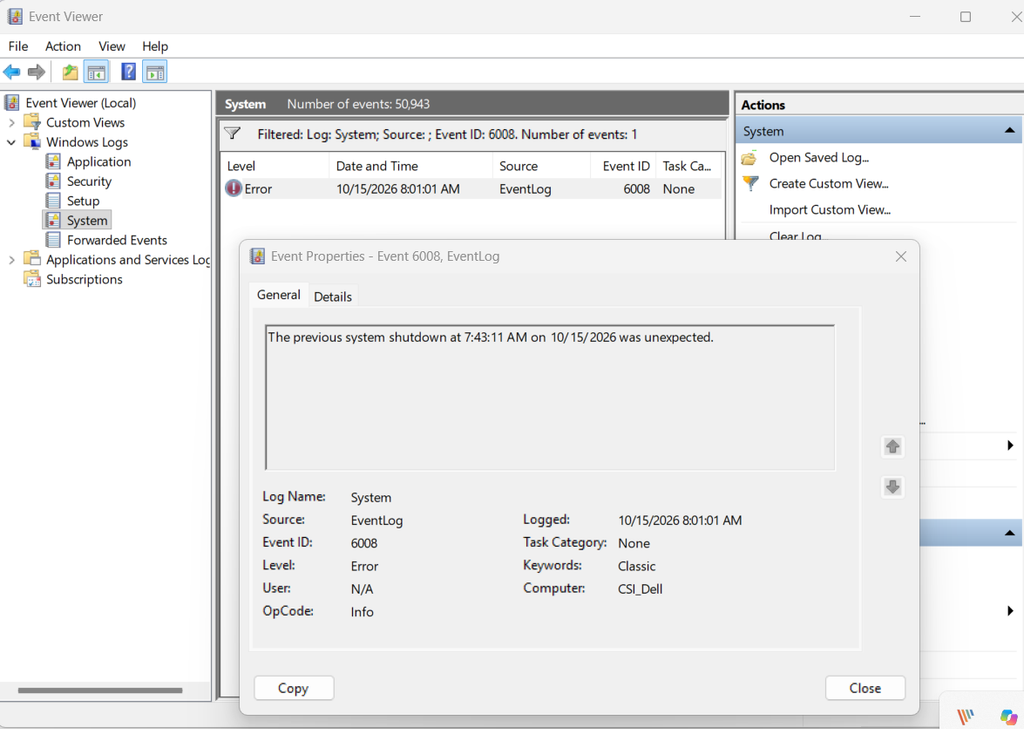
You can learn more in Microsoft’s documentation on Troubleshooting Unexpected Reboots Using System Event Logs.
Check Windows Reliability Monitor
Windows also includes a useful diagnostic feature called Reliability Monitor.
Press Win + R and enter:
perfmon /relThis opens the Reliability Monitor interface, where you can examine reported application failures, Windows failures, and other reliability events over time.
If the computer has been freezing repeatedly, look for patterns.
Did the problems begin after installing an application? Updating a device driver? Applying a Windows update?
Correlation doesn’t necessarily prove causation, but it helps narrow down the investigation.
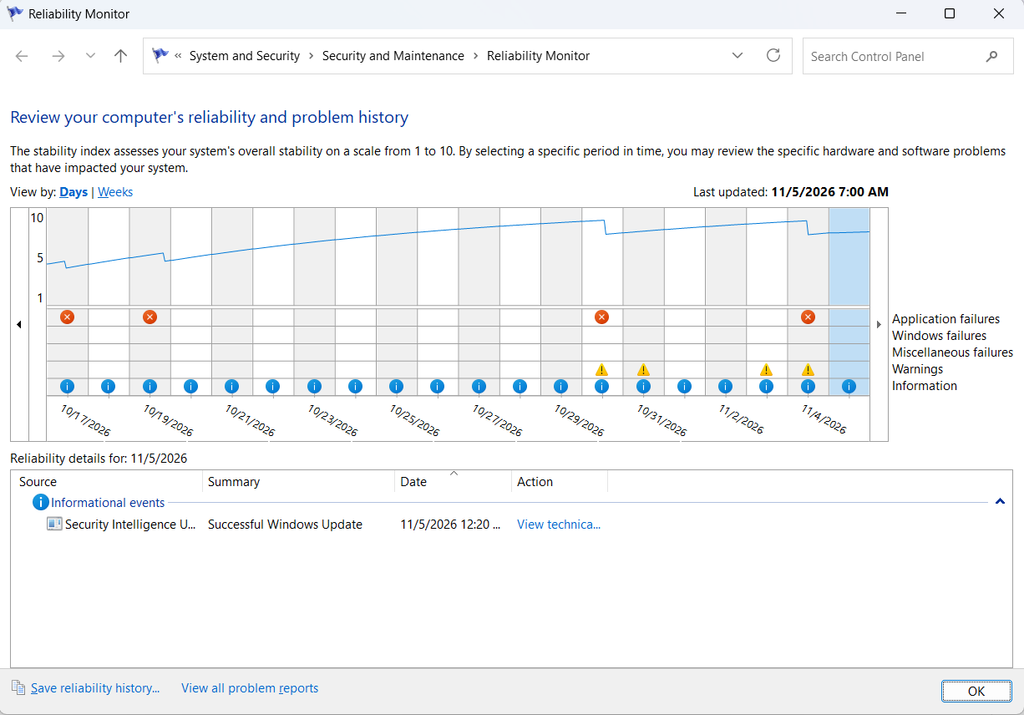
Windows Reliability Monitor displaying a history of system reliability events. This can help identify recurring application failures and unexpected shutdowns.
Investigate Drivers and Startup Applications
If the computer consistently becomes unresponsive shortly after starting, investigate the applications and services configured to launch automatically.
Microsoft Sysinternals Autoruns is useful for examining those configurations. See my recently updated article: Using Microsoft Autoruns to Troubleshoot Windows Startup Problems
Driver problems are another possible cause. I’ve also updated my Troubleshooting Device Drivers article with modern Windows diagnostic approaches.
Remember that a computer freezing after a software change doesn’t automatically prove the software caused the problem.
We still need evidence.
What About Network Problems?
One point worth emphasizing for network technicians is that an apparently frozen computer isn’t necessarily suffering from a Windows operating-system failure.
Sometimes an application is waiting for a network resource, a disconnected network drive, a DNS response, or an unavailable service. The computer may still be functioning normally while the application appears unresponsive. Likewise, an application that appears frozen during a file operation might be waiting for a slow or unavailable storage device.
When appropriate, investigate the network connection before concluding that Windows itself is malfunctioning. For more information, see my PC and Network Troubleshooting: Practical Tips and Tools article. The CellStream Windows Networking Toolkit also provides useful utilities for examining IP addressing, connectivity, routing, and other network conditions.
The point is to identify where the failure is occurring rather than treating every unresponsive application as an operating-system failure.
A Troubleshooting Sequence I Recommend
When a Windows computer appears to be frozen, this is the order I would generally follow:
- Wait briefly and observe. Determine whether Windows is processing an operation or genuinely failing to respond.
- Try
Ctrl + Alt + Delete. See whether the security screen responds. - Open Task Manager. If a single application is unresponsive, try closing it.
- Attempt a normal restart. Use the Windows security screen, Start menu, or another available interface.
- Try a command-line restart. Use
shutdown /r /t 0orRestart-Computerif Windows still accepts commands. - Consider a forced software restart. Only when necessary, and with an understanding of the possible data loss.
- Use the physical power button as a last resort. Reserve this for situations where normal recovery methods have failed.
- Investigate after recovery. Examine Event Viewer, Reliability Monitor, drivers, startup applications, and other evidence.
The sequence matters.
A forced power-off may get the computer running again, but it provides very little information about why the failure occurred.
If you’re troubleshooting a recurring problem, that information may be more valuable than the immediate restart.
Final Thoughts
When I originally wrote about this subject in 2010, my main point was that Windows offers alternatives to simply holding down the power button.
That remains true today.
Windows includes several ways to close unresponsive applications and initiate restarts, even when the normal graphical interface isn’t working properly. The shutdown.exe utility and PowerShell’s Restart-Computer command are still useful additions to a Windows technician’s toolkit. But no software command can guarantee recovery from a system that is completely frozen.
Sometimes a forced power-off is unavoidable.
The important thing is understanding when to use each option, recognizing the risks, and investigating the underlying cause when problems recur.
After all, getting a computer restarted is one thing.
Understanding why it stopped responding in the first place is troubleshooting.
References and Additional Resources
Microsoft resources
- Windows Shutdown Command Reference
- PowerShell Restart-Computer
- Troubleshoot Unexpected Reboots with Event Logs
- Windows Recovery Options
Related CellStream articles
- Going Beyond Windows Task Manager with Process Explorer
- Using Microsoft Autoruns to Troubleshoot Windows Startup Problems
- Troubleshooting Device Drivers
- PC and Network Troubleshooting: Practical Tips and Tools
- CellStream Windows Networking Toolkit
If you would like to help support the continued development of independent networking, broadband, Wi-Fi, VoIP, and packet analysis content, please consider joining our Patreon community where you will gain access to exclusive technical resources, downloadable labs and PCAPs, bonus course content, troubleshooting guides, and additional member-only material. Comments and technical discussion are always welcomed at our Patreon community or on our Discord server. You can also support our work by simply buying us a coffee — every contribution helps us continue creating practical, real-world network science education for professionals and enthusiasts alike.