
Originally published October 25, 2010 | Updated November 4, 2026
Back in October 2010, I wrote a short article recommending a Microsoft utility called Autoruns. At the time, I was particularly interested in its ability to help identify spyware and malware that configured themselves to start automatically with Windows.
Sixteen years later, Autoruns is still around, Microsoft continues to maintain it, and I still consider it one of the most useful Windows troubleshooting tools available.
The reason is simple: Windows can start an enormous number of programs, services, drivers, and background components without you ever clicking on anything.
Some are essential. Others are convenient. Some are leftovers from applications you no longer use. And occasionally, an unwanted or malicious program may be using one of these startup mechanisms to maintain its presence on your computer.
So how do you find out what Windows is starting, and more importantly, what should you do about it?
Let’s explore.
What Actually Starts When Windows Boots?
When most people think of Windows startup programs, they think of applications that appear after signing in. Cloud storage applications, messaging utilities, update assistants, and similar programs are common examples.
Windows provides a Startup folder for these applications, but that is only one of many locations where automatic execution can be configured.
Other mechanisms include:
- Registry Run and RunOnce entries
- Windows services
- Scheduled tasks
- Device drivers
- Explorer shell extensions
- Winlogon components
- Other specialized Windows startup and integration mechanisms
Some components start during the Windows boot process, while others start when a user signs in or when particular Windows functions are invoked.
This distinction is important.
A computer that takes a long time to reach the Windows sign-in screen may have an entirely different problem from one that signs in quickly but remains sluggish for several minutes afterward.
We need to understand the symptom before deciding what to investigate.
Windows Already Has Startup Management Tools
Before reaching for Autoruns, it’s worth mentioning the tools already included with Windows.
In Windows 11, navigate to: Settings → Apps → Startup
Alternatively, press Ctrl + Shift + Esc to open Task Manager and select Startup apps.
Both provide convenient ways to inspect and disable many applications configured to start when you sign in.
Task Manager can also show a startup impact assessment, which provides a useful indication of how much processing or disk activity a startup application may generate.
For basic startup management, these tools are often sufficient.
But what happens when the application you’re investigating doesn’t appear there?
That’s where Autoruns becomes interesting.
Microsoft documents the built-in options in its Configure Startup Applications in Windows guide.
Introducing Microsoft Sysinternals Autoruns
Autoruns is part of the Microsoft Sysinternals collection, originally developed by Mark Russinovich and Bryce Cogswell.
The utility examines a wide range of Windows automatic-start locations and displays the discovered entries in an organized graphical interface.
Unlike Task Manager, Autoruns can show startup configurations associated with system services, drivers, scheduled tasks, Registry locations, and numerous other components.
This makes it valuable for both performance troubleshooting and security investigations.
You can obtain it directly from Microsoft: Download Microsoft Sysinternals Autoruns
As of this update, Microsoft lists Autoruns version 14.3, released June 17, 2026.
The download includes graphical and command-line versions. Installation is straightforward: download the ZIP archive, extract its contents, and run the appropriate executable.
On a typical 64-bit Windows computer, that will be Autoruns64.exe.
For system-wide inspection, I recommend launching it with Run as administrator, provided you have the necessary permissions.
Be aware that the tool is powerful. It can modify startup configurations that affect Windows operation, so don’t begin disabling things without understanding their purpose.
Getting Familiar with the Autoruns Interface
When Autoruns opens, it examines the configured automatic-start locations.
On a computer that has accumulated years of software installations and updates, the list can be surprisingly extensive.
The interface organizes entries into categories, including:
| Tab | What It Helps Investigate |
|---|---|
| Everything | A consolidated view of detected startup entries |
| Logon | Programs configured to run during user sign-in |
| Scheduled Tasks | Tasks that may execute automatically under defined conditions |
| Services | Background services registered with Windows |
| Drivers | Kernel-mode drivers and related startup configurations |
| Explorer | Shell extensions and components integrated with File Explorer |
| Winlogon | Components associated with Windows sign-in functionality |
There are additional categories, but these are good starting points.
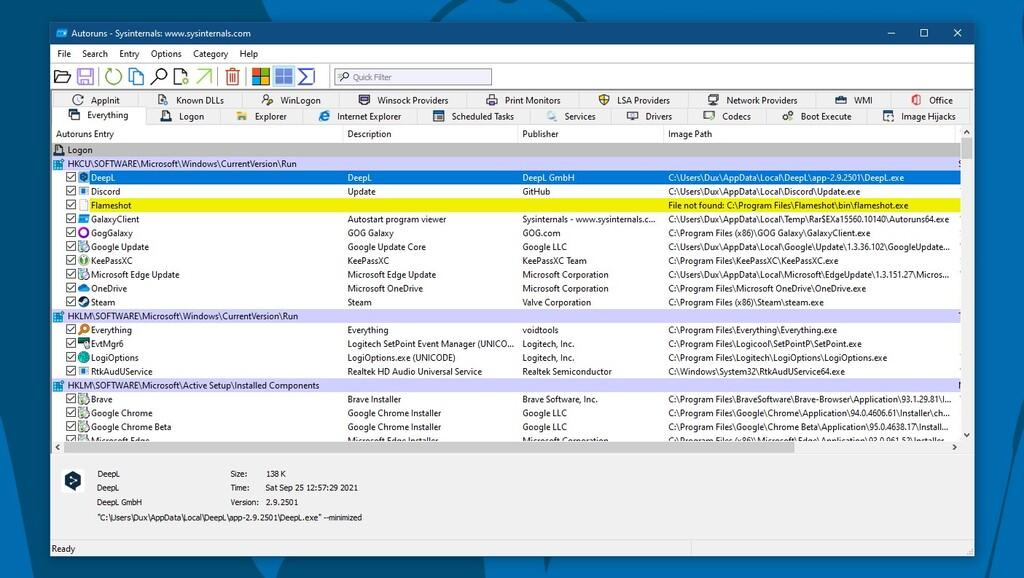
Figure 1: Microsoft Sysinternals Autoruns displaying automatic-start entries. The tabbed interface allows a technician to investigate specific Windows startup mechanisms instead of relying exclusively on the Startup apps list.
Step 1: Hide the Microsoft Entries
One of the first things I generally do in Autoruns is reduce the amount of information displayed.
Select: Options → Hide Microsoft Entries
Then refresh the display using F5.
Depending on the version and configuration, you may also encounter an option to hide Windows entries.
The objective is to concentrate on third-party software rather than examine every Microsoft component installed on the machine.
Autoruns also supports digital signature verification through Options → Scan Options.
I recommend enabling signature verification during an investigation.
However, two cautions are important.
First, just because an entry isn’t signed by Microsoft doesn’t mean it is suspicious. Plenty of legitimate software comes from other publishers.
Second, a valid digital signature is not proof that a particular program is safe. It helps establish the identity and integrity of the signed component, but additional investigation may still be appropriate.
The filtering options help focus your attention. They do not automatically identify the good and bad entries.
Step 2: Look at the Logon Entries
For ordinary startup troubleshooting, the Logon tab is an excellent place to begin.
This displays applications and components configured to start when a user signs in.
Take a look at the publisher, description, file path, and other information Autoruns provides.
You might find applications that you recognize immediately. You may also discover background utilities associated with software you rarely use.
For example, perhaps an application you installed months ago configured an update assistant to start every time you sign in.
Does that assistant really need to run continuously?
Maybe. Maybe not.
The important thing is to investigate before changing anything.
Right-clicking an entry provides additional options, including commands to examine the associated file or jump to the Registry location responsible for starting it.
I would pay particular attention to entries with missing files, unfamiliar publishers, unexpected executable locations, or configurations that do not match the software you believe is installed.
None of those characteristics proves malicious activity, but they provide useful clues.
Step 3: Investigate Scheduled Tasks and Services
This is where Autoruns offers considerably more visibility than the standard Startup apps interface.
A scheduled task might launch an application at sign-in, periodically throughout the day, or when a particular event occurs.
Similarly, Windows services may start automatically without requiring an interactive user session.
Consider a computer that becomes sluggish several minutes after booting.
You inspect Task Manager’s Startup apps list and find nothing unusual.
Autoruns may reveal a scheduled task associated with an old application or a third-party service that you didn’t realize was installed.
That provides another avenue for investigation.
Of course, an Autoruns entry does not establish that a process is currently running or consuming resources.
For that, combine Autoruns with Task Manager, Resource Monitor, Event Viewer, or another appropriate diagnostic tool.
This is also a good opportunity to mention my companion article, Troubleshooting Windows Device Drivers: Tools and Tips.
Driver problems and startup configuration problems can sometimes produce similar symptoms, but they are not necessarily the same thing.
And before you decide to start deleting old drivers, read Removing Unused Device Drivers Safely in Windows 11.
An installed driver package does not necessarily mean that the driver is loaded, running, or affecting performance.
Step 4: Investigate Suspicious Entries
Autoruns can also assist with security investigations.
Malware frequently attempts to establish persistence, meaning it configures some mechanism that allows it to execute again after a system restart or user sign-in.
Windows automatic-start locations are among the mechanisms that attackers may exploit.
When an unfamiliar entry appears, I suggest examining:
- The executable’s full file path
- The reported publisher and digital signature
- The file’s associated application
- The Registry or scheduled-task configuration responsible for launching it
- Available security information about the file
Autoruns also supports integration with VirusTotal, which can check file hashes against multiple malware detection engines.
To use this feature, open Options → Scan Options and review the VirusTotal options.
A result showing multiple detections may justify further investigation. A clean result, however, does not guarantee that a file is harmless.
There is also a privacy consideration. VirusTotal queries and file submissions involve a third-party security service. Hash lookups and actual file submissions have different disclosure implications.
On corporate or customer systems, follow the organization’s policies before submitting any files.
Remember that Autoruns is not a complete malware scanner, nor can it guarantee detection of every persistence mechanism.
If you suspect an active compromise, appropriate endpoint security tools and incident-response procedures should take priority over experimenting with startup entries.
Step 5: Disable an Entry Rather Than Deleting It
Suppose you identify an application that you believe is starting unnecessarily.
Autoruns allows you to disable the startup entry by clearing its checkbox.
This is generally preferable to deleting it.
The distinction matters because you can re-enable a disabled entry if your change causes unexpected behavior.
Here’s the approach I recommend:
- Identify the entry and determine what it does.
- Save an Autoruns snapshot before making changes.
- Disable one nonessential entry.
- Restart Windows or sign out and back in, depending on the startup mechanism.
- Observe the results and verify that the associated application still operates correctly.
If the change introduces a problem, return to Autoruns and re-enable the entry.
Don’t disable ten things at once and then wonder which one caused an unexpected failure.
Be especially careful with drivers, security software, authentication components, backup services, and other system-level entries. Disabling the wrong component can affect system stability, security, or even the ability to start Windows normally.
When the real objective is to remove unwanted software, using the application’s supported uninstall procedure is typically preferable.
Step 6: Save a Startup Baseline
One feature I particularly liked when I originally recommended Autoruns in 2010 was its ability to save and compare results.
That remains useful today.
Once you’ve inspected a system and established that it is operating normally, select: File → Save
Autoruns creates a saved snapshot of the startup configuration.
Later, if the machine develops an unexplained problem, you can compare its current configuration against the earlier snapshot using File → Compare.
This helps identify entries that have appeared, disappeared, or changed.
Consider a practical example.
You install a new application and notice that Windows starts behaving differently. Perhaps startup takes longer, an unfamiliar background application appears, or a service is running that you don’t recognize.
Comparing Autoruns snapshots from before and after the installation can provide useful evidence of the changes.
It won’t tell you automatically which change caused the problem, but it gives you a place to begin.
For technicians who maintain multiple computers, retaining a known-good startup baseline can be a worthwhile addition to the troubleshooting process.
Step 7: Collect Startup Information from the Command Line
For those who prefer command-line tools, Microsoft also supplies Autorunsc, the command-line companion to Autoruns.
This is particularly useful when collecting information for documentation or comparing startup configurations.
Open an elevated Command Prompt in the directory where you extracted Autoruns.
For example:
autorunsc64.exe -accepteula -a * -c -h -s > autoruns-report.csvThis command:
- Accepts the Sysinternals license agreement.
- Requests the supported automatic-start categories.
- Produces output in CSV format.
- Includes file hashes.
- Verifies digital signatures.
- Redirects the results to a file named
autoruns-report.csv.
The resulting file can be reviewed later or imported into a spreadsheet for analysis.
On managed systems, remember that startup reports may contain usernames, installation paths, and other potentially sensitive information.
You can find additional command-line options in the Microsoft Autoruns documentation.
Will Disabling Startup Entries Make Windows Faster?
Possibly, but there is no guarantee. Reducing unnecessary startup applications may improve the time it takes for Windows to become responsive after signing in. It may also reduce background memory consumption, processor activity, and disk I/O. But not every startup entry is actively consuming substantial resources. And startup configuration is only one factor in Windows performance.
Storage problems, insufficient memory, driver failures, Windows updates, background security scanning, and hardware limitations can all contribute to a slow computer.
In other words, don’t assume that a long Autoruns list automatically means your computer needs cleaning.
This is similar to another common Windows performance misconception that I addressed recently in Does Cleaning the Windows Prefetch Folder Speed Up Your PC?.
Deleting cached information or disabling components simply because they exist is not the same as identifying and resolving a performance problem.
Investigate first, then make an informed change.
More Tools for Windows Troubleshooting
Autoruns is particularly useful for examining automatic-start configurations, but a complete troubleshooting effort may require additional tools.
For example, if you suspect that a startup application or background service is interfering with network connectivity, you may want to examine network interfaces, IP addressing, DNS resolution, routing, and active connections.
That’s where the CellStream Windows Networking Toolkit becomes useful.
The toolkit brings together a number of common Windows networking diagnostics in one menu-driven interface.
I also maintain a detailed article explaining the Windows Networking Toolkit commands and usage.
The point is that no single tool solves every Windows problem.
Autoruns helps you understand what is configured to start. Other tools help determine what those programs are doing and whether they are contributing to the symptoms.
Final Thoughts
When I originally wrote about Autoruns in October 2010, I described it as a tool I loved. That opinion hasn’t changed. The amount of software running in the background on modern Windows computers makes startup visibility just as relevant today as it was sixteen years ago.
Whether you’re investigating an unwanted application, troubleshooting startup performance, or examining a possible malware persistence mechanism, Autoruns provides information that Windows’ basic startup management interfaces cannot. But the goal isn’t to disable everything you don’t recognize. The goal is to understand what Windows is doing, establish whether something is causing a problem, and make changes that you can explain and verify.
That’s troubleshooting. And Autoruns still deserves a place in the technician’s toolkit.
References and Further Reading
Related CellStream articles
- Troubleshooting Windows Device Drivers: Tools and Tips
- Removing Unused Device Drivers Safely in Windows 11
- Does Cleaning the Windows Prefetch Folder Speed Up Your PC?
- CellStream Windows Networking Toolkit
Additional References
- Microsoft Sysinternals Autoruns
- Microsoft – Configure Startup Applications in Windows
- Microsoft – Tips to Improve PC Performance
- Microsoft – How to Perform a Clean Boot in Windows
If you would like to help support the continued development of independent networking, broadband, Wi-Fi, VoIP, and packet analysis content, please consider joining our Patreon community where you will gain access to exclusive technical resources, downloadable labs and PCAPs, bonus course content, troubleshooting guides, and additional member-only material. Comments and technical discussion are always welcomed at our Patreon community or on our Discord server. You can also support our work by simply buying us a coffee — every contribution helps us continue creating practical, real-world network science education for professionals and enthusiasts alike.