
Originally published February 22, 2017 | Updated November 2026
Check out these great references as well: |
|---|
| Our Wireless custom profile for Wireshark |
| Our Udemy course on Wireless Packet capture |
| Our other Wi-Fi related articles |
One of the frustrations I have encountered over many years of teaching Wi-Fi troubleshooting and packet analysis is how difficult it can be to capture actual IEEE 802.11 frames on a Windows computer.
Capturing Ethernet traffic with Wireshark is generally straightforward. Capturing wireless traffic is another matter entirely.
When I originally published this article in 2017, I explored several ways to capture Wi-Fi management and control frames on Windows without purchasing expensive capture hardware or software.
At the time, Microsoft Network Monitor 3.4 was one possible solution. Another was Npcap, although getting it to work reliably with various wireless adapters could be challenging.
Things have improved, but some challenges remain. Today, Wireshark and Npcap provide a practical method for capturing raw 802.11 traffic on Windows 11, provided your wireless adapter and driver support monitor mode.
That qualification is important.
Let’s examine the requirements, how to configure the capture, and what to do when it doesn’t work.
1. First, What Are You Trying to Capture?
Before installing software or changing adapter settings, we need to establish what type of traffic you want to examine. There is an important difference between capturing ordinary network traffic over a Wi-Fi connection and capturing the actual IEEE 802.11 frames transmitted over the wireless medium.
Suppose your Windows laptop is connected to a wireless network. You open Wireshark, select the Wi-Fi adapter, and start capturing. You may see IPv4, IPv6, TCP, UDP, DNS, and other protocols. However, when you examine the packets, Wireshark may identify the link-layer encapsulation as Ethernet.
Why?
Because Windows and the wireless adapter driver commonly present ordinary network data to packet capture applications using Ethernet-style framing rather than exposing the original 802.11 frames. This is not a Wireshark decoding problem. The original wireless headers were not supplied to the capture application.
Consequently, a display filter such as:
wlanmay show no packets at all.
You captured network traffic transported over Wi-Fi, but you did not capture the raw Wi-Fi frames. If your objective is to troubleshoot IP addressing, DNS, TCP retransmissions, or application connectivity on your own computer, this may be perfectly adequate.
If you want to investigate Wi-Fi association, authentication, retransmissions, roaming, or RF-related behavior, you need a different approach.
2. Understanding the Three Types of 802.11 Frames
IEEE 802.11 defines three major categories of MAC frames.
Management Frames
Management frames support the discovery, establishment, maintenance, and termination of wireless relationships.
Examples include:
- Beacon
- Probe Request and Probe Response
- Authentication and Deauthentication
- Association Request and Association Response
- Reassociation
- Disassociation
- Action frames
These are particularly useful when troubleshooting client connectivity and roaming. For example, if a device repeatedly disconnects from an access point, capturing management frames may reveal deauthentication or disassociation activity.
However, the presence of one of these frames does not automatically establish why the event occurred.
Control Frames
Control frames coordinate certain operations on the wireless medium.
Examples include:
- Request to Send (RTS)
- Clear to Send (CTS)
- Acknowledgment (ACK)
- Block ACK
- Block ACK Request
These frames can be extremely useful for understanding medium access and some retransmission-related behavior. However, not every capture adapter exposes every control-frame subtype. Some frames may be handled internally by the wireless chipset or filtered by the driver.
Data Frames
Data frames carry user and network traffic, as well as certain MAC-layer signaling.
These may contain traffic associated with IPv4, IPv6, TCP, UDP, and other protocols. Depending on the network’s security configuration, captured data frames may be encrypted. You can still examine their 802.11 MAC headers, but inspecting the higher-layer payload requires successful decryption.
The key point: If you want to investigate all three categories at the 802.11 MAC layer, you generally need monitor mode.
3. Managed Mode Versus Monitor Mode
Most Windows wireless adapters normally operate in managed mode, also known as station mode. In this mode, the adapter associates with an access point and exchanges network traffic as a wireless client. The operating system and driver normally deliver traffic relevant to that connection.
Monitor mode operates differently.
When supported, it allows the capture application to receive raw 802.11 frames observed by the wireless interface. This includes management frames, control frames, and data frames made available by the hardware and driver. It may also provide additional radio information, such as channel frequency, signal information, and PHY transmission details.
On Windows, supported raw captures commonly include Radiotap metadata.
There are several limitations worth understanding.
Monitor mode does not mean that you will see every packet transmitted on the network.
Your adapter can generally receive only traffic on the channel or channels it is monitoring, within its radio capabilities and reception range. It may miss frames because of interference, poor signal quality, unsupported PHY features, channel changes, or driver filtering.
Similarly, promiscuous mode and monitor mode are not the same thing. Promiscuous mode changes how certain received frames are filtered. It does not automatically expose raw 802.11 MAC headers or management and control frames.
The Wireshark project explains these distinctions in its WLAN Capture Setup documentation.
4. What Do You Need to Capture Raw Wi-Fi Traffic on Windows?
For this exercise, you will need:
- A Windows 11 computer.
- A recent version of Wireshark.
- Npcap installed with raw 802.11 capture support enabled.
- A Wi-Fi adapter and driver that support monitor mode through the Windows capture interface.
Wireshark and Npcap can be obtained without purchasing commercial capture software, subject to their respective licensing terms.
Download Wireshark directly from: Wireshark Official Download Page
You can obtain Npcap and review its documentation at: Npcap Official Website
One important consideration is that not every Wi-Fi adapter supports monitor mode under Windows. Some internal laptop adapters do not provide the required capabilities through their Windows drivers. Even an adapter that supports monitor mode under Linux may not support it under Windows.
Consequently, the adapter and driver combination is often the deciding factor.
5. Determine Whether Your Wi-Fi Adapter Supports Monitor Mode
Before changing anything, let’s see what Windows reports about your wireless hardware.
Open Command Prompt or Windows Terminal and enter:
netsh wlan show interfacesThis displays information about the wireless interfaces recognized by Windows. Pay attention to the interface names. You may see names such as Wi-Fi or Wi-Fi 2.
Next, try:
netsh wlan show driversThis reports information about the installed wireless drivers and capabilities.
Another useful command is:
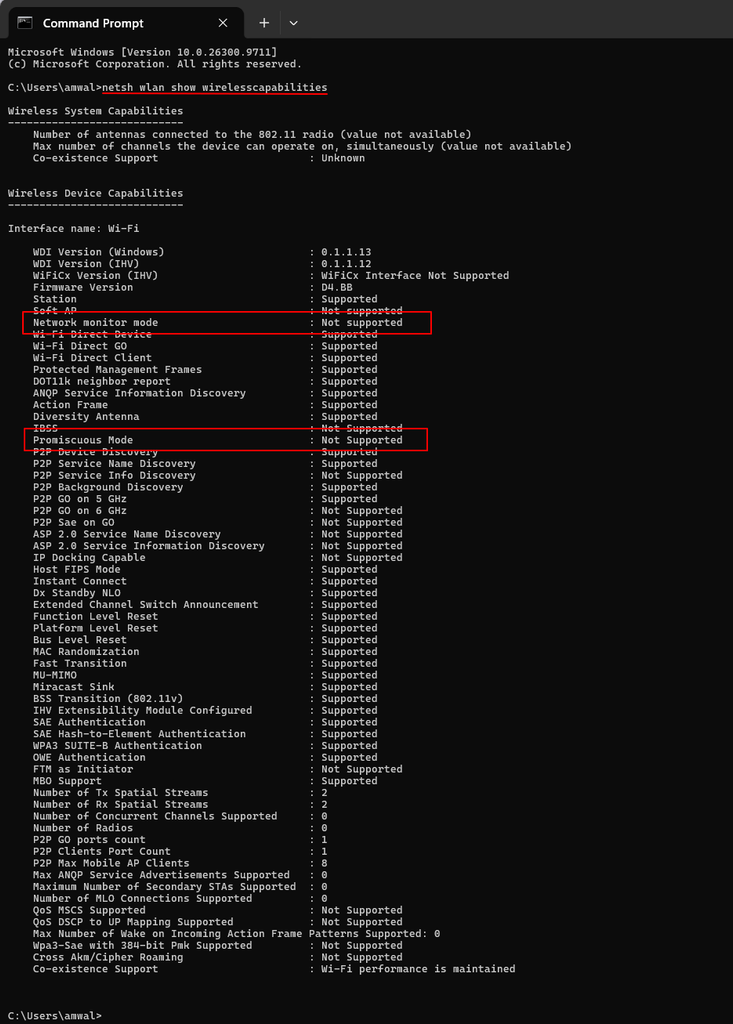
netsh wlan show wirelesscapabilitiesOn supported systems, examine the reported Network Monitor mode capability. If the relevant capability is unavailable, that is an indication that the current adapter and driver may not support the required operation. However, a capability being reported does not guarantee that Wireshark will successfully capture raw frames.
The adapter, driver, Windows wireless stack, and Npcap must work together.
6. Install Wireshark and Npcap Correctly
If Wireshark is not already installed, download the current Windows installer from the official website.
During installation, you will be offered the option to install Npcap if an appropriate version is not already present.
Npcap is the Windows packet capture driver used by Wireshark.
For this particular exercise, there is one installation option you must pay attention to:
Support raw 802.11 traffic (and monitor mode) for wireless adapters
Make sure this option is enabled.
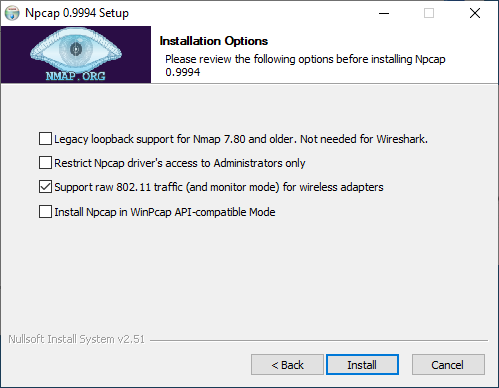
Without it, Npcap normally presents wireless data using Ethernet-style encapsulation rather than providing raw 802.11 capture support.
If Npcap is already installed without raw 802.11 support, you may need to rerun its installer and change the installation options.
There is generally no reason to reinstall Wireshark repeatedly simply because a wireless adapter does not support monitor mode.
Also, avoid installing legacy WinPcap as a workaround. Npcap is the appropriate capture driver for modern Windows systems.
The Npcap User’s Guide provides additional information about installation and wireless capture support.
Suggested screenshot: Npcap installation options showing raw 802.11 capture support selected.
7. Enable Monitor Mode in Wireshark
With Wireshark and Npcap installed, we can attempt our first raw WLAN capture.
Start Wireshark normally.
Select:
Capture > Options
Alternatively, use the keyboard shortcut:
Ctrl + K
In the Capture Options window, select the Input tab.
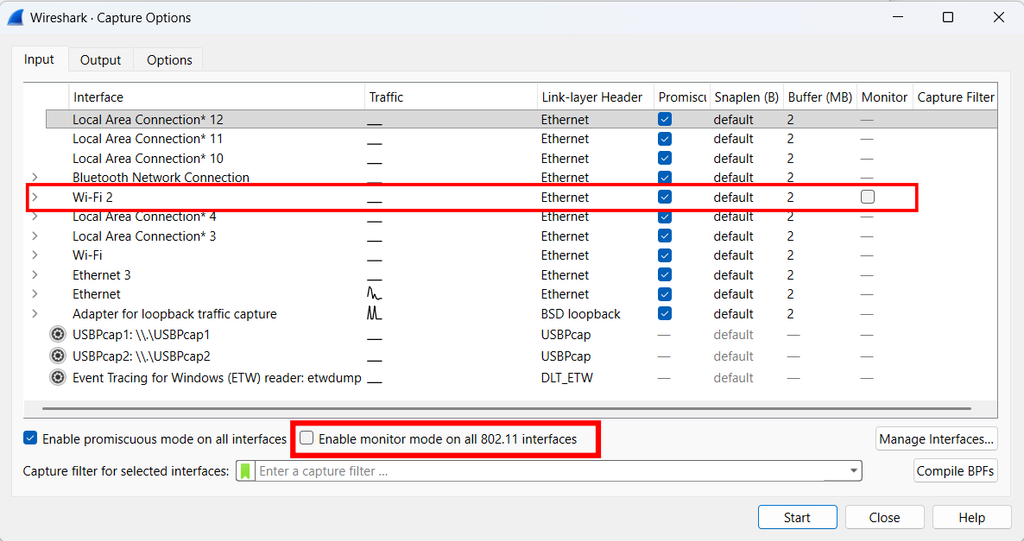
Locate your wireless interface.
Look for the Monitor Mode column. Depending on the window layout, you may need to scroll horizontally to see it.
If the adapter supports the required operation, the column should provide a selectable monitor-mode option.
Enable monitor mode for the wireless interface.
Then select Start.
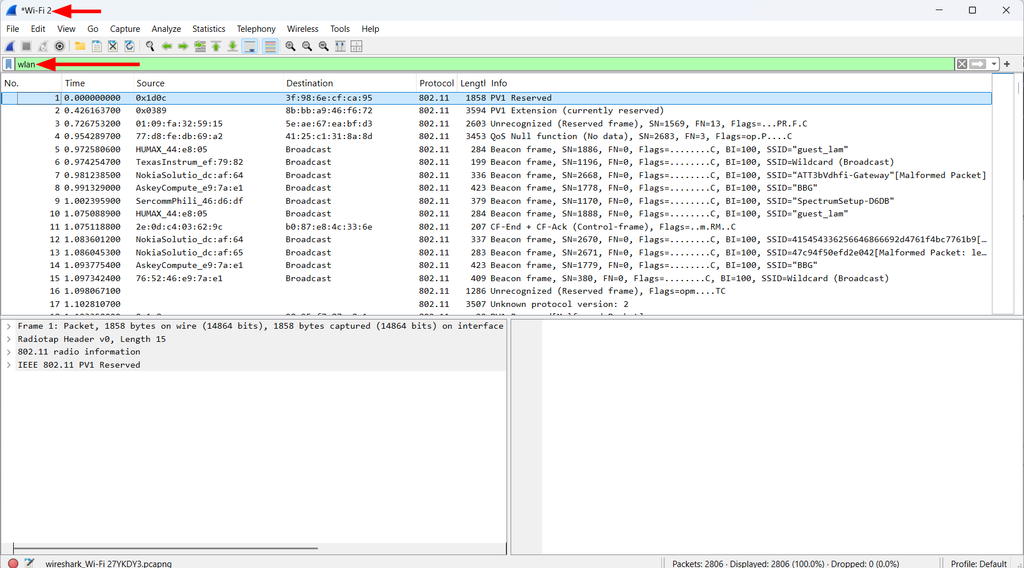
If everything is working, Wireshark should begin displaying raw IEEE 802.11 frames.
You may see Beacon frames, Probe Requests, Probe Responses, data frames, and other wireless activity.
Now try the display filter:
wlanIf you are receiving raw 802.11 traffic, this should match the relevant WLAN frames.
You can also check the link-layer encapsulation shown in the packet details.
Instead of an ordinary Ethernet header, you should see IEEE 802.11 information and possibly Radiotap metadata.
What if the Monitor Mode Checkbox Is Unavailable?
If Wireshark displays a dash instead of a checkbox, the interface may not support monitor mode through the installed driver.
That is not a problem you can necessarily fix by changing Wireshark preferences. The limitation may exist in the hardware or Windows driver.
You can investigate further using WlanHelper, which we’ll discuss shortly.
A Warning About Losing Connectivity
Enabling monitor mode may cause the wireless adapter to disconnect from its access point. That means your computer could temporarily lose Internet access.
If you need Internet connectivity while capturing, consider using Ethernet or a second wireless adapter for your normal connection.
This is one reason I prefer having a dedicated capture adapter when performing wireless troubleshooting.
8. Understanding Channels and Frequencies
Successfully enabling monitor mode is only part of the exercise.
The next question is: What channel are you monitoring?
A wireless adapter does not automatically capture traffic across every Wi-Fi channel simultaneously. For example, if your access point operates on channel 6 in the 2.4 GHz band but your capture adapter is monitoring channel 11, you may not see the traffic you are expecting. This becomes more complicated with modern Wi-Fi networks operating across the 2.4 GHz, 5 GHz, and 6 GHz bands.
Channel width also matters. An access point might use a 20 MHz, 40 MHz, 80 MHz, 160 MHz, or other supported channel configuration.
Not every adapter can capture every channel width, modulation, or PHY format.
For controlled troubleshooting, it is often best to configure the capture adapter for the channel used by the access point or client you are investigating.
If you are troubleshooting a roaming problem involving multiple access points operating on different channels, one capture adapter may not be enough.
You may need multiple synchronized capture interfaces or capture points.
This is particularly important when investigating Wi-Fi 6, Wi-Fi 6E, and Wi-Fi 7 networks, where adapter and driver capabilities can impose additional limitations.
9. Using WlanHelper for Additional Troubleshooting
Npcap includes a utility named WlanHelper.
It is normally installed in:
C:\Windows\System32\Npcap\WlanHelper can query wireless interface operating modes and attempt to change certain wireless adapter settings.
It is particularly useful when investigating why monitor mode is unavailable or why the capture adapter is not operating as expected.
Open Command Prompt as Administrator.
Navigate to the Npcap directory:
cd /d C:\Windows\System32\NpcapYou can display the utility’s help with:
WlanHelper.exe -hYou can also use its interactive interface:
WlanHelper.exe -iCheck Your Interface Mode
Suppose your wireless adapter is named Wi-Fi 2.
Try:
WlanHelper.exe "Wi-Fi 2" modeThis queries the current operating mode.
To query the supported modes, try:
WlanHelper.exe "Wi-Fi 2" modesIf you want to attempt a manual switch into monitor mode:
WlanHelper.exe "Wi-Fi 2" mode monitorIf the command fails with a message indicating that the request is unsupported, the installed driver or hardware may not support that operation.
That is useful information. However, there is an important consideration.
When capturing with current Wireshark and Npcap, enable monitor mode in Wireshark’s Capture Options rather than relying on WlanHelper to enable it externally.
Npcap’s documentation explains that changing the mode externally can leave Wireshark unaware of the interface’s capture mode, resulting in an incorrect capture configuration or no traffic.
I recommend using WlanHelper primarily for diagnostics and advanced adapter configuration.
If you have manually changed the adapter into monitor mode, you can return it to managed mode with:
WlanHelper.exe "Wi-Fi 2" mode managedThe adapter name must match the interface on your computer.
My Detailed WlanHelper Tutorial
Rather than duplicate the entire WlanHelper procedure here, I recommend reading my separate CellStream article: WlanHelper: How to Use It in Windows
In that tutorial, I demonstrate how to examine wireless interfaces and change their operating modes. I also show examples where one wireless adapter supports monitor mode while another does not.
That is an important lesson: the fact that one Wi-Fi adapter works does not mean every adapter will behave the same way.
10. What Happened to Microsoft Network Monitor?
In the original version of this article, I recommended Microsoft Network Monitor 3.4. At the time, it offered an interesting way to capture wireless management and control frames on certain Windows systems. However, Microsoft Network Monitor is now an archived product and is no longer under active development. Microsoft Message Analyzer, another historical Microsoft packet analysis tool, was also retired.
For Windows 11, I no longer recommend installing Microsoft Network Monitor 3.4 as the preferred solution for wireless troubleshooting.
Instead, use Wireshark and Npcap with hardware and drivers that support monitor mode.
Microsoft still maintains historical information about Network Monitor in its Network Monitor documentation. Those resources remain interesting from a historical perspective, but they should not be confused with a modern, supported wireless capture workflow.
11. What Can We Learn From a Raw Wi-Fi Capture?
Once you have a working monitor-mode capture, an entirely different troubleshooting environment becomes available.
Instead of examining only IP packets, you can investigate the wireless MAC-layer exchanges occurring around them. For example, you can examine Beacon frames to discover how an access point advertises its wireless network.
You can examine Probe Requests and Responses to investigate network discovery.
You can observe Authentication, Association, and Reassociation exchanges to understand how clients establish wireless connectivity.
You may also see Deauthentication and Disassociation frames that provide clues about unexpected wireless disconnections.
Control frames can reveal additional information about MAC-layer operation.
Depending on hardware support and capture quality, you may be able to observe retransmissions and examine frame timing.
Here are some useful Wireshark display filters to get started.
| What to inspect | Display filter |
|---|---|
| All captured 802.11 frames | wlan |
| Management frames | wlan.fc.type == 0 |
| Control frames | wlan.fc.type == 1 |
| Data frames | wlan.fc.type == 2 |
| Beacon frames | wlan.fc.type_subtype == 0x08 |
| Probe Requests | wlan.fc.type_subtype == 0x04 |
| Deauthentication | wlan.fc.type_subtype == 0x0c |
| Disassociation | wlan.fc.type_subtype == 0x0a |
| Frames with Retry bit set | wlan.fc.retry == 1 |
Remember that these filters operate on packets that were actually captured. A display filter cannot recover frames that your adapter never received. Similarly, a retransmission observed in an 802.11 capture is not necessarily the same thing as a TCP retransmission.
They occur at different protocol layers and can have different causes.
12. Use the CellStream Wireless Troubleshooting Profile
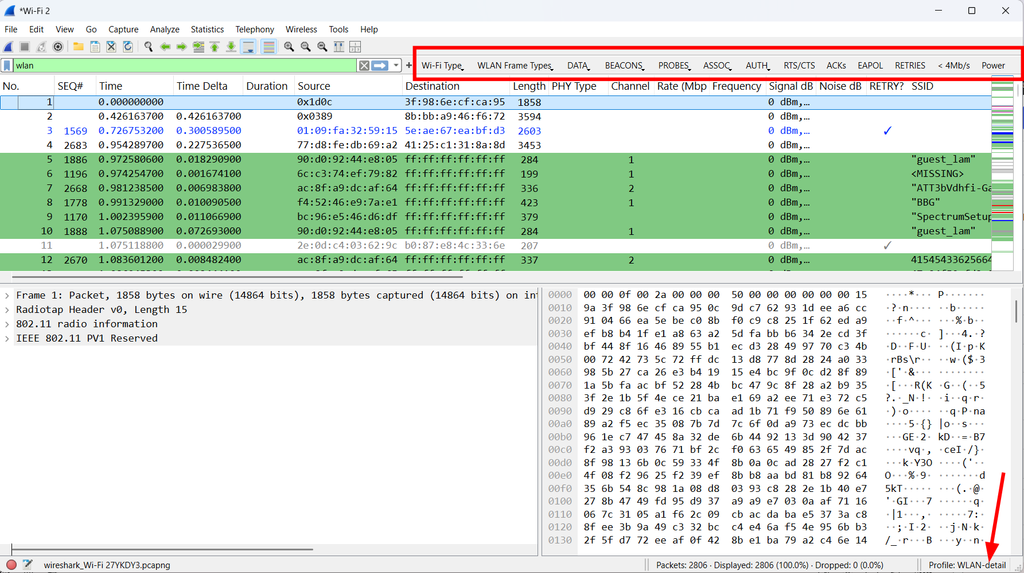
Once you have captured raw wireless frames, I recommend using a Wireshark profile designed specifically for WLAN analysis. I created a customized Wi-Fi troubleshooting profile to make common wireless fields and frame types easier to identify. The profile provides useful packet coloring, display filters, and packet-list columns for analyzing 802.11 traffic.
You can learn more about it here: CellStream Wireshark Wi-Fi WLAN Troubleshooting Profile
Here is the prior capture I made with that profile enabled (note the different columns and all the display filter buttons as well as special colorization):
You can also explore the CellStream Wireshark Profiles Repository, which contains additional profiles for analyzing various network protocols.
One important reminder: a Wireshark profile changes how packets are displayed and analyzed. It does not enable monitor mode or change the capabilities of your wireless hardware.
You must first obtain a suitable packet capture.
13. What if Windows Still Cannot Capture Raw Wi-Fi Frames?
If you have installed Npcap correctly, enabled raw 802.11 support, and attempted to use monitor mode, but your adapter still does not cooperate, don’t assume that Wireshark is defective.
The problem may be a limitation of the Windows driver. This is a common frustration, particularly with internal laptop wireless adapters.
At this point, you have several reasonable options.
Try another wireless adapter. A compatible external USB Wi-Fi adapter may provide the capabilities missing from your internal adapter. Verify Windows monitor-mode support before purchasing hardware.
Use Linux. Linux often provides greater control over wireless interfaces, although monitor-mode support still depends on the adapter, chipset, and driver.
Use a dedicated wireless capture system. If your work regularly involves wireless packet analysis, a separate capture computer can be a worthwhile investment.
Consider a virtual machine carefully. A Windows or Linux virtual machine normally sees a virtual network adapter rather than direct access to the host’s internal wireless interface. A compatible external USB adapter passed through to the guest may work, but this depends on USB passthrough support and the guest’s drivers.
I have written a separate tutorial on capturing wireless packets with Linux:
Capturing Wi-Fi WLAN Packets in Wireshark on Linux
For many serious wireless troubleshooting exercises, Linux remains a practical alternative when Windows driver limitations prevent monitor-mode capture.
14. A Few Important Limitations of Wireless Packet Capture
Even with a functioning monitor-mode adapter, there are several things to remember.
Encryption
A raw wireless capture may contain encrypted data frames. Capturing those frames does not automatically provide access to their higher-layer contents. Successful decryption depends on the security mechanism, available key material, and whether the required authentication or handshake traffic was captured. WPA2-Personal, WPA3-Personal, and enterprise authentication environments have different requirements.
Management frame protection can also affect what information is protected.
Radio Information
Radiotap can provide useful metadata about received frames, including frequency, signal strength, and certain transmission characteristics. However, the fields available depend on what the adapter and driver report.
Missing Radiotap fields do not necessarily indicate a malformed capture.
Capture Completeness
A single radio cannot necessarily observe all transmissions across an entire WLAN. Channel selection, signal quality, radio capabilities, and the physical position of the capture adapter all influence the results. Control-frame visibility can be particularly hardware-dependent.
Therefore, be cautious about concluding that a particular frame was never transmitted simply because it is missing from your capture.
Capture Location
Where you position your capture adapter matters.
A capture taken near the access point may see different traffic from a capture taken near the wireless client.
For difficult wireless troubleshooting situations, multiple capture locations may be necessary.
Privacy and Authorization
Capture traffic only on networks you own or are authorized to investigate. Wireless captures may include device identifiers, network names, and other potentially sensitive information. Review captured data before sharing PCAP files publicly or with third parties.
15. My Recommended Windows Wi-Fi Capture Workflow
When preparing for a wireless packet analysis exercise using Windows, I recommend the following approach:
- Identify exactly what you want to investigate: network data, association, roaming, retransmissions, or another wireless behavior.
- Determine whether a normal managed-mode capture is sufficient.
- If raw 802.11 frames are required, verify the adapter’s monitor-mode capabilities.
- Install Wireshark and Npcap with raw 802.11 capture support enabled.
- Attempt to enable monitor mode through Wireshark’s Capture Options.
- Confirm that the adapter is monitoring the correct channel or frequency.
- Start the capture and verify that actual IEEE 802.11 headers are present.
- If it fails, use WlanHelper and Windows diagnostics to investigate the adapter.
- Capture the relevant traffic, keeping in mind channel and radio limitations.
- Save the capture in PCAPNG format and analyze the frames with the appropriate Wireshark display filters and profiles.
Most importantly, do not begin troubleshooting the wireless network until you have verified that the capture interface is actually recording the traffic you intended to examine.
Final Thoughts
Capturing raw Wi-Fi traffic on Windows has historically been more difficult than capturing Ethernet traffic. When I originally published this article in 2017, Microsoft Network Monitor and early Npcap implementations offered possible solutions, but compatibility was inconsistent. Today, Wireshark and Npcap provide a better approach for Windows 11. However, the limitations of wireless adapter hardware and drivers have not disappeared.
The most important thing is to understand the difference between ordinary network data captured over Wi-Fi and actual IEEE 802.11 frames captured in monitor mode. Those are two very different types of packet captures. And as I regularly remind students in our Wi-Fi and packet analysis classes, you cannot troubleshoot what you did not capture.
Before reaching conclusions about wireless behavior, verify the capture method, channel, frame types, and limitations of your capture equipment. If you have successfully captured raw 802.11 traffic on Windows using a particular wireless adapter, I would be interested in hearing which adapter and driver combination worked for you.
Those experiences can be valuable to other network scientists facing the same challenges.
[Note: If you cannot get this to work, I suggest you read this article as well.]
[MAC users check out an article for you: https://www.cellstream.com/reference-reading/tipsandtricks/442-capturing-wi-fi-wlan-packets-in-wireshark-on-macosx]
If you would like to help support the continued development of independent networking, broadband, Wi-Fi, VoIP, and packet analysis content, please consider joining our Patreon community where you will gain access to exclusive technical resources, downloadable labs and PCAPs, bonus course content, troubleshooting guides, and additional member-only material. Comments and technical discussion are always welcomed at our Patreon community or on our Discord server. You can also support our work by simply buying us a coffee — every contribution helps us continue creating practical, real-world network science education for professionals and enthusiasts alike.