

Originally published November 9, 2006 | Updated November 2026
Device drivers are something most Windows users rarely think about until something stops working.
Your Wi-Fi connection suddenly disappears. A USB device is no longer recognized. Your sound stops working following a Windows update. Perhaps your display begins behaving strangely, or an application reports that a particular device is unavailable.
Any of these symptoms might involve a device driver.
When I originally wrote this article back in 2006, I introduced a Windows command-line utility called driverquery that allowed you to examine the device drivers installed on a computer.
That utility is still available in Windows 11, but we now have several additional tools and better ways to investigate driver-related problems.
Let’s update the original discussion and look at how to identify, examine, update, and troubleshoot Windows device drivers.
1. What Exactly Is a Device Driver?
A device driver is software that allows Windows to communicate with and control hardware or certain virtual devices.
For example, your computer may have an Ethernet adapter, a Wi-Fi adapter, a graphics processor, an audio controller, storage controllers, and numerous USB devices.
Windows needs appropriate drivers to operate these devices.
Drivers provide the interface between the operating system and the functionality exposed by the hardware.
In many cases, Windows automatically recognizes hardware and installs a compatible driver without requiring any action from the user.
However, a driver that is missing, corrupted, incompatible, or malfunctioning can cause problems ranging from minor performance issues to complete device failure.
A driver may also load successfully while exhibiting a functional defect. In other words, Windows reporting that a device is working properly does not guarantee that every feature of the hardware is functioning correctly.
That distinction is important when troubleshooting.
2. Start With Windows Device Manager
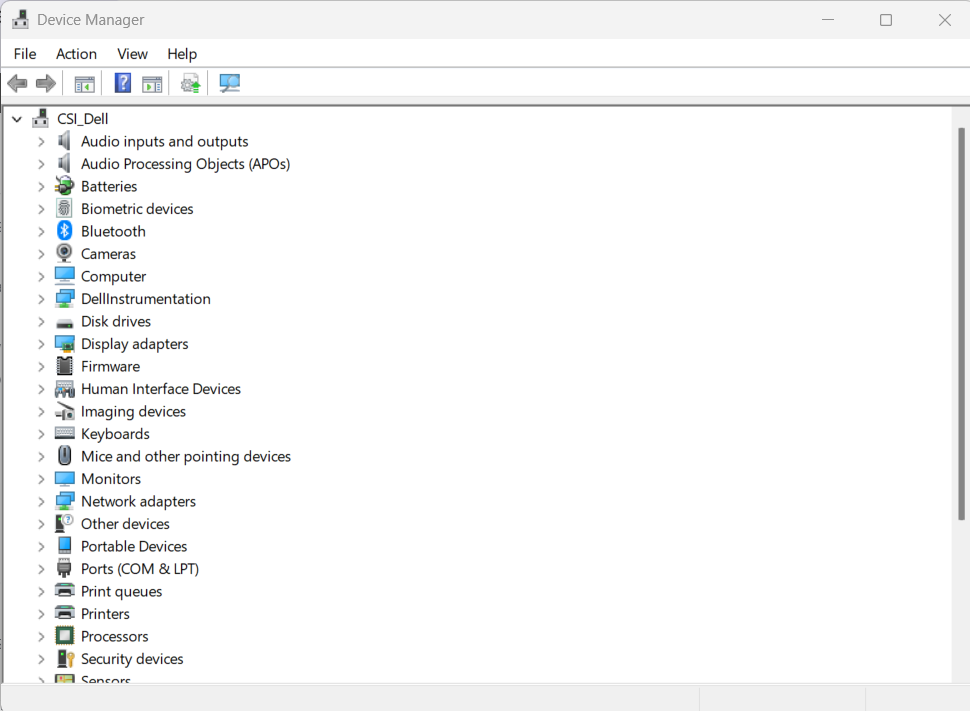
One of the first places I look when troubleshooting a potential driver problem is Device Manager.
Press Windows + X and select Device Manager.
Alternatively, press Windows + R and enter:
devmgmt.msc
Device Manager displays hardware devices organized into categories such as Network adapters, Display adapters, Disk drives, and Sound, video and game controllers.
Expand the appropriate category and locate the device you want to examine.
Right-click the device and select Properties.
Several tabs provide useful diagnostic information.
General Tab
The General tab identifies the device and provides a device status message.
If Windows detects a problem, this area may display a diagnostic code.
For example, Code 28 generally indicates that the drivers for a device are not installed, while Code 10 indicates that the device cannot start.
These codes are useful diagnostic clues, but they do not always identify the underlying cause.
Microsoft maintains a useful reference explaining Device Manager error codes and recommended resolutions.
Driver Tab
The Driver tab provides information such as:
- Driver provider
- Driver date
- Driver version
- Digital signer
It also includes options for updating, rolling back, disabling, or uninstalling the device driver, depending on the device.
The driver version and provider are particularly useful when troubleshooting a problem that began following an update.
Details Tab
The Details tab is often overlooked.
It provides access to additional device properties, including hardware IDs, device instance paths, service names, and other information.
Hardware IDs are especially useful when Windows identifies a device only as an unknown device.
For example, PCI device identifiers can help determine the manufacturer and particular device model.
This can be helpful when searching for the correct driver on a computer manufacturer’s support site.
3. Use DriverQuery to Examine Installed Drivers
Now let’s return to the command that inspired the original article.
Windows includes a utility named driverquery.exe.
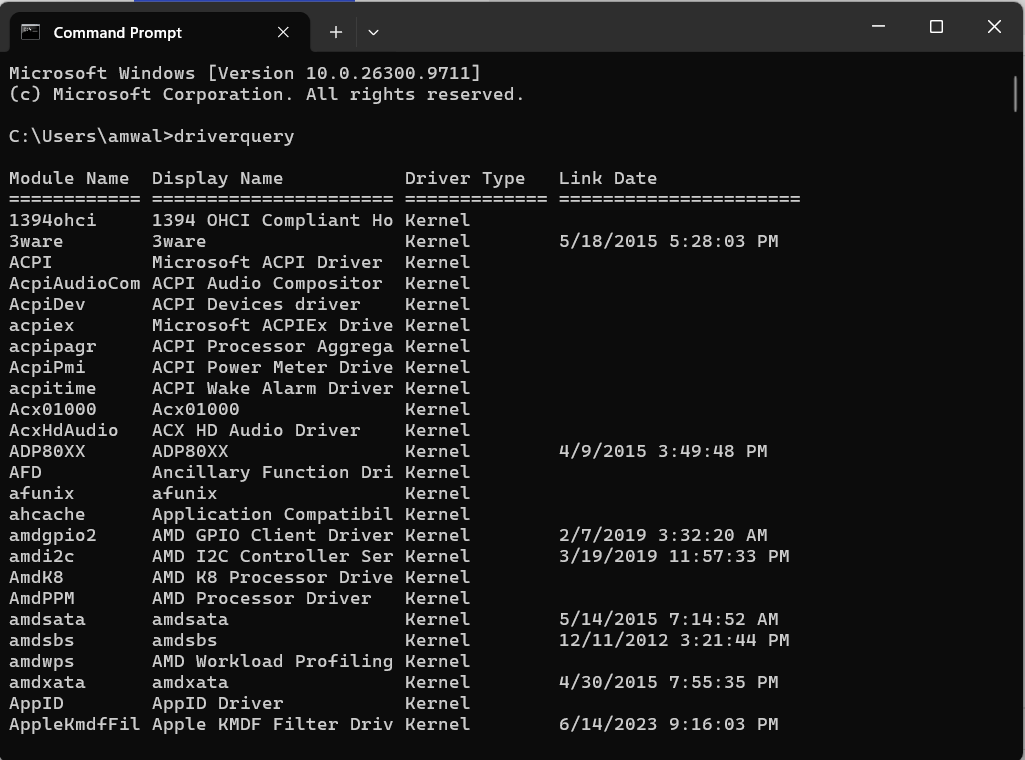
Open Command Prompt and enter:
driverquery
Windows displays information about installed drivers in a table.
For additional information, try:
driverquery /v
The /v option requests verbose information.
You can also display the information in list format:
driverquery /fo list
One particularly useful capability is exporting the output to a CSV file.
Try:
driverquery /v /fo csv > drivers.csv
This creates a file named drivers.csv in your current directory.
You can open that file in Excel or another spreadsheet application to review, sort, or search the results.
For example, you might want to identify a particular driver or compare driver information collected from two computers.
Another option is:
driverquery /si
This displays driver signing information.
An Important Limitation
Although DriverQuery remains supported, Microsoft now recommends using PnPUtil for driver package inventory because DriverQuery can produce misleading results.
It is also important to distinguish between an installed driver package, a driver service, and the driver currently associated with a particular hardware device.
These are related concepts, but they are not the same thing.
DriverQuery remains useful for certain system-level investigations, but it should not be your only source of driver information.
For command syntax and supported options, see Microsoft’s DriverQuery documentation.
4. Meet PnPUtil: A More Capable Driver Management Tool
For modern Windows driver troubleshooting, I recommend becoming familiar with pnputil.exe.
PnPUtil is a Microsoft command-line utility used to examine devices, inspect installed driver packages, and perform certain driver management operations.
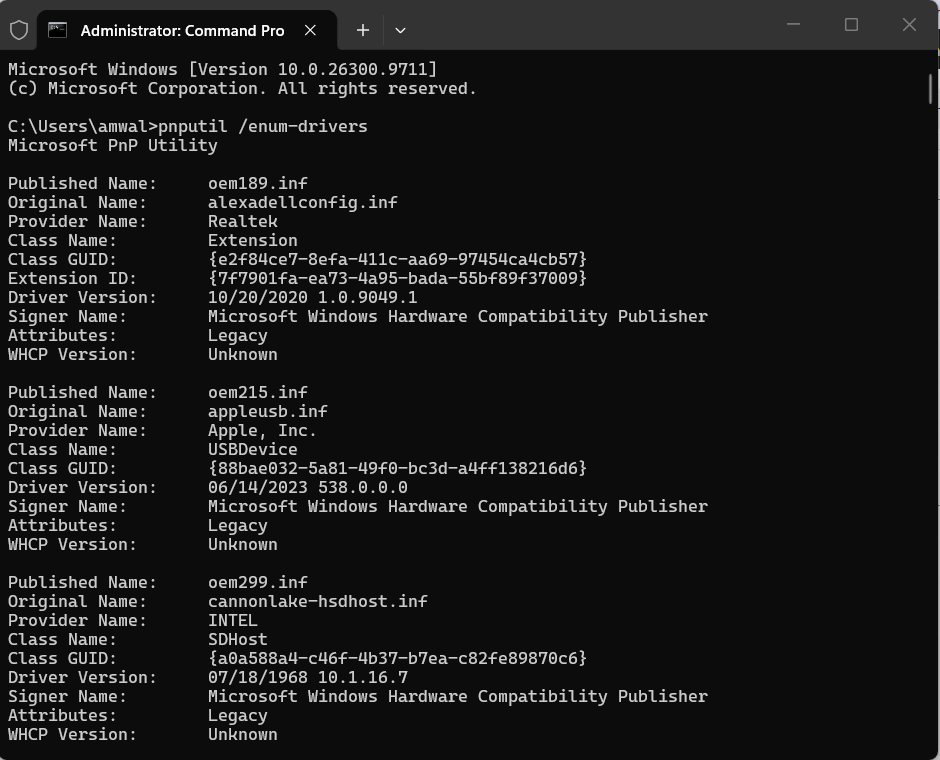
It is particularly useful when Device Manager does not provide enough information.
Open Command Prompt or Windows Terminal as Administrator.
To display third-party driver packages in the Windows driver store, enter:
pnputil /enum-drivers
This provides information such as the published INF name, original INF name, provider, driver class, version, and signer.
Unlike DriverQuery, this command is specifically examining driver packages managed by the Windows driver store.
Find Devices With Problems
Here is one of my favorite troubleshooting options:
pnputil /enum-devices /problem
This lists devices that Windows has identified as having a problem.
If you want additional information, including hardware IDs, enter:
pnputil /enum-devices /problem /deviceids
This can be extremely useful when investigating devices that are missing drivers or cannot start.
Examine Connected Devices
Try:
pnputil /enum-devices /connected
This lists devices currently connected to the computer.
You can also examine devices by class. For example:
pnputil /enum-devices /class "Net"
This can be useful for investigating network adapters and associated device information.
Export Driver Packages
PnPUtil can export third-party driver packages from the Windows driver store.
For example, first create a folder called C:\DriverBackup, then run:
pnputil /export-driver * C:\DriverBackup
This can be useful when preparing for maintenance or preserving available third-party driver packages.
However, remember that this is not a complete system backup, and some vendor utilities or other software components may require separate installation.
Be Careful With Driver Removal
PnPUtil also supports removing driver packages.
I would not recommend casually experimenting with this capability.
Removing the wrong storage, chipset, or network driver can make a system unstable or prevent hardware from functioning.
Inventory and inspection should come before making changes.
Microsoft provides comprehensive guidance in its PnPUtil Command Syntax documentation.
5. Updating a Device Driver
Windows 11 usually obtains recommended device drivers automatically through Windows Update.
Before manually updating a driver, determine whether an update is actually necessary.
If your computer is operating correctly, a newer driver is not automatically a better driver for your particular hardware configuration.
That said, driver updates can resolve known defects, improve compatibility, address security vulnerabilities, or support new features.
Check Windows Update
Open:
Settings > Windows Update > Advanced options > Optional updates
If optional driver updates are available, review them carefully.
These updates are not necessarily required for every system.
Update Through Device Manager
You can also update a specific driver through Device Manager.
- Open Device Manager.
- Locate the device.
- Right-click and select Update driver.
- Choose Search automatically for drivers.
If Windows does not find a suitable update, check the official website of the computer or hardware manufacturer.
For example, laptop manufacturers sometimes provide customized chipset, graphics, wireless, or power management drivers designed for their particular systems.
Avoid downloading drivers from unfamiliar third-party driver download websites.
Microsoft explains the supported procedures in Update Drivers Through Device Manager in Windows.
6. What if the New Driver Makes Things Worse?
This happens more often than most users might expect.
A driver update may introduce compatibility problems, affect device performance, or expose an existing firmware or configuration issue.
Fortunately, Windows provides a rollback mechanism for many drivers.
Open Device Manager, locate the device, right-click it, and select Properties.
Under the Driver tab, select Roll Back Driver, if available.
Windows attempts to restore the previously installed driver.
The option may be unavailable if no previous driver version is retained.
If the problem started immediately after a driver update, rollback is often worth investigating before removing the device entirely.
I also recommend recording the working driver version before experimenting with updates.
This is especially useful when troubleshooting recurring problems with network adapters, graphics hardware, and USB devices.
7. Troubleshooting Network Adapter Drivers
Because networking is such a large part of what we do here at CellStream, let’s look specifically at Ethernet and Wi-Fi adapters.
A malfunctioning network adapter driver can produce symptoms such as:
- A missing network adapter in Windows
- An adapter that repeatedly disconnects
- Unexpected link speed negotiation
- Inconsistent wireless connectivity
- Problems following sleep or resume
- Device initialization errors
However, it is important not to immediately blame the driver.
An Ethernet cable problem, switch configuration, weak Wi-Fi signal, RF interference, DHCP failure, or DNS issue can produce similar symptoms.
Start by determining whether Windows recognizes the adapter.
Open Device Manager and expand Network adapters.
Examine the adapter’s status and driver information.
Then open Command Prompt and enter:
ipconfig /all
This displays the network interface configuration and can help determine whether the adapter is present and has a usable IP configuration.
For additional information about your wireless adapter driver, try:
netsh wlan show drivers
This command can display useful information about the installed Wi-Fi driver and the wireless capabilities reported through Windows.
For current connection information, use:
netsh wlan show interfaces
These commands examine different aspects of the wireless adapter and connection.
Use the CellStream Windows Networking Toolkit
I created the free CellStream Windows Networking Toolkit to make common Windows networking commands easier to access.
The toolkit includes a Wi-Fi driver information function, along with numerous other network diagnostic capabilities.
You can download it and learn more in Our Windows Networking Toolkit.
For explanations of its features, see the Windows Networking Toolkit Usage Instructions.
If the network adapter appears to be operating correctly but Internet connectivity is still failing, continue troubleshooting at the appropriate network layer.
For example, my article Troubleshooting Using Ping explains how to test IP connectivity and interpret the results.
The objective is to distinguish an actual driver problem from a network configuration or connectivity problem.
8. A Device Is Not Recognized by Windows
Sometimes you connect a USB device, docking station, printer, or other peripheral and Windows does not recognize it.
Before searching for a new driver, investigate the physical connection.
Try a different USB port, cable, or power source where appropriate.
For USB devices, determine whether the problem affects a particular port or follows the device to another computer.
Next, open Device Manager and look for unknown devices or warning indicators.
You can also select View > Show hidden devices to display additional device entries, including some devices that are not currently connected.
If the hardware is not detected at all, the problem may involve the connection, device power, hardware, firmware, or USB controller rather than the device driver itself.
PnPUtil provides a method to request another hardware scan:
pnputil /scan-devices
If Windows detects the device, you can then examine its properties and driver status.
Remember that a scan cannot make failed hardware or a disconnected device suddenly function.
9. Use Windows Event Logs to Investigate Driver Problems
Device Manager may tell you that something is wrong, but additional information can sometimes be found in Windows diagnostic logs.
Open Event Viewer:
eventvwr.msc
Examine relevant System log entries and look for events associated with the device or driver around the time of the failure.
For example, you may see events involving a network adapter resetting, a device failing to initialize, or an unexpected driver failure.
Be careful when interpreting these messages. An event associated with a device is not necessarily proof that the driver caused the original problem.
Examine Driver Installation Logs
Windows also maintains driver and device installation records.
One particularly useful file is:
C:\Windows\INF\setupapi.dev.log
This log can contain detailed information about device installation activity, driver selection, and installation errors.
It is particularly useful when a driver installation repeatedly fails or Windows chooses an unexpected driver package.
For more information, see Microsoft’s Troubleshooting Device and Driver Installations documentation.
10. Don’t Forget About Hardware and Firmware
One mistake in driver troubleshooting is assuming that every device failure must be software-related.
It is entirely possible for Windows to load the correct driver while the underlying hardware is malfunctioning.
For example, a failing network adapter may repeatedly reset even though Windows reports that the driver is installed correctly.
Similarly, a USB controller problem, defective cable, or incompatible firmware can cause symptoms that resemble driver issues.
Firmware can be particularly important with modern storage devices, Wi-Fi adapters, docking stations, and other hardware.
Before applying firmware updates, verify that the update is intended for your exact hardware model and follow the manufacturer’s instructions.
Also, avoid interrupting firmware updates once they are underway.
If you need help identifying the hardware inside your Windows computer, see my related CellStream article, Identify Your Computer’s Components in Detail.
Understanding exactly what hardware you have is often the first step toward locating the correct driver.
11. A Practical Driver Troubleshooting Workflow
When I suspect a device driver is causing a problem, I generally follow a fairly straightforward process.
- Identify the symptom. What is the device failing to do? Is the problem intermittent or continuous?
- Determine what changed. Did the problem begin after a Windows update, driver update, hardware installation, or other configuration change?
- Check Device Manager. Look for warning indicators, device status codes, and driver information.
- Collect additional information. Use PnPUtil, DriverQuery, Event Viewer, or the Windows installation logs when appropriate.
- Confirm the hardware. Make sure the correct device is detected and that cables, power, and associated hardware are functioning.
- Investigate the driver version. Compare the installed version with the manufacturer’s supported version.
- Make one controlled change. Update, roll back, or reinstall the driver only when the evidence supports doing so.
- Verify the results. Confirm that the original problem is resolved and that the device operates correctly.
- Document the findings. Record the driver version, error messages, and corrective action.
Most importantly, avoid making several driver changes simultaneously.
If you update the chipset, graphics, wireless, and storage drivers all at once, and the problem disappears, you may never know which change resolved it.
Worse, if a new problem appears, it becomes much more difficult to identify the responsible update.
Final Thoughts
Device drivers rarely receive much attention until hardware stops working properly. Fortunately, Windows provides several useful tools for diagnosing driver problems.
Device Manager remains a good starting point, DriverQuery is still available, and PnPUtil provides more detailed visibility into device status and driver packages.
Combined with Windows Event Viewer, driver installation logs, and vendor documentation, these tools can help identify whether a problem involves a driver, the operating system, or the hardware itself.
The important thing is to troubleshoot methodically.
Understand what the device is supposed to do, determine what is happening instead, and use the available evidence to narrow down the possibilities.
As I frequently remind students in our technical training classes, knowing which command to run is useful, but understanding what the results mean is what makes you an effective troubleshooter.
If you would like to help support the continued development of independent networking, broadband, Wi-Fi, VoIP, and packet analysis content, please consider joining our Patreon community where you will gain access to exclusive technical resources, downloadable labs and PCAPs, bonus course content, troubleshooting guides, and additional member-only material. Comments and technical discussion are always welcomed at our Patreon community or on our Discord server. You can also support our work by simply buying us a coffee — every contribution helps us continue creating practical, real-world network science education for professionals and enthusiasts alike.