

Originally published September 3, 2010. Updated November 2026.
Computers have changed considerably since I first published this article in 2010. Windows has evolved, solid-state drives have largely replaced mechanical hard drives, Wi-Fi has become essential, and IPv6 is now an important part of Internet connectivity.
What has not changed is the need for effective troubleshooting.
Whether you are dealing with a Windows computer that refuses to boot, a system that has suddenly become slow, or an Internet connection that appears to have disappeared, the objective is the same: determine what is failing before attempting to fix it.
One thing I have learned over decades of troubleshooting computers and networks is that randomly changing settings rarely teaches us anything. You might get lucky and restore service, but you still do not know what caused the problem.
Let’s look at some useful troubleshooting techniques for modern Windows computers and networks.
1. Your PC Will Not Boot Into Windows
There are few things more frustrating than turning on your computer and discovering that Windows will not load.
Before attempting repairs, observe exactly what happens.
Does the computer power on? Do you see the manufacturer’s logo? Does Windows start loading and then crash? Does the system continually restart?
These are different symptoms, and they help narrow down where the problem might exist.
Try Windows Safe Mode
Safe Mode starts Windows with a reduced collection of drivers and services. It is particularly helpful when Windows works in this environment but fails during a normal startup.
To access Safe Mode when Windows is still accessible:
- Open Settings > System > Recovery.
- Under Advanced startup, select Restart now.
- Select Troubleshoot > Advanced options > Startup Settings > Restart.
- Select the appropriate Safe Mode option, usually option 4.
You can also hold the Shift key while selecting Restart from the Windows power menu.
If Windows will not start normally, the Windows Recovery Environment (WinRE) may launch automatically after repeated startup failures.
Microsoft provides detailed instructions in its Windows Recovery Environment documentation.
If Safe Mode works, investigate recently installed drivers, applications, updates, or startup services. The fact that Safe Mode works does not identify the precise cause, but it provides a useful starting point.
Try Startup Repair or System Restore
Windows includes several recovery options.
Startup Repair attempts to diagnose and correct certain problems preventing Windows from starting.
System Restore can return system files, installed applications, drivers, and configuration settings to an earlier restore point, assuming one is available. It normally leaves personal files unchanged.
Both utilities are available through the Windows Recovery Environment.
Before performing major recovery operations, make sure important files are backed up where possible. If the drive uses BitLocker or device encryption, you may also need the recovery key.
Don’t Overlook Hardware Problems
Not every startup problem is a Windows problem.
Defective RAM, a failing SSD, overheating, power supply problems, and other hardware faults can prevent a successful startup.
Check the computer’s firmware diagnostics, verify that the storage device is detected, and pay attention to unusual sounds or recurring hardware error messages.
A bootable Linux USB drive can be useful for examining hardware or recovering files. However, successfully starting Linux does not prove that every hardware component is functioning correctly.
Additional reference: Microsoft Windows backup, restore, and recovery documentation.
2. Windows Keeps Crashing or Restarting
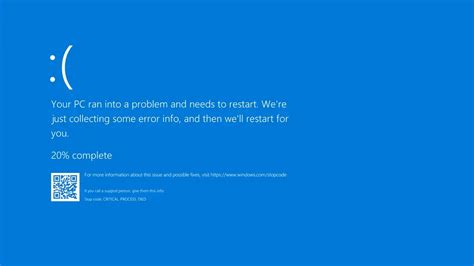
Windows stop errors, sometimes called Blue Screens of Death (BSODs), can indicate problems involving drivers, hardware, system files, firmware, or other software.
Start by recording the stop code and any driver or file name displayed.
Then consider what changed before the crashes began. Was a driver updated? Was new hardware installed? Did the problem start following a Windows update?
Use Reliability Monitor
Windows includes a useful diagnostic tool called Reliability Monitor.
Press Windows + R and enter:
perfmon /rel
Reliability Monitor displays a timeline of system and application failures, updates, and other important events.
I find this especially useful because it provides a historical view of when problems started occurring.
For example, if crashes began immediately after a graphics driver update, that gives us a reasonable direction for further investigation.
Examine the Windows Event Logs
Another useful tool is Event Viewer.
Press Windows + R and enter:
eventvwr.msc
Examine the Windows Logs, particularly the System and Application logs.
Look for errors that correspond to the time of the failure.
Remember that Windows records warnings and errors even on healthy systems. An error message is evidence, but it is not necessarily the cause of the problem.
Check for Corrupted Windows System Files
If there is reason to suspect operating system corruption, Windows includes two useful repair tools.
Open Command Prompt or Windows Terminal as Administrator and run:
DISM /Online /Cleanup-Image /RestoreHealth
Once that completes, run:
sfc /scannow
DISM repairs the Windows component store, while System File Checker examines protected Windows system files and attempts to repair corruption.
Microsoft explains these tools in its System File Checker and DISM troubleshooting guide.
These commands are useful for specific types of corruption, but they will not resolve defective RAM, failing storage, or every driver problem.
3. Your PC Is Running Slowly
A computer that suddenly becomes slow deserves some investigation before we start installing cleanup utilities.
Start With Task Manager
Press Ctrl + Shift + Esc to open Task Manager.
Look at the utilization of CPU, memory, disk, and GPU resources.
Is a particular process consuming an unusually large amount of CPU time? Is memory usage consistently high? Is the disk unusually busy?
These observations can help identify resource bottlenecks.
Keep in mind that a process consuming significant resources is not automatically malfunctioning. Windows updates, antivirus scans, application installations, and other legitimate activities can temporarily increase resource consumption.
Examine Startup Applications
Open Task Manager and select Startup apps.
Many applications configure themselves to launch automatically whenever Windows starts.
Disabling unnecessary startup applications can improve startup time and reduce background resource utilization.
Avoid disabling unfamiliar services or security components without first understanding what they do.
Check Storage Usage
Open Settings > System > Storage.
Review available disk space and use Windows Storage Sense to identify temporary files and other unnecessary data.
I prefer the built-in Windows tools over third-party registry cleaners and aggressive system optimization utilities. Removing registry entries without knowing their purpose can introduce new problems without addressing the original performance issue.
Try Microsoft Sysinternals
For more advanced troubleshooting, Microsoft’s Sysinternals utilities are excellent.
Process Explorer provides more detailed information about running processes, resource usage, DLLs, and open handles than Task Manager alone.
Microsoft also offers the complete Sysinternals Suite, which includes tools such as Autoruns, Process Monitor, and TCPView.
These are valuable utilities for understanding what Windows is actually doing.
4. Your Internet Connection Is Slow or Not Working

Now we get to one of my favorite troubleshooting subjects: networking.
When someone says, “My Internet is down,” we still have a lot of questions to answer.
Is the problem affecting a single device or every device on the network? Does the problem exist on Ethernet and Wi-Fi? Is connectivity completely unavailable, or is performance simply poor?
Before resetting the router or network adapter, let’s gather some evidence.
First, Determine the Scope
If every device in your home or office loses Internet access, the problem is unlikely to be an isolated application issue on one computer.
On the other hand, if one laptop cannot connect while every other device works normally, troubleshooting should begin with that laptop and its connection.
This simple distinction can save considerable time.
Examine Your IP Address Configuration
Open Command Prompt and enter:
ipconfig /all
Look at the network adapter currently providing connectivity.
Check the IPv4 address, IPv6 addresses, default gateway, DNS servers, and DHCP information.
For example, an automatically assigned IPv4 address beginning with 169.254 may indicate that the computer was unable to obtain an IPv4 address through DHCP.
However, it does not necessarily mean the entire network connection has failed. IPv6 connectivity could still be operating normally.
In modern networks we need to consider both IPv4 and IPv6, not assume that an IPv4 problem automatically means total Internet failure.
Use Ping to Test Connectivity
The ping command is one of the simplest and most useful network troubleshooting tools.
Let’s begin by testing the IPv4 loopback interface:
ping 127.0.0.1
This checks basic local IPv4 stack behavior without requiring traffic to leave the computer.
Next, test your configured IPv4 default gateway. For example:
ping 192.168.1.1
Substitute your actual gateway address.
If that works, try reaching a known public IPv4 address:
ping 1.1.1.1
For an IPv6 test, try:
ping -6 2606:4700:4700::1111
If you receive successful replies, you have evidence that the corresponding ICMP communication is working.
A failed ping does not necessarily mean the destination is unreachable. Firewalls and other devices can block or rate-limit ICMP.
There is much more to the ping command than simply sending four packets. You can change the packet size, count, timeout, and other parameters to investigate different network conditions.
For a detailed explanation, see my CellStream article Troubleshooting the Internet Using Ping (a.k.a. ICMP).
In that tutorial, I explore different ping options, IPv4 and IPv6, packet sizes, and what we can learn by examining the traffic with Wireshark.
Check DNS Resolution
Sometimes Internet connectivity is functioning normally, but DNS resolution is failing.
DNS translates names such as www.cellstream.com into IP addresses that applications can use.
A useful Windows command is:
nslookup www.cellstream.com
You can also query a specific DNS resolver:
nslookup www.cellstream.com 1.1.1.1
If the results differ, investigate the configuration and operation of your normal DNS resolver.
A successful DNS query does not prove that the website itself is reachable, and some browsers use their own encrypted DNS mechanisms.
For more detailed DNS troubleshooting, see these CellStream tutorials:
The dig utility is especially valuable for more detailed DNS queries on Linux and macOS, and it can also be installed on Windows.
Use Traceroute to Examine the Network Path
If the local connection works but a remote service cannot be reached, it may be useful to investigate the Layer 3 path.
On Windows, try:
tracert www.cellstream.com
You can explicitly select IPv4 or IPv6:
tracert -4 www.cellstream.com
tracert -6 www.cellstream.com
Traceroute attempts to discover the routers along the path toward a destination.
However, be careful when interpreting the results.
Intermediate routers may filter or rate-limit diagnostic responses. A router that does not respond to a traceroute probe may still be forwarding ordinary traffic perfectly well.
A timeout at a particular hop is not, by itself, proof of a network failure.
5. Wi-Fi Is Connected, but Performance Is Poor
Wireless networking introduces some additional troubleshooting challenges.
One of the most common misconceptions is that a strong Wi-Fi signal automatically means a good network connection.
It does not.
Wireless performance can be affected by interference, channel congestion, signal-to-noise ratio, retransmissions, access point placement, and other RF and MAC-layer conditions.
Begin by checking whether the problem occurs only on Wi-Fi.
If the same computer performs normally over Ethernet, that is useful evidence pointing toward the wireless connection or a Wi-Fi-specific configuration.
On Windows, run:
netsh wlan show interfaces
Depending on the adapter and driver, this provides information about the wireless connection, including signal and radio characteristics.
You can also generate a wireless connection report:
netsh wlan show wlanreport
The resulting report can help identify connection failures, roaming events, and intermittent disconnections.
Remember that the link rates reported by Windows are not the same as actual Internet throughput.
And while a speed test can reveal a performance problem, it will not necessarily identify whether the underlying cause is wireless congestion, packet loss, a broadband service limitation, or an application issue.
6. Use the Free CellStream Windows Networking Toolkit
If you spend much time troubleshooting networks on Windows, you already know how many different command-line utilities are available.
We have ipconfig, ping, tracert, nslookup, netstat, route, netsh, PowerShell networking commands, and many others.
Remembering the commands and all their options can become tedious.
That is one reason I developed the free CellStream Windows Networking Toolkit.
The toolkit provides a menu-driven interface to numerous Windows networking commands and diagnostic operations. It makes common tests easier to execute without constantly looking up command syntax.
Some functions display IP configurations and routing information, while others perform connectivity, DNS, wireless, and additional network checks.
You can learn about the toolkit and obtain it here:
Download the CellStream Windows Networking Toolkit
I have also documented its capabilities and menu options in a separate article:
Windows Networking Toolkit Usage Instructions
The toolkit is useful for routine PC and network troubleshooting, particularly if you are not interested in memorizing dozens of command-line options.
7. A Website or Application Will Not Load
A website that fails to load does not automatically indicate that your Internet connection is down.
Start by determining whether the problem affects one website or many websites.
Try a second browser or another device on the same network.
Then examine the actual error message.
A DNS resolution error, a TCP connection failure, a TLS certificate error, and an HTTP server error are all different conditions.
For a quick test of HTTPS connectivity, Windows includes curl.
Try:
curl -I https://www.example.com
This requests the HTTP response headers from the server. Some servers may not support HEAD requests correctly, so a failure needs to be interpreted carefully.
You can also use PowerShell to test a TCP service:
Test-NetConnection www.example.com -Port 443
This helps determine whether a TCP connection can be established to the specified destination and port.
It does not prove that an HTTPS application transaction will complete successfully, but it helps isolate connectivity at the transport layer.
When It’s Time to Examine the Packets
Sometimes the basic tools tell us that something is wrong without showing us why.
This is where packet analysis becomes extremely useful.
With Wireshark, we can examine DNS queries and responses, TCP connection establishment, resets, retransmissions, acknowledgments, and many other network behaviors.
For example, when troubleshooting a connection to a web server, I might investigate whether the TCP three-way handshake completes, whether the server resets the connection, or whether we are experiencing retransmissions.
These observations help distinguish network connectivity issues from application behavior.
If you are new to this type of troubleshooting, I recommend starting with the CellStream Wireshark TCP Troubleshooting Profile.
This downloadable profile provides a useful starting configuration for TCP packet analysis.
You can also explore our Wireshark Profiles Repository for additional protocol-specific troubleshooting profiles.
Packet analysis is not always necessary for basic troubleshooting, but when conventional tests fail to explain the symptoms, it can reveal what is happening on the network.
8. Windows File Explorer Stops Responding
Windows File Explorer may occasionally become slow, stop responding, or crash.
Before reinstalling anything, determine whether the problem affects every folder or only certain locations.
Network shares, cloud synchronization folders, storage devices, and third-party extensions can all influence File Explorer behavior.
A simple first step is to open Task Manager, locate Windows Explorer, and select Restart.
If the problem repeatedly occurs, use Reliability Monitor to examine related failures.
For more advanced investigations, Microsoft Sysinternals Process Explorer and Autoruns can help identify processes, loaded components, and extensions.
Avoid removing unfamiliar registry entries or system components without first determining their purpose.
9. Your Computer May Be Infected With Malware
Malware and other unwanted software can cause a wide range of symptoms, including slow performance, unexpected browser behavior, unusual background activity, and changes to system settings.
However, these symptoms do not necessarily mean that a computer is infected.
Windows includes Microsoft Defender Antivirus through Windows Security.
Open:
Windows Security > Virus & threat protection
Make sure the security intelligence is updated and run an appropriate scan.
For more serious concerns, Microsoft Defender Offline can perform a scan outside the normal Windows operating environment.
If you suspect that your computer has been compromised, avoid using that computer to change sensitive passwords. Instead, use another trusted device and enable multifactor authentication where possible.
For significant compromises, particularly those involving credential theft or ransomware, reinstalling Windows from trusted media may be safer than relying on repeated cleanup attempts.
10. You Have Forgotten Your Windows Password
Password recovery has changed considerably since the early versions of Windows.
Today, the appropriate recovery process depends on whether you use a Microsoft account, a local Windows account, or Windows Hello.
A Microsoft account password can be recovered through Microsoft’s official account recovery procedures.
Local account recovery depends on the recovery options previously configured on the computer.
Windows Hello PIN recovery is a separate process from resetting an account password.
Be careful with third-party password recovery utilities, especially on encrypted devices. Offline modifications to Windows account information can cause additional access problems.
If the system uses BitLocker or device encryption, make sure you understand how to retrieve the recovery key before attempting major recovery operations.
11. When the Problem Comes Back
I want to finish with something that I think is particularly important.
There is a difference between fixing a problem and understanding why it happened.
Restarting a computer, resetting a network adapter, or rebooting a router may restore service. Sometimes that is the fastest and most appropriate action.
However, if the same problem comes back tomorrow, have we really solved anything?
For recurring problems, I recommend a more disciplined approach:
- Define the problem. Identify the exact symptom rather than making assumptions about the cause.
- Determine the scope. Is this affecting one application, one computer, or multiple devices?
- Establish what works. Successful tests can be just as informative as failed tests.
- Collect evidence. Examine logs, configuration information, diagnostic commands, and packet captures when appropriate.
- Change one thing at a time. Multiple simultaneous changes make it difficult to identify what actually resolved the problem.
- Verify the result. Confirm that normal operation has been restored.
- Document what you learned. A few notes can save hours when a similar issue occurs again.
In network troubleshooting, I often remind students that the objective is not simply to run commands. The objective is to understand what those commands are testing and how the results help us isolate the failure.
That philosophy applies just as well to troubleshooting a Windows PC.
Final Thoughts
Windows, computers, and the Internet will continue to evolve. The utilities and interfaces we use today will undoubtedly change again. But the fundamentals of effective troubleshooting remain remarkably consistent.
Understand the symptoms. Establish a baseline. Collect evidence. Test your assumptions. Verify your conclusions.
You do not have to be an expert to begin troubleshooting effectively, but you do need a method. And as I have said many times in my technical training classes, the more you understand how something is supposed to work, the better equipped you are to determine why it isn’t working.
I hope these tips help. Comments and questions are always welcome.
If you would like to improve your PC, Internet, networking, and packet analysis skills, explore the additional technical articles and hands-on learning resources available at CellStream and our Patreon Network Science community.
Good luck!
Did you find this useful? Would you change or modify this file in any way? If you would like to help support the continued development of independent networking, broadband, Wi-Fi, VoIP, and packet analysis content, please consider joining our Patreon community where you will gain access to exclusive technical resources, downloadable labs and PCAPs, bonus course content, troubleshooting guides, and additional member-only material. You can also leave comments at our Discord server. You can also support our work by simply buying us a coffee — every contribution helps us continue creating practical, real-world network science education for professionals and enthusiasts alike.