

Originally published September 12, 2013 | Updated November 6, 2026
Check out these additional IPv6 Resources: |
|---|
| Our IPv6 overview course at Udemy |
| Our IPv6 Custom Profiles for Wireshark |
| Our IPv6 classes at the Online School |
When I originally wrote this article in September 2013, IPv6 was still something many Windows users and network technicians were just beginning to explore. Most of the examples involved familiar commands such as ipconfig, netstat, netsh, ping, and tracert.
Those commands still work, but Windows has evolved considerably since then. PowerShell provides additional tools for examining IPv6 addresses, routing, Neighbor Discovery, and active network connections.
The objective of this article is to provide a practical collection of IPv6 commands you can run on a modern Windows computer. More importantly, we’ll examine what those commands reveal about how IPv6 is operating.
If you’re using Linux, I’ve also developed a separate reference covering the modern iproute2 utilities:
IPv6 Linux Command-Line Examples
For this discussion, we’ll concentrate on Windows 11 and Windows PowerShell.
A Quick IPv6 Refresher
Before getting started, there are several characteristics of IPv6 that are worth remembering.
Unlike the IPv4 configurations many of us grew up with, a single network interface in IPv6 can have multiple addresses assigned simultaneously. These may include a link-local address, one or more global unicast addresses, temporary privacy addresses, and other address types depending on the network configuration.
For example, a Windows Ethernet interface might have:
- A link-local address beginning with
fe80:: - A global unicast address learned through Stateless Address Autoconfiguration (SLAAC)
- A temporary IPv6 address used for outbound connections
- An additional address assigned through DHCPv6 or manual configuration
Not all of these addresses must be present.
Also, finding a link-local address does not mean the computer has IPv6 Internet connectivity. Link-local addresses operate within a single link and are not routed across the Internet.
For additional background, see my updated article on Enabling IPv6 on Windows, Linux, and macOS.
1. Display the IPv6 Addresses with IPCONFIG
Let’s start with an old favorite.
Open Command Prompt or Windows Terminal and enter:
ipconfigThis displays the basic IP configuration of the network interfaces.
For additional information, use:
ipconfig /allThis provides interface descriptions, MAC addresses, DHCP configuration, DNS servers, and other information.
Look for the IPv6 addresses associated with an active Ethernet or Wi-Fi adapter.
You might see something like:
IPv6 Address:
  2001:db8:100:1::25

Temporary IPv6 Address:
  2001:db8:100:1:8c31:4e2a:7b19:2015

Link-local IPv6 Address:
  fe80::1234:5678:abcd:ef01%12
Note: The 2001:db8::/32 prefix is reserved for documentation. These are illustrative addresses, not actual addresses from a Windows computer.
The important observation is that several IPv6 addresses can coexist on one interface.
Also notice the %12 at the end of the link-local address. This represents the Windows interface zone identifier, typically based on the interface index.
Because link-local addresses can be reused on different network interfaces, the interface identifier helps Windows determine which link should be used when communicating with a particular link-local destination.
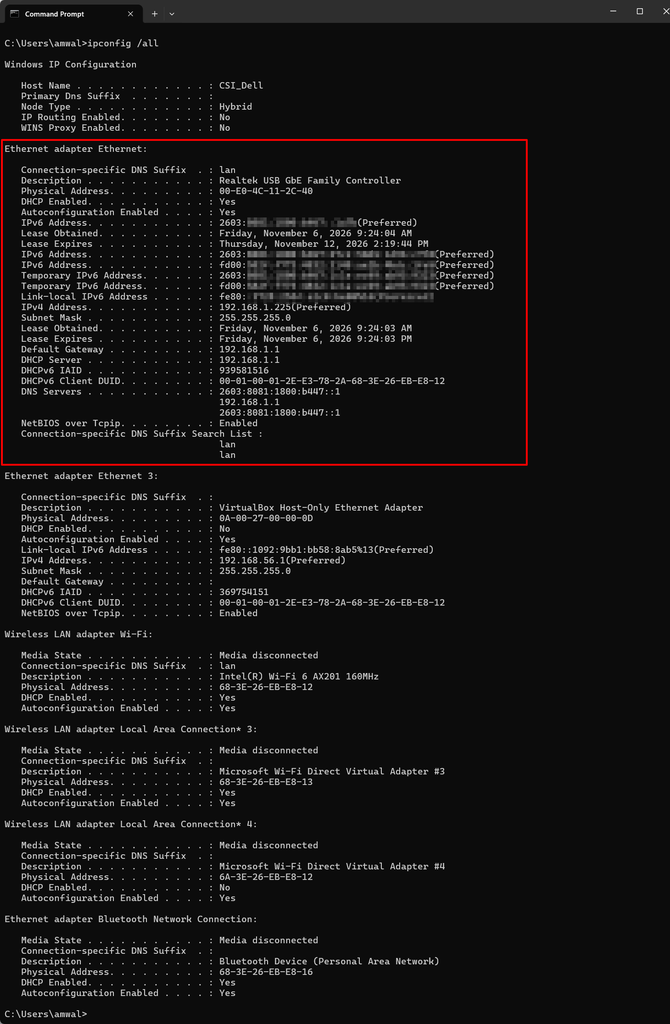
Windows ipconfig /all showing the IPv6 addresses and DNS information associated with an active network interface. Sensitive content blurred.
2. Examine IPv6 Addresses Using PowerShell
While ipconfig remains useful, PowerShell provides more detailed information about IPv6 address configuration.
Try:
Get-NetIPAddress -AddressFamily IPv6This displays IPv6 addresses and associated configuration information.
You can also format the results into a more readable table:
Get-NetIPAddress -AddressFamily IPv6 |
    Format-Table InterfaceAlias,IPAddress,PrefixLength,AddressState
For example:
InterfaceAlias IPAddress                 PrefixLength AddressState
-------------- ---------                 ------------ ------------
Ethernet       2001:db8:100:1::25        64           Preferred
Ethernet       fe80::1234:5678:abcd:ef01 64           Preferred
Loopback       ::1                       128          Preferred
The AddressState field is worth examining.
IPv6 addresses may move through states associated with Duplicate Address Detection (DAD). For example, an address may be Tentative while the operating system checks whether another device is already using it.
Once the address is usable, it may transition to Preferred.
If you discover addresses that remain in an unexpected state, that could provide an important troubleshooting clue.
You can also examine IPv6 address lifetimes using:
Get-NetIPAddress -AddressFamily IPv6 |
    Format-Table IPAddress,PrefixOrigin,SuffixOrigin,PreferredLifetime,ValidLifetime
These values help explain where addresses originated and how long they remain preferred or valid.
For technicians investigating SLAAC, DHCPv6, or address deprecation, this additional information can be extremely useful.
3. Examine the IPv6 Routing Table
Next, let’s look at routing.
From Command Prompt, enter:
route print -6This displays the Windows IPv6 routing table.
For a computer connected to an IPv6-enabled network, you may see entries representing:
- The IPv6 loopback address
- Directly connected IPv6 prefixes
- Link-local routes
- IPv6 multicast routes
- A default route, if one has been learned or configured
The default route is particularly important.
In IPv6, the default route is represented by:
::/0
You may notice that the next-hop address for the default route is a link-local IPv6 address rather than a global unicast address.
That is normal.
IPv6 routers commonly advertise themselves as default routers using their link-local addresses in Router Advertisement messages.
The PowerShell Equivalent
Try:
Get-NetRoute -AddressFamily IPv6Or display only the IPv6 default routes:
Get-NetRoute -AddressFamily IPv6 -DestinationPrefix "::/0"You can also select the most relevant fields:
Get-NetRoute -AddressFamily IPv6 |
    Format-Table InterfaceAlias,DestinationPrefix,NextHop,RouteMetric
If the computer has a global IPv6 address but no default route, it may be capable of communicating on the local network without having a route to destinations beyond that network.
Of course, the absence of a default route might be intentional in certain laboratory or isolated network configurations.
Don’t assume every IPv6 interface needs Internet connectivity.
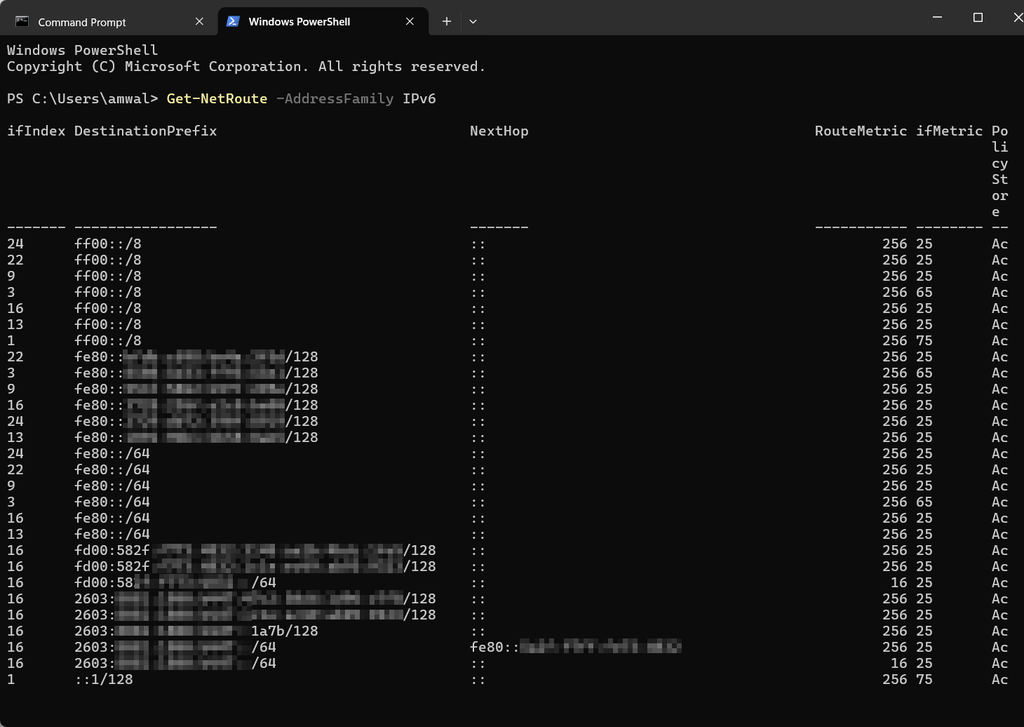
PowerShell displaying the IPv6 routing table, including connected prefixes and a default route learned from an IPv6 router.
4. Determine Which IPv6 Route Windows Will Use
Examining the routing table is useful, but sometimes we want to know which interface and route Windows would select for a particular destination.
PowerShell provides a useful tool for this:
Find-NetRoute -RemoteIPAddress 2001:4860:4860::8888This command identifies the route and local source address selected for the specified destination.
Why is that important?
Consider a Windows computer with several network interfaces, multiple IPv6 addresses, or connections to different networks.
The presence of a route doesn’t necessarily tell us which local address Windows will select for a particular communication.
Remember that IPv6 source address selection is an important part of normal IPv6 host behavior.
For additional background on IPv6 routing and address selection, refer to the Microsoft PowerShell NetTCPIP documentation.
5. Examine the IPv6 Neighbor Cache
Here’s one of my favorite IPv6 troubleshooting subjects.
IPv6 does not use ARP to resolve IPv6 addresses to link-layer addresses. Instead, it uses Neighbor Discovery, which relies on ICMPv6 messages.
Windows maintains a neighbor cache containing information about recently discovered IPv6 neighbors.
You can examine it using:
netsh interface ipv6 show neighborsOr use PowerShell:
Get-NetNeighbor -AddressFamily IPv6A more focused display:
Get-NetNeighbor -AddressFamily IPv6 |
    Format-Table InterfaceAlias,IPAddress,LinkLayerAddress,State
You may see entries with states such as:
- Reachable: The neighbor has recently been confirmed reachable.
- Stale: Reachability has not been confirmed recently.
- Delay: Windows is waiting briefly before actively probing the neighbor.
- Probe: Neighbor Solicitation messages are being used to verify reachability.
- Incomplete: Address resolution has not yet completed.
These states provide insight into the Neighbor Unreachability Detection process.
For example, if a local IPv6 destination remains unresolved, you may discover that the neighbor cache does not contain a usable link-layer address for it.
That is a good reason to examine the ICMPv6 traffic with Wireshark.
Neighbor Discovery is fundamental to IPv6 operation, and understanding these states is an important skill for network troubleshooting.
6. Display IPv6 Interfaces and Global Parameters
The netsh utility continues to provide useful IPv6 diagnostic information.
Try:
netsh interface ipv6 show interfacesThis displays IPv6 interfaces and their indexes.
You can also enter:
netsh interface ipv6 show addressesAnd:
netsh interface ipv6 show routeFor additional IPv6 configuration details, use:
netsh interface ipv6 show globalThis displays global IPv6 settings, which may include information about forwarding, address behavior, and other stack parameters.
Many of these settings are best left at their defaults unless you have a specific reason to change them.
For a modern PowerShell view of interface configuration, try:
Get-NetIPInterface -AddressFamily IPv6This displays IPv6 interface information, including metrics and other configuration details.
7. Test IPv6 Connectivity with PING
Now let’s test actual connectivity.
Windows Ping supports IPv6 using the -6 option.
For example:
ping -6 ipv6.google.comOr test a known IPv6 address directly:
ping -6 2606:4700:4700::1111This sends ICMPv6 Echo Requests to the destination.
If replies are received, you’ve established that ICMPv6 Echo Request/Reply communication is working between the two endpoints.
However, successful Ping replies do not prove that all applications and protocols will work.
Similarly, a failed Ping does not necessarily mean that the destination is unreachable. Filtering, host configuration, or other factors may prevent ICMPv6 Echo Replies.
Test the Local IPv6 Stack
Try:
ping -6 ::1This tests the IPv6 loopback address.
If it succeeds, the operating system can process local IPv6 loopback traffic.
It does not verify that the Ethernet or Wi-Fi interface is working or that IPv6 Internet connectivity exists.
Test a Link-Local Destination
To test another device on the local link, use its link-local address and the appropriate interface zone identifier.
For example:
ping -6 fe80::1%12Replace the address and interface index with values appropriate for your network.
Link-local addresses are not routed, so the destination must be reachable on the specified link.
Set the IPv6 Hop Limit
Windows Ping also allows you to specify the Hop Limit:
ping -6 -i 5 2606:4700:4700::1111The -i option sets the IPv6 Hop Limit for the outgoing packets.
The Hop Limit serves a similar purpose to the IPv4 Time to Live (TTL) field. Each forwarding router decrements the value, and a packet is discarded if the limit is exhausted.
A router may return an ICMPv6 Time Exceeded message when this happens.
This behavior is fundamental to traceroute.
8. Trace the IPv6 Path with TRACERT
Windows includes the familiar tracert utility.
To trace an IPv6 path, use:
tracert -6 ipv6.google.comFor faster output without reverse DNS lookups, try:
tracert -6 -d ipv6.google.comWindows Tracert normally uses ICMP Echo Requests with increasing Hop Limit values.
Each router that discards a probe because its Hop Limit expires may respond with an ICMPv6 Time Exceeded message. By examining those responses, Tracert builds a view of the forwarding path toward the destination.
However, not every router responds to these probes. You may see asterisks in the output where a router doesn’t respond within the timeout interval. This does not necessarily mean traffic is being lost at that point.
Also, paths may change due to routing updates, Equal-Cost Multipath (ECMP), load balancing, or other network behaviors.
For a more detailed explanation, see my article: Using Traceroute to Determine Paths Through the Internet
9. Use PATHPING for Additional Path Information
Windows also provides pathping, which combines aspects of Ping and Tracert.
For IPv6, try:
pathping -6 ipv6.google.comPathping attempts to identify intermediate routers and collect statistics using ICMPv6 probes.
It can provide useful information about response times and apparent packet loss along a path.
But there is an important limitation. Intermediate routers may rate-limit or deprioritize ICMP responses. Therefore, packet loss reported for an intermediate hop does not necessarily mean that the router is dropping forwarded application traffic.
I would be particularly cautious about declaring a network fault based solely on an intermediate Pathping result. Look for supporting evidence, including packet captures, endpoint behavior, and whether loss continues to the destination.
Also, Pathping is not an IPv6 Path MTU Discovery tool. Those are separate diagnostic subjects.
10. Examine IPv6 DNS Resolution
Another common troubleshooting question is whether DNS is returning IPv6 addresses.
An IPv6 address in DNS is represented by an AAAA record, sometimes called a quad-A record.
From Command Prompt, try:
nslookup -type=AAAA www.google.comPowerShell provides another option:
Resolve-DnsName www.google.com -Type AAAAIf AAAA records are returned, the DNS resolver has supplied IPv6 address information for that hostname.
However, that does not prove your local computer has working IPv6 connectivity. You could successfully retrieve AAAA records using DNS over IPv4 even if your computer had no usable IPv6 route. That distinction is important.
If an application cannot connect over IPv6, I generally investigate both DNS resolution and IPv6 connectivity rather than assuming the two are equivalent.
11. Examine Active IPv6 TCP Connections
Now let’s take a look at TCP.
The traditional Windows netstat utility remains available.
For example:
netstat -an -p TCPv6This displays IPv6 TCP endpoints without resolving hostnames or service names.
You may see listening sockets represented by addresses such as:
[::]:443
Here, :: represents the IPv6 unspecified address. A listening socket bound to this address may accept connections on multiple local IPv6 addresses, subject to operating-system and application configuration.
PowerShell provides more structured access to TCP connection information:
Get-NetTCPConnectionTo concentrate on connections whose remote addresses are IPv6 literals, try:
Get-NetTCPConnection |
    Where-Object { $_.RemoteAddress -like "*:*" } |
    Format-Table LocalAddress,LocalPort,RemoteAddress,RemotePort,State
You can also examine the owning process ID using the OwningProcess property.
For more advanced process-level investigations, Microsoft’s Sysinternals Process Explorer is another excellent option.
I’ve discussed that utility in: Going Beyond Windows Task Manager with Process Explorer
12. Examine IPv6 Protocol Statistics
One of the original features I demonstrated back in 2013 was examining IPv6 protocol counters.
That capability remains useful.
Try:
netstat -s -p IPv6You can also examine ICMPv6 statistics:
netstat -s -p ICMPv6Or TCP over IPv6:
netstat -s -p TCPv6And UDP over IPv6:
netstat -s -p UDPv6These counters provide aggregate information about protocol activity and errors. For example, the ICMPv6 statistics may show Router Advertisements, Neighbor Solicitations, Neighbor Advertisements, and other ICMPv6 activity.
Keep in mind that these are system-level counters. They don’t tell you which individual application or network conversation generated every packet.
For that level of detail, you’ll need additional tools, including packet capture and analysis.
13. Test IPv6 Application Port Connectivity
Sometimes Ping works, DNS works, and routing looks correct—but an application still cannot connect.
This is where PowerShell’s Test-NetConnection becomes useful.
For example:
Test-NetConnection -ComputerName www.google.com -Port 443This checks TCP connectivity to the specified port, but the hostname may resolve to IPv4 or IPv6 depending on the system and name-resolution behavior.
To explicitly test an IPv6 destination, supply an IPv6 address:
Test-NetConnection -ComputerName 2606:4700:4700::1111 -Port 443Look for:
TcpTestSucceeded : True
This indicates that the TCP connection test succeeded.
It does not establish that the application-layer protocol is working correctly.
For example, successfully connecting to TCP port 443 does not prove that TLS negotiation or an HTTPS request will succeed.
For a more complete application test, Windows includes curl.exe.
Try:
curl.exe -6 -I https://www.google.com/This requests HTTP response headers while requiring IPv6 for the network connection.
If it fails while the IPv4 equivalent succeeds, you’ve identified a useful difference to investigate.
Try the IPv4 equivalent:
curl.exe -4 -I https://www.google.com/These comparisons are especially helpful when troubleshooting dual-stack Internet connectivity.
14. IPv6 Troubleshooting with Wireshark
Of course, command-line utilities only tell us part of the story.
If a Windows computer has an IPv6 address, a default route, and valid DNS information but still cannot communicate as expected, it’s time to investigate the packets.
For IPv6, I would concentrate on:
- ICMPv6 Router Solicitation and Router Advertisement
- Neighbor Solicitation and Neighbor Advertisement
- Duplicate Address Detection
- DHCPv6, when used
- ICMPv6 Packet Too Big messages
- TCP and UDP traffic over IPv6
- DNS AAAA responses
For example, if a Windows computer has a link-local address but no global unicast address, examine whether Router Advertisement messages are arriving and what information they contain.
If the computer has a valid global address but cannot communicate with another local IPv6 device, examine Neighbor Discovery.
If small application exchanges succeed but larger transfers stall, consider investigating IPv6 Path MTU Discovery and whether ICMPv6 Packet Too Big messages are being delivered.
Wireshark allows us to observe these exchanges directly rather than relying exclusively on operating-system summaries.
I’ve developed a collection of IPv6 Wireshark profiles to assist with this type of troubleshooting: CellStream IPv6 Wireshark Super Profile
You can also explore our other protocol-specific profiles in the CellStream Wireshark Profiles Repository.
15. A Practical IPv6 Troubleshooting Workflow
Let’s put several of these commands together.
Suppose a Windows computer appears to have IPv6 enabled, but you suspect its IPv6 Internet connectivity is not working correctly.
Here is the sequence I would follow.
First, examine the IPv6 addresses.
Get-NetIPAddress -AddressFamily IPv6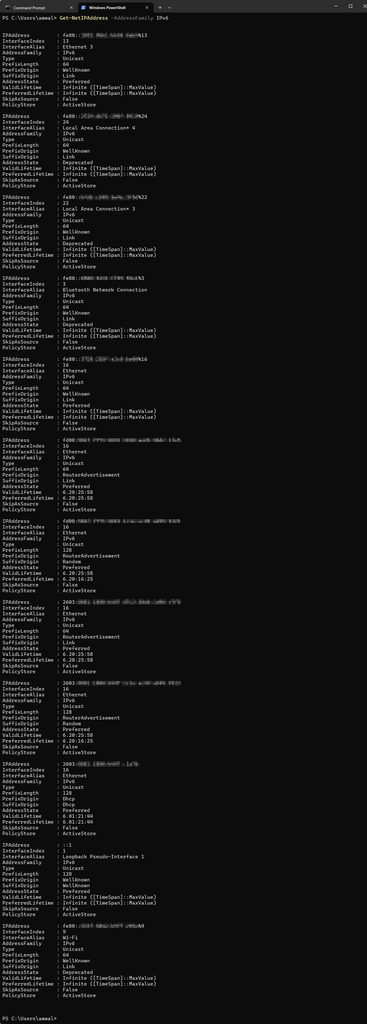
Does the active network interface have a usable global IPv6 address, or only a link-local address?
Second, check the IPv6 default route.
Get-NetRoute -AddressFamily IPv6 -DestinationPrefix "::/0"Is there a default route, and does it reference the interface you expect?
Third, inspect Neighbor Discovery.
Get-NetNeighbor -AddressFamily IPv6Is there a neighbor-cache entry for the default router? What state is it in?
Fourth, test IPv6 reachability.
ping -6 2606:4700:4700::1111Does the computer receive ICMPv6 Echo Replies?
Fifth, examine the path.
tracert -6 -d 2606:4700:4700::1111Do the probes progress beyond the local router?
Sixth, examine DNS.
Resolve-DnsName www.google.com -Type AAAAAre AAAA records returned?
Seventh, test an application.
curl.exe -6 -I https://www.google.com/Does HTTPS work over IPv6?
If the problem remains unresolved, capture the traffic using Wireshark and investigate the actual protocol exchanges.
Notice that each command answers a different question. That’s important because successful DNS resolution, a working default route, and successful TCP communication are related but distinct aspects of network operation.
Quick Reference: Windows IPv6 Commands
| Objective | Command |
|---|---|
| View IPv6 addresses | ipconfig /all |
| View IPv6 addresses with PowerShell | Get-NetIPAddress -AddressFamily IPv6 |
| View IPv6 routes | route print -6 |
| View routes with PowerShell | Get-NetRoute -AddressFamily IPv6 |
| Determine selected route | Find-NetRoute -RemoteIPAddress <IPv6-address> |
| View IPv6 neighbors | Get-NetNeighbor -AddressFamily IPv6 |
| View IPv6 interfaces | Get-NetIPInterface -AddressFamily IPv6 |
| View IPv6 global parameters | netsh interface ipv6 show global |
| Ping over IPv6 | ping -6 <destination> |
| Trace an IPv6 route | tracert -6 <destination> |
| Examine IPv6 path statistics | pathping -6 <destination> |
| Query DNS AAAA records | Resolve-DnsName <hostname> -Type AAAA |
| Examine IPv6 TCP endpoints | netstat -an -p TCPv6 |
| View ICMPv6 statistics | netstat -s -p ICMPv6 |
| Test a TCP port | Test-NetConnection -ComputerName <IPv6-address> -Port 443 |
| Test HTTPS over IPv6 | curl.exe -6 -I https://www.google.com/ |
Final Thoughts
When I originally published this article in 2013, the emphasis was on demonstrating that Windows supported IPv6 and providing a collection of commands to examine its operation.
Today, IPv6 is a normal part of the Windows networking stack. The more important skill is understanding how to troubleshoot it.
That means knowing where an IPv6 address came from, how Windows selects a default router, how Neighbor Discovery operates, what DNS is returning, and whether an application is successfully communicating over IPv6.
The traditional Windows commands remain useful, and PowerShell gives us additional ways to inspect the operating system’s network configuration.
My recommendation is to practice these commands on a system with working IPv6 connectivity, then compare the results against a system where IPv6 is limited or not functioning correctly.
And don’t forget Wireshark.
The command line tells you what Windows believes is happening. Packet analysis lets you examine what is actually traveling across the network.
Both are essential tools for effective troubleshooting.
References and Additional Resources
Microsoft documentation
Related CellStream articles
- IPv6 Linux Command-Line Examples
- Enabling IPv6 on Windows, Linux, and macOS
- Using Traceroute to Determine Paths Through the Internet
- CellStream Windows Networking Toolkit
- CellStream IPv6 Wireshark Super Profile
If you would like to help support the continued development of independent networking, broadband, Wi-Fi, VoIP, and packet analysis content, please consider joining our Patreon community where you will gain access to exclusive technical resources, downloadable labs and PCAPs, bonus course content, troubleshooting guides, and additional member-only material. Comments and technical discussion are always welcomed at our Patreon community or on our Discord server. You can also support our work by simply buying us a coffee — every contribution helps us continue creating practical, real-world network science education for professionals and enthusiasts alike.