

Originally published September 12, 2013 | Updated November 8, 2026
Back in September 2013, I wrote an article about a Windows networking utility called Netsh, short for Network Shell. At the time, it was one of the most useful command-line tools available for examining and changing Windows network configurations.
And guess what? It’s still around.
Windows has changed considerably since 2013, and PowerShell now provides many additional ways to manage network interfaces, addressing, routing, and security. However, Netsh remains useful, particularly when troubleshooting Wi-Fi, examining IPv4 and IPv6 configurations, inspecting Windows Firewall settings, or collecting network diagnostic information.
Let’s revisit this utility, examine some commands worth knowing, and discuss where Netsh fits into a modern Windows technician’s troubleshooting toolkit.
What Is Netsh?
Netsh is a Windows command-line utility that allows you to display, configure, and troubleshoot various networking components.
It was originally introduced with Windows 2000 and has evolved alongside the Windows networking stack. It supports multiple command contexts, each providing access to a particular group of networking functions.
For example, the interface context provides commands for working with network adapters and IP addressing, while the WLAN context handles wireless networking. Other contexts support Windows Firewall, Winsock, and network tracing.
Netsh can also execute groups of commands from script files, making it useful for repeatable configurations and troubleshooting procedures.
Although PowerShell has become the preferred automation environment for many Windows administrative tasks, Netsh remains available in Windows 11 and continues to provide capabilities worth understanding.
Microsoft maintains the official Netsh Command Reference.
Getting Started with Netsh
Open Command Prompt or Windows Terminal. For commands that modify system configuration, you may need to select Run as administrator.
Enter:
netshThis starts the interactive Network Shell environment.
You should see a prompt similar to:
netsh>Enter:
?This displays the available commands and contexts.
You can move into a particular context. For example:
interface
ipv4
Your prompt should change to:
netsh interface ipv4>From here, you can enter commands associated with the IPv4 interface context.
To return to the main Netsh prompt, enter:
exitOr simply exit Netsh completely.
You Don’t Have to Use Interactive Mode
Personally, I generally prefer entering the complete command directly from Command Prompt.
For example:
netsh interface ipv4 show configThis produces the same information without requiring you to enter the interactive Netsh environment first.
For troubleshooting and documentation, that approach is often more convenient.
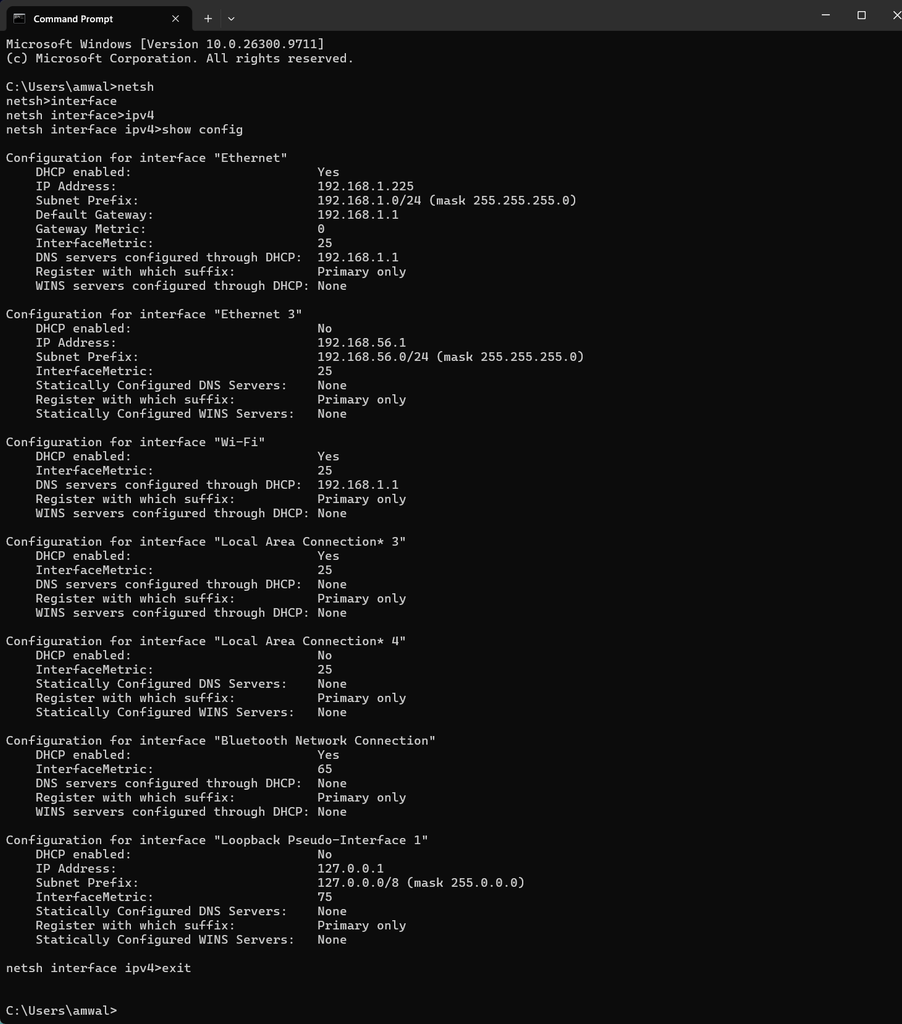
Windows 11 Command Prompt displaying the Netsh contexts and available commands. Each context provides access to a particular networking function.
1. Examine IPv4 Interface Configuration
Let’s start with something simple.
To display the IPv4 configuration of your network interfaces, enter:
netsh interface ipv4 show configThis shows the IPv4 addressing configuration associated with the interfaces, including information such as addresses, subnet masks, default gateways, and DNS server settings.
For more information about the interfaces themselves, try:
netsh interface ipv4 show interfacesThe output includes interface indexes and other information useful when troubleshooting systems with multiple network adapters.
You can also examine IPv4 addresses using:
netsh interface ipv4 show addressesThese commands are particularly useful on computers with multiple Ethernet adapters, Wi-Fi interfaces, VPN connections, or virtual networking interfaces.
The PowerShell Alternative
PowerShell provides structured access to much of the same information.
Try:
Get-NetIPConfigurationOr examine IPv4 addresses specifically:
Get-NetIPAddress -AddressFamily IPv4One advantage of PowerShell is that its output consists of objects rather than just formatted text. This makes it easier to select properties, filter results, and incorporate the information into scripts.
For example:
Get-NetIPAddress -AddressFamily IPv4 |
    Format-Table InterfaceAlias,IPAddress,PrefixLength
Both approaches are useful. I wouldn’t abandon Netsh simply because PowerShell offers additional capabilities.
2. Examine IPv6 Configuration
Netsh is equally useful for IPv6.
To display IPv6 addresses, enter:
netsh interface ipv6 show addressesTo examine IPv6 interfaces:
netsh interface ipv6 show interfacesAnd to display the IPv6 routing table:
netsh interface ipv6 show routeYou can also examine Windows IPv6 global settings:
netsh interface ipv6 show globalThese commands reveal important information about how Windows has configured its IPv6 networking stack.
For example, you may discover that an interface has multiple IPv6 addresses, including link-local, global unicast, and temporary addresses.
Or perhaps the system has a valid global IPv6 address but lacks a default IPv6 route.
That distinction is important when investigating why local IPv6 communication works but connectivity to the IPv6 Internet does not.
I’ve covered these commands, along with their PowerShell equivalents, in my recently updated article: IPv6 Windows Command-Line Commands and Troubleshooting Examples
3. Examine the IPv6 Neighbor Cache
Here’s a Netsh command I particularly like:
netsh interface ipv6 show neighborsThis displays information from the Windows IPv6 neighbor cache.
If you’re familiar with IPv4, think about the relationship between ARP and IPv6 Neighbor Discovery. They serve some similar address-resolution purposes, but IPv6 Neighbor Discovery provides additional functionality and uses ICMPv6 rather than ARP.
The neighbor cache may include IPv6 addresses, corresponding link-layer addresses, and Neighbor Unreachability Detection states.
These states can include REACHABLE, STALE, DELAY, PROBE, and INCOMPLETE.
For example, an entry in the INCOMPLETE state may indicate that address resolution has not yet succeeded.
PowerShell provides similar information:
Get-NetNeighbor -AddressFamily IPv6When investigating Neighbor Discovery issues, I recommend examining these tables alongside an actual Wireshark capture.
A command-line summary tells you what Windows currently knows about its neighbors. A packet capture allows you to inspect the Neighbor Solicitation and Neighbor Advertisement exchanges involved.
4. Use Netsh to Troubleshoot Wi-Fi
Now we’re getting into one of the areas where Netsh remains especially valuable.
Windows provides an extensive WLAN context for examining Wi-Fi interfaces, drivers, profiles, and nearby wireless networks.
Start with:
netsh wlan show interfacesThis displays information about the wireless interfaces and their current connection status.
Depending on the adapter and connection, the results may include the SSID, BSSID, radio type, channel, signal information, and transmit and receive link rates.
Next, try:
netsh wlan show driversThis provides information about the installed wireless adapter drivers and supported capabilities.
If you’re investigating whether a particular Wi-Fi adapter supports a specific wireless feature, this is a useful starting point.
Examine Nearby Wireless Networks
Try:
netsh wlan show networks mode=bssidThis displays the wireless networks Windows can detect, including BSSID-related information for visible access points.
That can help determine whether the computer is seeing multiple access points advertising the same SSID, which channels are being used, and what signal information Windows reports.
Keep in mind that this is not a substitute for proper Wi-Fi RF analysis. The information is limited by the adapter, driver, and Windows scanning behavior.
Examine Saved Wi-Fi Profiles
Another useful command is:
netsh wlan show profilesThis displays the wireless profiles stored on the computer.
Saved profiles contain configuration information that Windows uses when connecting to known wireless networks.
For additional information about a specific profile:
netsh wlan show profile name="YourSSID"Replace YourSSID with the appropriate profile name.
Generate a Windows Wi-Fi Report
Here’s one of the more useful Netsh commands:
netsh wlan show wlanreportWindows generates an HTML report containing information about recent wireless connection sessions, failures, disconnects, and related events. It must be run from the Command Prompt in Administrator mode.
The command displays the location of the generated report.
This can be particularly helpful when investigating intermittent Wi-Fi connection problems, especially when a user reports that the computer periodically disconnects but you’re unable to reproduce the issue immediately.
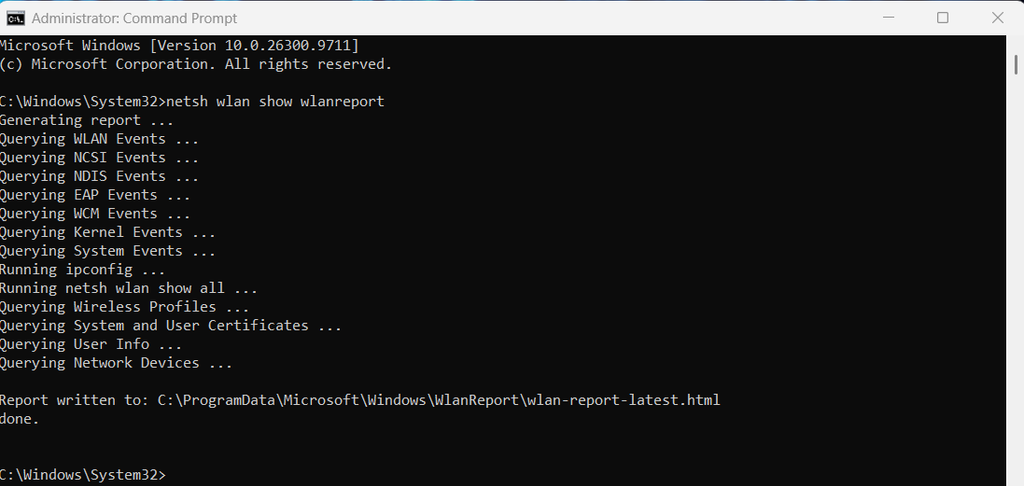
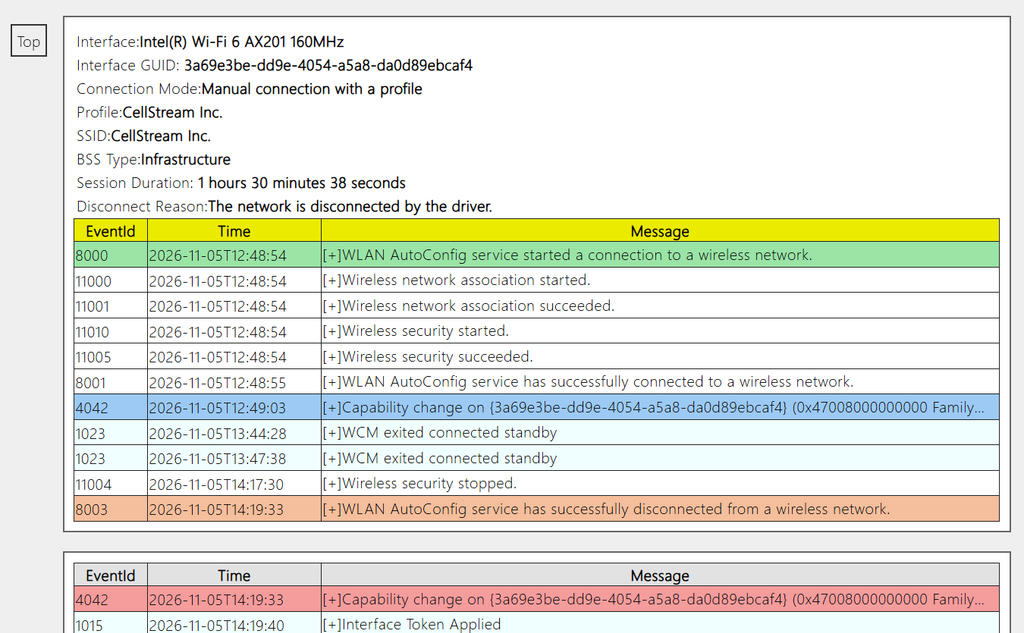
The Windows WLAN report generated using Netsh. The report provides connection history and diagnostic information that can help investigate recurring Wi-Fi problems.
The report doesn’t replace a packet capture or specialized Wi-Fi analysis tools, but it provides useful host-side evidence.
Microsoft documents these capabilities in its Netsh WLAN Command Reference.
5. Examine Windows Firewall Configuration
Netsh also provides access to Windows Firewall with Advanced Security.
In my original 2013 article, I included several commands for opening firewall ports and enabling or disabling the firewall.
I would approach this differently today.
Rather than immediately modifying firewall rules, begin by examining the existing configuration.
For example:
netsh advfirewall show allprofilesThis displays settings associated with the Domain, Private, and Public firewall profiles.
You can also display the current profile configuration:
netsh advfirewall show currentprofileTo examine configured firewall rules:
netsh advfirewall firewall show rule name=allOn systems with many installed applications, this may produce extensive output.
For an investigation involving a particular application or service, you may want to look for its associated rules rather than examine everything at once.
Export the Firewall Configuration
Netsh can also export Windows Firewall policy.
For example:
netsh advfirewall export "C:\Temp\firewall-backup.wfw"The destination directory must already exist, and administrative privileges are generally required.
The exported file can be useful when documenting the current configuration or preparing for an authorized change.
However, I would not recommend automatically importing firewall configurations from one computer to another without reviewing the differences between the systems.
A Security Warning
My original article demonstrated an older command for opening TCP port 445.
I no longer recommend that as a general networking example.
TCP port 445 is commonly associated with SMB file sharing, and unnecessarily exposing SMB services can introduce significant security risks.
Likewise, I would not recommend disabling Windows Firewall simply to troubleshoot a connectivity problem.
A better approach is to identify the application, protocol, destination, and required ports, then investigate the relevant firewall policies and rules.
PowerShell provides another way to examine the firewall:
Get-NetFirewallProfileAnd:
Get-NetFirewallRuleFor additional information, see Microsoft’s Netsh Advanced Firewall Documentation.
6. Examine the Windows Winsock Configuration
Windows applications rely on the Windows Sockets API, generally called Winsock, for network communication.
Netsh provides a context for examining Winsock configuration.
Try:
netsh winsock show catalogThis displays registered Winsock providers and related information.
On most systems, there’s no reason to modify the catalog manually.
However, Winsock configuration can occasionally become relevant when troubleshooting problems associated with networking software, VPN clients, security applications, or other software that interacts with the Windows networking stack.
You may have seen the following command recommended on troubleshooting websites:
netsh winsock resetThis resets the Winsock catalog.
It can be useful in specific circumstances, but it should not be the first response to every network connectivity problem. It may affect software that relies on customized Winsock components, and a restart may be required.
Before using it, investigate the symptoms and understand what the reset actually changes.
The command does not diagnose DNS problems, repair a failed physical network adapter, or automatically correct an incorrect routing table.
7. Resetting the TCP/IP Configuration
Another commonly encountered Netsh command is:
netsh int ip resetYou may also see more specific commands such as:
netsh int ipv4 resetThese commands reset aspects of the Windows TCP/IP configuration and can be useful when repairing certain network configuration problems.
However, they are not harmless diagnostic commands.
A reset can affect existing IP configuration settings and may require network configuration to be restored afterward. On systems using static addressing, VPN software, virtualization, or specialized networking configurations, that’s an important consideration.
My recommendation is to collect and document the existing configuration before considering a reset.
Use:
ipconfig /allAnd:
route printYou can also collect PowerShell information:
Get-NetIPConfiguration -DetailedA network reset is a recovery operation, not a substitute for identifying the cause of a problem.
8. Capture Network Diagnostic Information with Netsh Trace
This is a feature that deserves more attention than it received in my original article.
Windows includes a Netsh tracing capability that can collect network diagnostic events and, when configured, packet information.
Start by examining the available trace options:
netsh trace show scenariosThis displays supported tracing scenarios on the computer.
For example, you may find scenarios associated with Internet connectivity, wireless networking, or other Windows networking components.
You can collect a trace from an elevated Command Prompt using:
netsh trace start capture=yes report=no tracefile="C:\Temp\networktrace.etl"Make sure the destination directory exists before running the command.
Once tracing has started, reproduce the networking problem you’re investigating.
Then stop the trace:
netsh trace stopWindows writes the collected information to an Event Trace Log, or ETL, file.
The ETL format is not the same as a standard Wireshark PCAP or PCAPNG file. Depending on what you’re investigating, additional tools or conversion steps may be needed to examine the captured information.
The trace may also contain event information that isn’t available in an ordinary packet capture.
For technicians, this offers an additional way to investigate Windows networking behavior, particularly when the problem involves interactions between applications, the operating system, and the network stack.
A caution: diagnostic traces can contain sensitive network and system information. Handle them appropriately, especially on customer or business computers.
For more information, see the Microsoft Netsh Trace Documentation.
9. Save Network Configurations and Execute Scripts
One of the original reasons for developing Netsh was to support command-line scripting and repeatable configuration tasks.
That capability still exists.
For example, you can examine the configuration commands available from the interface context:
netsh interface dumpYou can redirect the output to a file:
netsh interface dump > interface-config.txtThis creates a text file containing Netsh configuration commands supported by the context.
You can also use the broader Netsh dump command to inspect configurations from additional supported contexts:
netsh dumpHowever, Netsh dumps are not complete backups of every Windows networking setting. Some components may not support configuration export, and scripts may contain machine-specific interface names or settings.
Execute Commands from a Script
Netsh supports executing commands stored in a script file.
For example:
netsh -f network-config.txtThis instructs Netsh to read and execute commands from the specified file.
You can also use:
netsh exec network-config.txtI would exercise caution when importing old configuration scripts into modern Windows systems. Interface names, network capabilities, command syntax, and operating-system behavior may have changed.
Always review the commands before executing them, particularly on production systems.
For most new administrative automation, I would generally favor PowerShell because it provides better structured output, error handling, and integration with other Windows management functions.
10. Netsh Versus PowerShell: Which Should You Use?
This is a reasonable question.
For many network management tasks, both tools provide useful functionality.
| Task | Netsh | PowerShell |
|---|---|---|
| View IPv4 configuration | netsh interface ipv4 show config | Get-NetIPConfiguration |
| Examine IPv6 addresses | netsh interface ipv6 show addresses | Get-NetIPAddress -AddressFamily IPv6 |
| Examine IPv6 neighbors | netsh interface ipv6 show neighbors | Get-NetNeighbor -AddressFamily IPv6 |
| Display IPv6 routes | netsh interface ipv6 show route | Get-NetRoute -AddressFamily IPv6 |
| Examine firewall profiles | netsh advfirewall show allprofiles | Get-NetFirewallProfile |
| Examine firewall rules | netsh advfirewall firewall show rule name=all | Get-NetFirewallRule |
| Examine Wi-Fi connections | netsh wlan show interfaces | Netsh remains a useful built-in option |
| Generate a Wi-Fi report | netsh wlan show wlanreport | Netsh remains a useful built-in option |
| Collect network trace events | netsh trace | Other Windows tracing and diagnostic tools are available |
Netsh provides a convenient command-line interface for examining and configuring networking components. PowerShell offers a more powerful environment for scripting, structured queries, and administrative automation.
There is no reason a technician can’t use both.
In fact, I would encourage it.
11. A Practical Netsh Troubleshooting Workflow
Let’s consider a Windows 11 laptop experiencing intermittent Wi-Fi connectivity problems.
Rather than immediately resetting the networking stack or reinstalling the adapter driver, here’s how I would approach the investigation.
First, examine the current Wi-Fi connection.
netsh wlan show interfacesVerify the connected SSID, BSSID, channel, and other available information.
Second, examine the wireless adapter capabilities.
netsh wlan show driversLook at the installed driver and supported wireless capabilities.
Third, examine the available access points.
netsh wlan show networks mode=bssidThis helps establish which access points the computer can currently detect.
Fourth, generate the Windows Wi-Fi report.
netsh wlan show wlanreportExamine recent disconnects, connection failures, and related diagnostic information.
Fifth, examine the IP configuration.
ipconfig /allVerify IPv4 and IPv6 addressing, default gateways, and DNS server information.
Finally, investigate the specific failure.
If the problem appears to involve IP connectivity, routing, DNS, or TCP communication, continue using the appropriate diagnostic commands.
If the evidence points toward wireless association, authentication, roaming, or other Wi-Fi behavior, consider additional logging and packet analysis.
Notice that none of these initial steps modifies the computer’s configuration.
That’s intentional.
Before changing settings, we should understand what the computer is doing.
Quick Reference: Useful Netsh Commands
| Objective | Command |
|---|---|
| Show available Netsh contexts | netsh /? |
| View IPv4 configuration | netsh interface ipv4 show config |
| View IPv6 addresses | netsh interface ipv6 show addresses |
| View IPv6 neighbors | netsh interface ipv6 show neighbors |
| View IPv6 routes | netsh interface ipv6 show route |
| Show IPv6 global settings | netsh interface ipv6 show global |
| Show Wi-Fi connection | netsh wlan show interfaces |
| Show Wi-Fi driver capabilities | netsh wlan show drivers |
| Show nearby access points | netsh wlan show networks mode=bssid |
| Show saved Wi-Fi profiles | netsh wlan show profiles |
| Generate a Wi-Fi report | netsh wlan show wlanreport |
| Show firewall profiles | netsh advfirewall show allprofiles |
| Show firewall rules | netsh advfirewall firewall show rule name=all |
| View Winsock catalog | netsh winsock show catalog |
| Show tracing scenarios | netsh trace show scenarios |
| Export interface configuration commands | netsh interface dump |
Final Thoughts
When I originally wrote about Netsh in 2013, it was one of the most versatile tools available for managing Windows networking from the command line.
That remains true in several important areas, even though PowerShell has become a major part of modern Windows administration.
For technicians, Netsh is particularly valuable for examining interface configurations, troubleshooting IPv6 Neighbor Discovery, investigating Wi-Fi connections, reviewing firewall settings, and collecting network diagnostic information.
My recommendation is to become comfortable using the read-only commands first. Understand the information they provide before experimenting with configuration changes.
And when something isn’t working, don’t immediately reach for a network reset.
Gather information, establish what should be happening, compare that with what Windows reports, and then determine your next action.
That’s a much more useful approach to troubleshooting than randomly changing settings and hoping the problem disappears.
References and Additional Resources
Microsoft documentation
- Network Shell (Netsh) Command Reference
- Netsh Interface Commands
- Netsh WLAN Commands
- Netsh Advanced Firewall
- Netsh Network Tracing
- Netsh Winsock
Related CellStream articles
- IPv6 Windows Command-Line Commands and Troubleshooting Examples
- CellStream Windows Networking Toolkit
- Windows Networking Toolkit Instructions
- Windows 11 Keyboard Shortcuts
- Enabling IPv6 on Windows, Linux, and macOS
If you would like to help support the continued development of independent networking, broadband, Wi-Fi, VoIP, and packet analysis content, please consider joining our Patreon community where you will gain access to exclusive technical resources, downloadable labs and PCAPs, bonus course content, troubleshooting guides, and additional member-only material. Comments and technical discussion are always welcomed at our Patreon community or on our Discord server. You can also support our work by simply buying us a coffee — every contribution helps us continue creating practical, real-world network science education for professionals and enthusiasts alike.