

The nslookup command is a built-in network administration tool available on Windows, macOS, and many Linux distributions. It is used to query DNS servers to retrieve information about domain names, IP addresses, and DNS records.
Basic Syntax:
nslookup [hostname] [DNS server]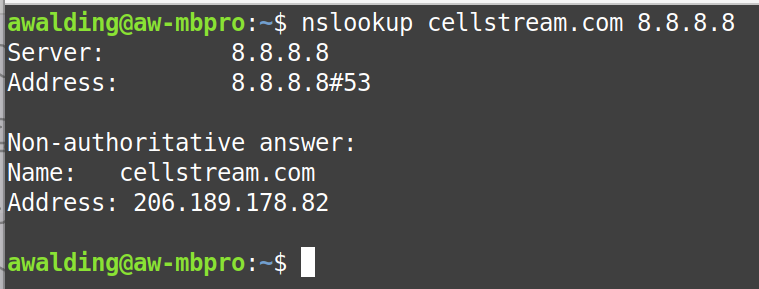
Components:
hostname: The domain name (e.g.,example.com) or IP address you want to query.DNS server(optional): The DNS server to use for the query. If omitted, the system’s default DNS server will be used.
Common Use Cases:
- Query the Default DNS Server for a Domain Name:
nslookup example.comThis resolvesexample.comusing your default DNS server and returns its IP address. - Query a Specific DNS Server:
nslookup example.com 8.8.8.8This queries Google’s public DNS server (8.8.8.8) to resolveexample.com. - Query Specific DNS Record Types: You can specify the type of DNS record to retrieve by using the
set typecommand:- A Record (IPv4 Address):
nslookup -type=A example.com - MX Record (Mail Exchange):
nslookup -type=MX example.com - NS Record (Name Servers):
nslookup -type=NS example.com - TXT Record (Text Records):
nslookup -type=TXT example.com
- A Record (IPv4 Address):
- Perform a Reverse DNS Lookup: To find the domain name associated with an IP address:bashCopy code
nslookup 8.8.8.8 - Interactive Mode: You can run
nslookupwithout arguments to enter interactive mode. In this mode, you can issue multiple queries without retyping the command:nslookupExample session:Default Server: dns.example.com Address: 192.168.1.1 > set type=MX > example.comTo exit, typeexit. - Query with Debug Information: You can use the
debugoption to see detailed DNS query information:nslookup -debug example.com
Example Output:
Query a Domain:
nslookup example.comOutput:
Server:  dns.google
Address:  8.8.8.8

Non-authoritative answer:
Name:    example.com
Address: 93.184.216.34
Query an MX Record:
nslookup -type=MX example.comOutput:
Server:  dns.google
Address:  8.8.8.8

Non-authoritative answer:
example.com    MX preference = 10, mail exchanger = mail.example.com
Key Commands in Interactive Mode:
set type=[record_type]: Specify the type of DNS record (e.g., A, MX, TXT, etc.).server [DNS_server]: Change the DNS server for queries.exit: Exit interactive mode.
Basic IPv6 Lookup with nslookup
You use nslookup to find IPv6 addresses by querying for AAAA records, which are the DNS record type that maps hostnames to IPv6 addresses.
nslookup -type=AAAA www.google.comThis explicitly asks DNS for IPv6 addresses.
Example Output (abridged)
Server:   2001:4860:4860::8888
Address:  2001:4860:4860::8888#53

Non-authoritative answer:
Name:    www.google.com
Address: 2607:f8b0:4005:80a::2004
Query a Specific DNS Server over IPv6
nslookup -type=AAAA www.google.com 2001:4860:4860::8888This confirms both IPv6 reachability and DNS resolution.
Interactive Mode (IPv6)
nslookup
> set type=AAAA
> www.google.com
Exit with:
> exitVerify Dual-Stack Behavior (A + AAAA)
nslookup www.google.comIf AAAA records exist, they will be listed alongside IPv4 results.
Pros and Cons of nslookup:
Pros:
- Built-in on Windows, macOS, and most Linux distributions.
- Simple and easy to use for basic DNS queries.
- Can perform reverse lookups.
Cons:
- Output is less detailed than
dig. - Limited options for advanced DNS troubleshooting compared to
digorhost. If you would like to learn more about ‘dig’ – go here.
If you would like to help support the continued development of independent networking, broadband, Wi-Fi, VoIP, and packet analysis content, please consider joining our Patreon community where you will gain access to exclusive technical resources, downloadable labs and PCAPs, bonus course content, troubleshooting guides, and additional member-only material. Comments and technical discussion are always welcomed at our Patreon community or on our Discord server. You can also support our work by simply buying us a coffee — every contribution helps us continue creating practical, real-world network science education for professionals and enthusiasts alike.