

The netstat (short for network statistics) command is a powerful diagnostic tool used to display various network-related information on a computer. It’s available on Windows, Linux, and macOS systems (though on newer systems it is sometimes replaced or supplemented by ss in Linux or Get-NetTCPConnection in Powershell). netstat helps you:
- Identify potential network issues or suspicious activity
- View active network connections (TCP/UDP)
- Display listening ports and associated applications
- Show routing tables
- Display network interface statistics
Some useful applications for the average PC user are considered, including checking for malware connections but here are the usual use cases:
- Troubleshooting: Identify if a service is listening or a port is in use.
- Security: Spot unauthorized connections or malware.
- Network Analysis: View open connections and interface statistics.
To execute netstat on Windows, you must execute a START> RUN> CMD.
The command syntax is netstat [-a] [-b] [-e] [-n] [-o] [-p proto] [-r] [-s] [-v] [interval]
| Switch | Description |
|---|---|
| -a | Displays all connections and listening ports |
| -b | Displays the executable involved in creating each connection or listening port. (Added in XP SP2.) |
| -e | Displays Ethernet statistics |
| -n | Displays addresses and port numbers in numerical form |
| -o | Displays the owning process ID associated with each connection |
| -p proto | Shows connections for the protocol specified by proto; proto may be any of: TCP, UDP, TCPv6, or UDPv6. |
| -r | Displays the routing table |
| -s | Displays per-protocol statistics |
| -v | When used in conjunction with -b, will display sequence of components involved in creating the connection or listening port for all executables. |
| [interval] | An integer used to display results multiple times with specified number of seconds between displays. Continues until stopped by command ctrl+c. Default setting is to display once. |
Netstat is one of a number of command-line tools available to check the functioning of a network. It provides a way to check if various aspects of TCP/IP are working and what connections are present. In Windows XP SP2, a new switch “-B” was added that allows the actual executable file that has opened a connection to be displayed. This newer capability provides a chance to catch malware that may be phoning home or using your computer in unwanted ways on the Internet. There are various ways that a system administrator might use the assortment of switches but I will give two examples that might be useful to home PC users.
TCP and UDP connections and their IP and port addresses can be seen by entering a command combining two switches: netstat -an
Here is an example:
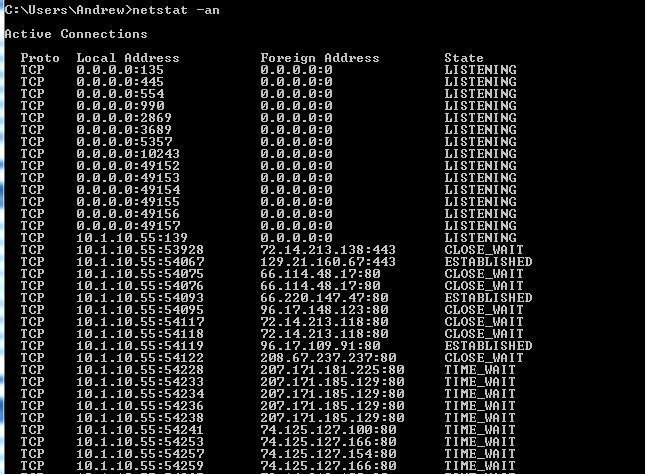
The information that is displayed includes the protocol, the local address and port number, the remote (foreign) address and port number, and the connection state. Note that the various IP addresses include port information as well.
If you want to check what the port numbers are look at this reference list.
An explanation of the different connection states is given below:
| State | Description |
|---|---|
| CLOSED | Indicates that the server has received an ACK signal from the client and the connection is closed |
| CLOSE_WAIT | Indicates that the server has received the first FIN signal from the client and the connection is in the process of being closed |
| ESTABLISHED | Indicates that the server received the SYN signal from the client and the session is established |
| FIN_WAIT_1 | Indicates that the connection is still active but not currently being used |
| FIN_WAIT_2 | Indicates that the client just received acknowledgment of the first FIN signal from the server |
| LAST_ACK | Indicates that the server is in the process of sending its own FIN signal |
| LISTENING | Indicates that the server is ready to accept a connection |
| SYN_RECEIVED | Indicates that the server just received a SYN signal from the client |
| SYN_SEND | Indicates that this particular connection is open and active |
| TIME_WAIT | Indicates that the client recognizes the connection as still active but not currently being used |
If you see a lot of active connections with TIMED_WAIT status, that may be holding down the speed of your internet transfer. Kill the culprit process(es) from the Task manager, or if it’s an essential process, restart the computer.
Comments are welcomed below from registered users. You can also leave comments at our Discord server.
If you would like to see more content and articles like this, please support us by clicking the patron link where you will receive free bonus access to courses and more, or simply buying us a cup of coffee!