

Here’s a solid toolbox of Windows PowerShell commands used for network troubleshooting, with quick notes on what each one is good for.
I’ll try to group them by task so they are a little easier to remember.
1. Basic Connectivity & “Ping-Style” Tests
Test-Connection
PowerShell’s ping (ICMP echo) equivalent.
- Quick ICMP test:
Test-Connection 8.8.8.8 - More detail (count, delay, etc.):
Test-Connection -ComputerName 8.8.8.8 -Count 4 -Quiet
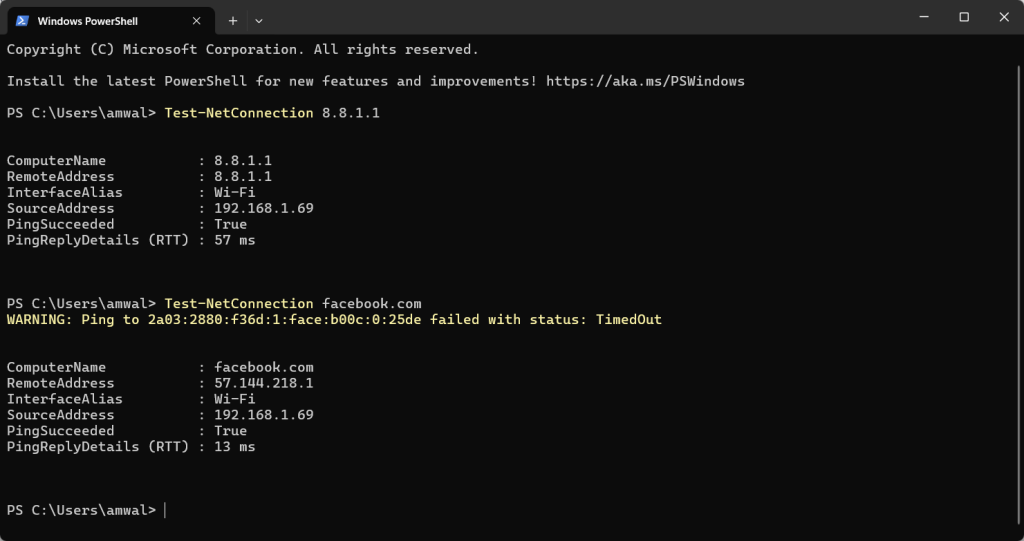
Test-NetConnection
More advanced tester: port check + traceroute + ping.
- Simple ping-like test:
Test-NetConnection google.com - Test specific TCP port (great for web, RDP, etc.):
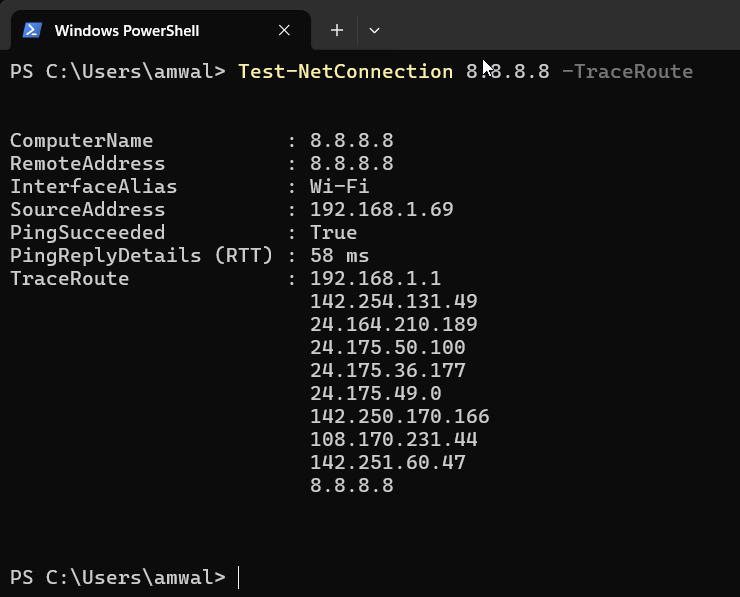
Test-NetConnection google.com -Port 443 Test-NetConnection server01 -Port 3389 - Show route info:
Test-NetConnection 8.8.8.8 -TraceRoute
2. IP Configuration & Adapters (PowerShell version of ipconfig)
Get-NetIPConfiguration
High-level view: similar to ipconfig /all but object-based.
Get-NetIPConfiguration
Get-NetIPConfiguration -Detailed
Get-NetIPAddress
Show IP addresses bound to interfaces.
Get-NetIPAddress
Get-NetIPAddress -InterfaceAlias "Ethernet"New-NetIPAddress, Set-NetIPAddress, Remove-NetIPAddress
Create, change, or remove IPs (static configs).
New-NetIPAddress -InterfaceAlias "Ethernet" -IPAddress 192.168.1.50 -PrefixLength 24 -DefaultGateway 192.168.1.1Get-NetRoute
View routing table (PowerShell version of route print).
Get-NetRoute
Get-NetRoute -DestinationPrefix 0.0.0.0/0   # default routes
Get-NetAdapter
See physical/logical adapters and status.
Get-NetAdapter
Get-NetAdapter -Name "Ethernet" | Format-List
Restart-NetAdapter
Bounce an interface (like disabling/enabling in GUI).
Restart-NetAdapter -Name "Ethernet" -Confirm:$false3. DNS & Name Resolution
Resolve-DnsName
PowerShell replacement for nslookup.
Resolve-DnsName google.com
Resolve-DnsName google.com -Type MX
Resolve-DnsName 8.8.8.8 -Type PTR   # reverse lookup
Get-DnsClientServerAddress
See what DNS servers a client is using.
Get-DnsClientServerAddress
Get-DnsClientServerAddress -InterfaceAlias "Ethernet"
Get-DnsClientCache / Clear-DnsClientCache
View and flush the local DNS resolver cache.
Get-DnsClientCache
Clear-DnsClientCache
4. Connections, Ports & Sessions (PowerShell replacement for netstat)
Get-NetTCPConnection
View active TCP sessions and listening ports.
Get-NetTCPConnection
Get-NetTCPConnection -State Listen
Get-NetTCPConnection -RemotePort 443
Get-NetUDPEndpoint
Show UDP listeners/endpoints.
Get-NetUDPEndpointCombine with process info:
Get-NetTCPConnection | Group-Object -Property State
Get-NetTCPConnection | Where-Object { $_.LocalPort -eq 3389 }
5. Neighbor / ARP & MAC-Level Stuff
Get-NetNeighbor
PowerShell view of ARP/neighbor table (IPv4 & IPv6).
Get-NetNeighbor
Get-NetNeighbor -State Reachable
Get-NetAdapterStatistics
Per-NIC counters: bytes, packets, errors, discards.
Get-NetAdapterStatisticsGreat for spotting errors on a specific NIC.
6. Network Profile, Firewall & Sharing
Get-NetConnectionProfile
Shows network profile (Domain / Private / Public).
Get-NetConnectionProfileUseful when firewall is tight on “Public” and breaking things.
Get-NetFirewallProfile / Set-NetFirewallProfile
Check and adjust firewall profiles.
Get-NetFirewallProfileGet-NetFirewallRule
See firewall rules that might be blocking a port/app.
Get-NetFirewallRule
Get-NetFirewallRule -DisplayName "*Remote Desktop*"
7. Wireless & Network Diagnostics (using PowerShell to drive other tools)
These are not native PowerShell cmdlets, but you commonly call them from PowerShell:
netsh wlan
Wi-Fi profiles, signal, etc.
netsh wlan show interfaces
netsh wlan show networks mode=bssid
ipconfig / tracert / arp / nslookup
Classic commands, still very useful, and you can wrap/parse them in PowerShell:
ipconfig /all
tracert 8.8.8.8
arp -a
nslookup google.com
8. Advanced / Event-Based Troubleshooting
These are more advanced, but good to know they exist.
New-NetEventSession, Add-NetEventProvider, Start-NetEventSession
Used to trace and capture network events (more advanced, similar to using ETW).
New-NetEventSession -Name "NetTrace"
# then add providers, start, stop, etc.
9. Useful Patterns Techs Actually Use
A few patterns you might find yourself using a lot:
Check if a host is reachable and port open:
Test-NetConnection server01 -Port 445See what’s listening on a port:
Get-NetTCPConnection -LocalPort 3389Quick “PowerShell ipconfig+route+DNS” snapshot:
Get-NetIPConfiguration
Get-NetRoute
Get-DnsClientServerAddress
Look for NIC errors:
Get-NetAdapterStatistics | Format-Table Name, ReceivedErrors, OutboundErrorsComments are welcomed below from registered users. You can also leave comments at our Discord server.
If you would like to see more content and articles like this, please support us by clicking the patron link where you will receive free bonus access to courses and more, or simply buying us a cup of coffee!