
Below is a clean, technician-focused list of the Windows PowerShell commands used for Wi-Fi and WLAN troubleshooting, organized by function. This aligns well with broadband-tech workflows, capture analysis, and WLAN Operations fundamentals.
1. Let’s Start with Discovering Wi-Fi Interfaces & Drivers
Get Wi-Fi NICs & Driver Info
Get-NetAdapter -Physical | Where-Object {$_.Status -eq "Up"}
Get-NetAdapter -Name "Wi-Fi" | Format-List *
Get-NetAdapterAdvancedProperty -Name "Wi-Fi"
Get-NetAdapterHardwareInfo -Name "Wi-Fi"
Get-NetAdapterStatistics -Name "Wi-Fi"
Get-NetAdapterPowerManagement -Name "Wi-Fi"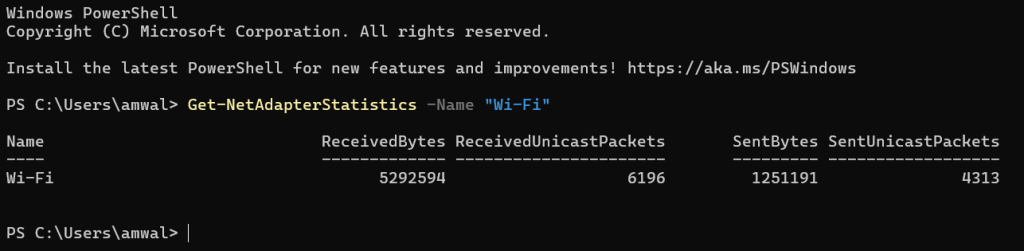
Driver Version / Capabilities
(Get-NetAdapter -Name "Wi-Fi").DriverInformation2. Performing Scans for Nearby Wi-Fi Networks
PowerShell has no direct native Wi-Fi scan cmdlet. You use netsh from inside PowerShell. Keep in mind you can also execute these netsh commands in standard Windows Command/Terminal:
Scan
netsh wlan show networks mode=bssidList Saved Profiles
netsh wlan show profiles3. Connect / Disconnect / Manage Wi-Fi Profiles in Windows
Remove a Saved Profile
netsh wlan delete profile name="SSID-Name"Export Profiles (for backup or cloning configs)
netsh wlan export profile key=clear folder="C:\wifi"Import Profile
netsh wlan add profile filename="C:\wifi\mywifi.xml"Connect to a Network
netsh wlan connect name="SSID-Name"Disconnect
netsh wlan disconnect4. Wi-Fi Radio Control / Interface Control
View WLAN Interface State
netsh wlan show interfacesEnable / Disable Wi-Fi Interface
Enable-NetAdapter -Name "Wi-Fi"
Disable-NetAdapter -Name "Wi-Fi"
Disable Wi-Fi Radio (Airplane-style troubleshooting)
netsh radio set wlan off
netsh radio set wlan on
5. Advanced WLAN Diagnostics
Show WLAN Report (Generates HTML Diagnostic Report)
netsh wlan show wlanreportThis creates a report found at the following location that you should open in a web browser tab:C:\ProgramData\Microsoft\Windows\WlanReport\wlan-report-latest.html
Fantastic for troubleshooting roaming, authentication failures, disconnects.
Show WLAN AutoConfig
netsh wlan show autoconfigShow Drivers and Capabilities
netsh wlan show driversThis shows:
- Supported 802.11 standards (a/b/g/n/ac/ax)
- Radio types
- Channel widths
- Authentication/cipher suites
- Hosted network support
6. Packet Capture (Built-In ETW Wi-Fi Capture)
(This is extremely useful with Wireshark ETL imports.)
Start Wi-Fi Packet Capture
netsh trace start capture=yes tracefile=c:\temp\wifi.etl scenario=WLANStop Capture
netsh trace stopNewer PS-Native ETW Cmdlets (Windows 10+)
Get-NetEventSession
New-NetEventSession -Name WifiCapture -CaptureMode SaveToFile -LocalFilePath c:\temp
Add-NetEventProvider -Name Microsoft-Windows-WLAN-AutoConfig -SessionName WifiCapture
Start-NetEventSession -Name WifiCapture
Stop-NetEventSession -Name WifiCapture
7. IP, DNS, DHCP Commands Relevant to WLAN
These aren’t Wi-Fi-specific but used constantly in WLAN troubleshooting.
Show IP Settings
Get-NetIPConfigurationRelease / Renew DHCP
ipconfig /release
ipconfig /renew
Flush DNS Cache
Clear-DnsClientCacheShow DNS Cache
Get-DnsClientCache8. Wi-Fi Profiles, Authentication, 802.1X
Show 802.1X Auth Config
netsh lan show profilesShow RADIUS / 802.1X Settings
netsh lan show interfaces(Useful in enterprise WLANOps scenarios)
9. Network Reset / WLAN Repair Commands
Reset TCP/IP Stack
netsh int ip resetReset Winsock
netsh winsock resetReset WLAN Profiles
netsh wlan delete profile name=*10. Wi-Fi Power & Roaming Controls
Set Power Level
Set-NetAdapterAdvancedProperty -Name "Wi-Fi" -DisplayName "Transmit Power" -DisplayValue "Highest"Set Roaming Aggressiveness
Set-NetAdapterAdvancedProperty -Name "Wi-Fi" -DisplayName "Roaming Aggressiveness" -DisplayValue "Medium"Some Bonus Things
Check 6 GHz (Wi-Fi 6E) support
netsh wlan show drivers | findstr "6GHz"Check supported MCS / spatial streams
Windows hides this, but you get hints from:
netsh wlan show interfacesComments are welcomed below from registered users. You can also leave comments at our Discord server.
If you would like to see more content and articles like this, please support us by clicking the patron link where you will receive free bonus access to courses and more, or simply buying us a cup of coffee!