
|
Check out these great references as well: |
| Our custom profiles repository for Wireshark |
| Our Udemy course on Wireshark |
| Our Udemy course on Wireless Packet capture |
In our previous post I showed you how to use Wireshark’s Ring Buffer feature. I think we can all agree how great that feature is. In this port I wanted to dive a little deeper into doing long-term captures like if you work in the Central Office or in the field when you need long-duration capture but want to minimize CPU load, disk I/O, and storage growth. Let’s take it to the next level.
The correct engineering approach is:
Capture Filter (BPF) at ingest + Ring Buffer rotation on disk
This ensures that:
- Only relevant traffic is captured
- Files rotate predictably
- Disk usage remains bounded
- Capture performance remains stable
This is especially critical in broadband, Wi-Fi, and VoIP troubleshooting environments.
Architectural Principle
There are three filtering methods in Wireshark:
| Method | Tool | When Applied | Performance Impact |
|---|---|---|---|
| Capture Filter | libpcap / dumpcap (BPF) | Before packets hit disk | High performance benefit of reducing packets captured |
| Ring Buffer | dumpcap (command line or GUI) | During file write | Controls disk capacity usage |
| Display Filter | Wireshark GUI | After capture | No performance benefit |
Key Rule:
If performance matters, filter at capture time.
Basic Combined Example
As I show examples here I am using dumpcap from the command line, but you can easily use the GUI as well.
Example: Monitor only DNS traffic continuously using command line:
dumpcap -i eth0 \
  -f "udp port 53 or tcp port 53" \
  -b filesize:50000 \
  -b files:20 \
  -w DNSTraffic.pcapng
Using the GUI (this one with WiFi interface):
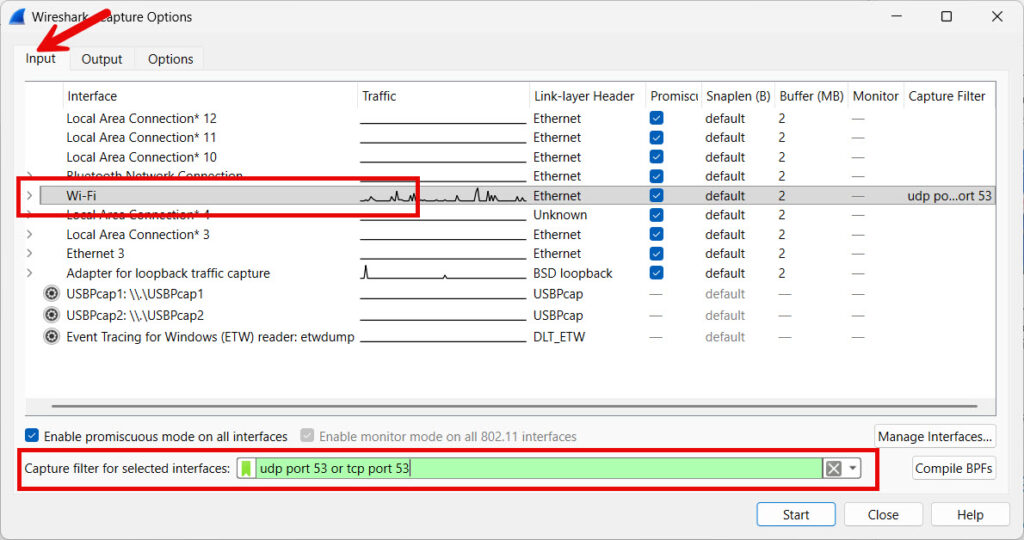
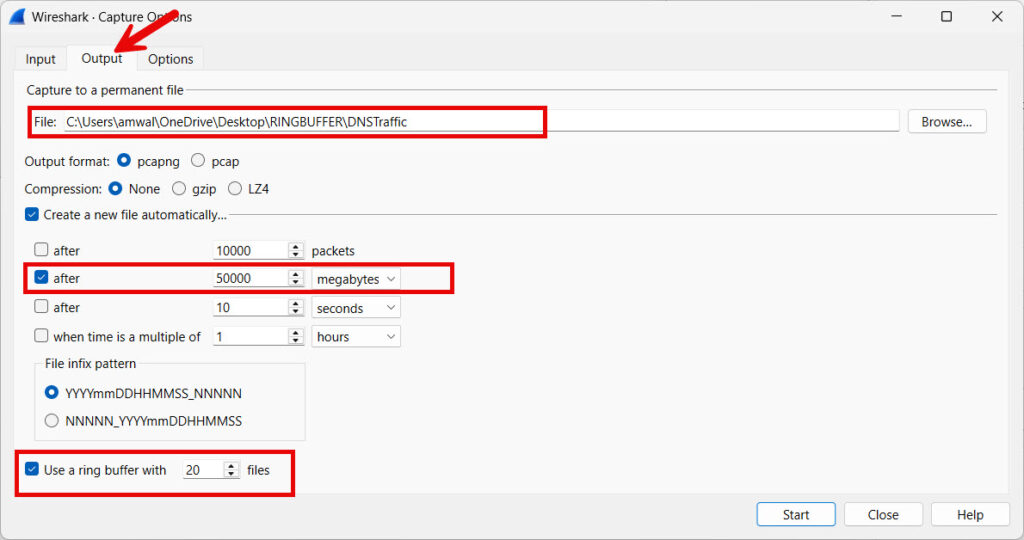
What This Does
- Captures only DNS traffic (using the BPF syntax filter)
- Rotate a file every 50 MB
- Keep 20 files before looping back around the ring buffer
- This means a Max storage ≈ 1 GB
- And of course, the oldest files are overwritten automatically
Result:
- Extremely low CPU overhead
- Minimal disk churn
- Long-term safe operation
Just a note here: in the GUI – I would use my DNS profile you can find here.
How About a VoIP Example (ISP / Broadband Field Use)
If you are troubleshooting VoIP, meaning SIP/SDP/RTP/RTCP issues, once again here is the command line:
dumpcap -i eth0 \
  -f "port 5060 or udp portrange 10000-20000" \
  -b duration:600 \
  -b files:48 \
  -w VoIP_Monitor.pcapng
I will only show the Output Options in the GUI:
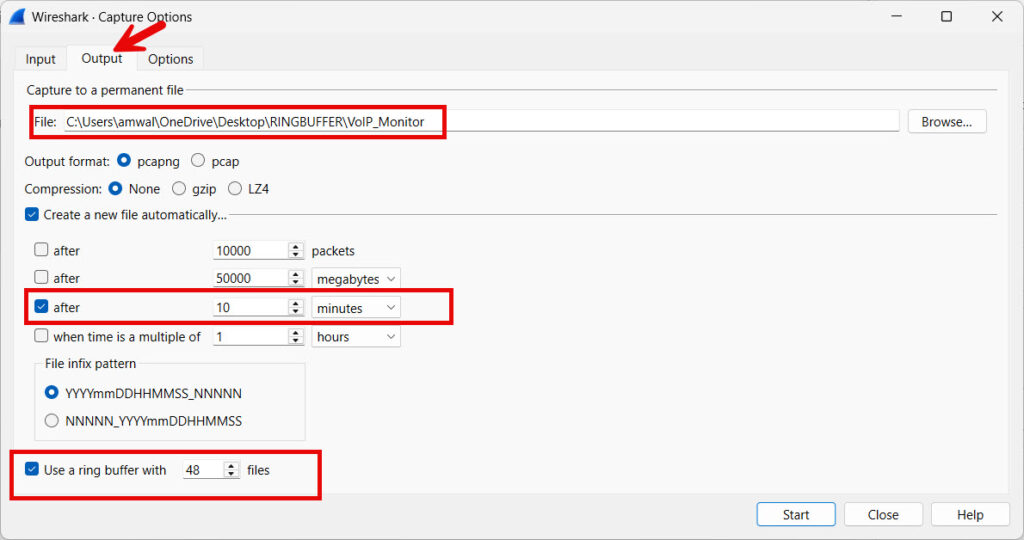
Why This Works
- Captures SIP (5060) and RTP (media range)
- New file every 10 minutes
- Retains last 8 hours of traffic
- Automatically overwrites older data
This is ideal for:
- Intermittent one-way audio
- Call drops
- Jitter analysis
Oh, and definitely go get our VoIP profiles in the profiles repository here.
Wi-Fi Roaming / Authentication Capture
If capturing near an AP controller, here is the command line (I have left the GUI out as you probably have figured out the settings by now:
dumpcap -i wlan0 \
  -f "type mgt or port 67 or port 68" \
  -b filesize:100000 \
  -b files:30 \
  -w WiFi_Roaming.pcapng
Filter Meaning
- Management frames
- DHCP traffic
- Authentication-related events
Result:
- Captures roam failures
- Preserves bounded storage
- Maintains system stability
You will find Wi-Fi specific profiles in the repository here that will further help.
High-Speed Interface Strategy (1G / 10G Links)
On high-throughput broadband aggregation links, never capture everything. There is just too much traffic, unless you have a special capture system. They are very expensive.
Instead:
Targeted CGNAT Monitoring Example
dumpcap -i eth1 \
  -f "host 203.0.113.45" \
  -b filesize:200000 \
  -b files:10 \
  -w Subscriber_Issue.pcapng
Captures only traffic to/from specific subscriber IP (you just have to modify the IP address 203.0.113.45 to whatever IP you are looking for.
This dramatically:
- Reduces dropped packets
- Lowers disk bandwidth
- Improves reliability
Storage Planning Formula
Total Storage = File Size × Number of Files
Example:
- 200 MB per file
- 15 files
= 3 GB fixed storage footprint
Predictable and controlled.
Performance Engineering Considerations
Always Use dumpcap (Not Full GUI) for highest performance
- GUI consumes extra memory
- dumpcap is optimized C capture engine
- Survives GUI crash
Use Berkley Packet Filter (BPF) Syntax Efficiently
Good:
tcp port 443
Better:
host 10.1.1.50 and tcp port 443
Best:
(net 10.1.1.0/24) and (tcp port 443)
The more precise the filter, the better performance.
What NOT To Do
Do Not – Capture without filter on 10G link
Do Not – Use a display filter instead of a capture filter
Do Not – Use a huge single capture file
Do Not – Forget your storage math
Professional Deployment Pattern
For ISP NOC continuous monitoring I suggest:
- Using a Lightweight Linux box
- Use dumpcap from the command line running as service
- Capture filter targeting protocols like:
- BGP
- DHCP
- SIP
- Specific subscriber blocks
- Use a Wireshark Ring buffer 5–10 GB max
- Rotate every 5–15 minutes
When issue occurs:
- Stop the dumpcap service
- Analyze last few files in Wireshark – it is where the problem is likely to be
And you get all this with zero disk exhaustion risk.
In Conclusion
Combining: Capture Filter (BPF) + Ring Buffer Rotation provides:
- Controlled disk usage
- Reduced CPU load
- Higher packet capture reliability
- Long-duration unattended operation
- Production-safe troubleshooting
In professional broadband and Wi-Fi environments, this method is the standard approach for intermittent fault capture.
Happy Packet Capturing!
Comments are welcomed below from registered users. You can also leave comments at our Discord server.
If you would like to see more content and articles like this, please support us by clicking the patron link where you will receive free bonus access to courses and more, or simply buying us a cup of coffee!