

WlanHelper.exe is a command-line tool from the Windows Driver Kit (WDK) and the folks at nmap/npcap that is used to manipulate advanced Wi-Fi driver settings, especially for testing and development. It allows you to control wireless network adapter settings such as:
- Channel width (20MHz, 40MHz, etc.)
- Band preference (2.4GHz vs 5GHz)
- Operational mode (e.g., 802.11ac only)
- Adapter debug parameters (for developers)
Do You Already Have WlanHelper?
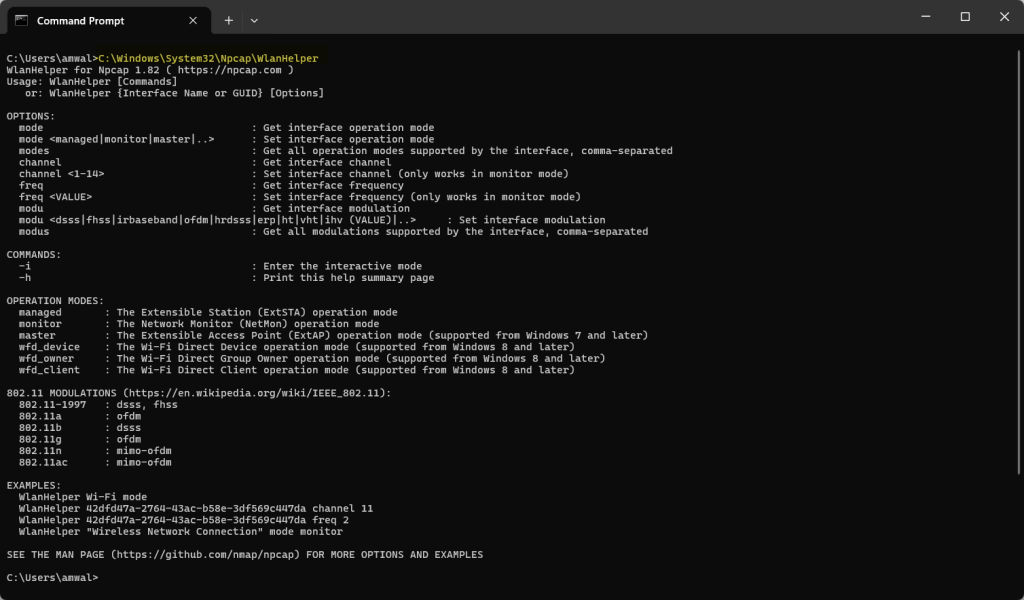
It’s possible if you have installed Wireshark with the npcap tool. To check, just open a CMD window and use this command:
C:\Users\amwal>C:\Windows\System32\Npcap\WlanHelper
If You Don’t Already have this, What You Need
- Windows OS (Windows 10 or later)
- WDK (Windows Driver Kit) — install it from here, comes with WlanHelper or install the npcap driver here – I suggest the later
- Administrator privileges (required to change adapter settings)
Basic Usage
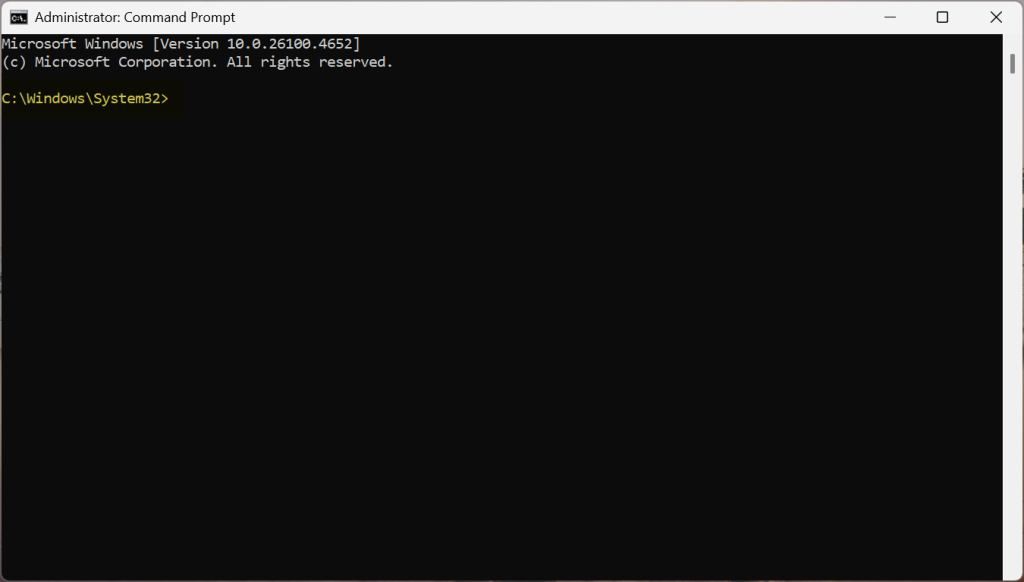
Before we get started, you will need to open a CMD window with Administrator privileges – you know you can do this when the window opens and you are at the C:\Windows\System32 directory:
OK, now change directory to the Npcap directory:
cd Npcap
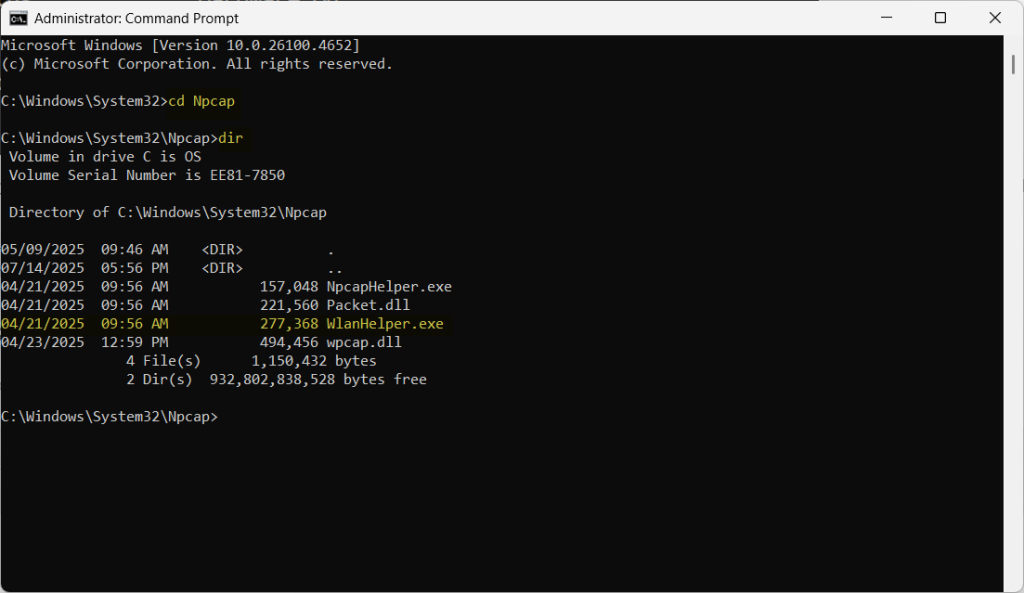
You can see that I then did a ‘dir’ so I could see what was in the folder.
From here you can run WlanHelper!
Another key piece of information we will need is what your system calls it’s WLAN interfaces. To do this, we need to issue the following command:
netsh wlan show interfaces
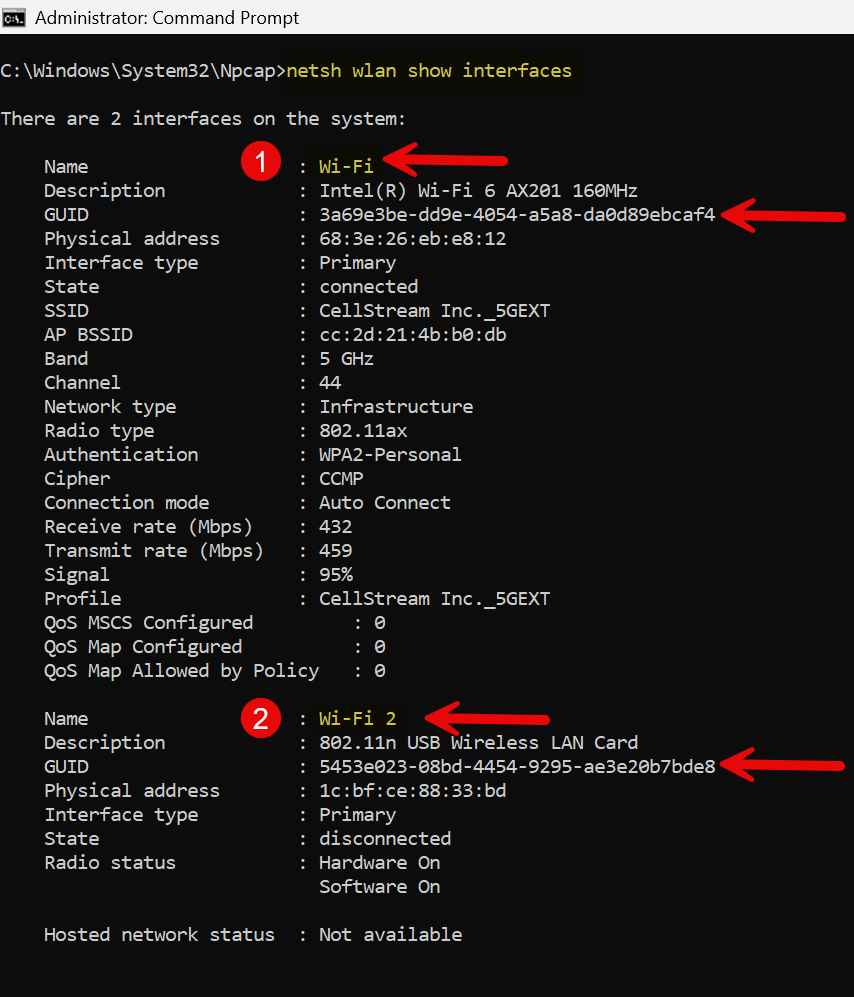
Note that on my system, there are two Wi-Fi interfaces called “Wi-Fi” and “Wi-Fi 2”. They also have something called a GUID: GUID technically stands for globally unique identifier. What it is, actually, is a 128 bit structure that is unlikely to ever repeat or create a collision.
Your system probably has only one Wi-Fi interface.
What mode is our interface in?
Type the following command:
WlanHelper Wi-Fi mode
This queries the mode the “Wi-Fi” interface is in.

Notice that I used the interface “name” (in this case Wi-Fi) and not the GUID.
OK, so what about my second interface?

Note in this case, since there is a space between Wi-Fi and 2 I had to use quotes around the interface name.
Putting an Interface into Monitor Mode
OK – so let’s change the mode of my Wi-Fi 2 interface to Monitor mode:
WlanHelper "Wi-Fi 2" mode monitor

Now if we were to open Wireshark and capture packets on the Wi-Fi 2 interface we would see it is listening:
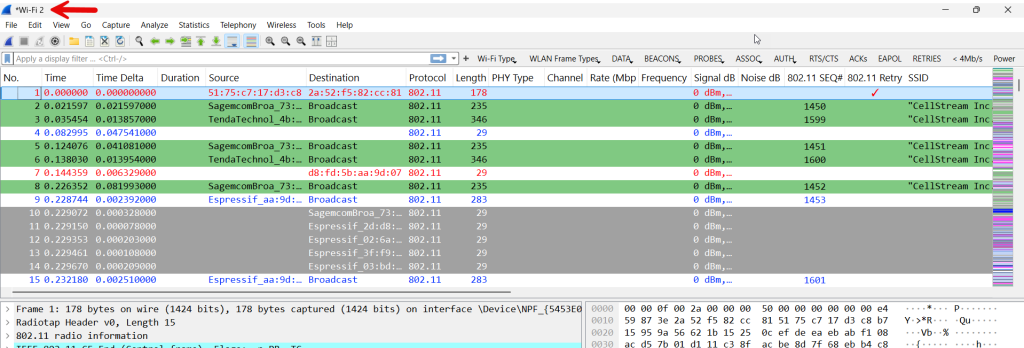
OK, what if you try to put your onboard Wi-Fi interface into monitor mode? That is actually a good question. In my case:

I received a “Failure” error: the request is not supported. When I tried this, I was on the Wi-Fi network. But that may not be the reason. Depending on my network, my OS, the drivers, the NIC itself, I may not be able to do this. That is why I strongly recommend using an external USB Wi-Fi adapter that supports monitor mode (look here).
What Other things can I View and Change?
channel : Get interface channel
channel <1-14> : Set interface channel (only works in monitor mode)
freq : Get interface frequency
freq : Set interface frequency (only works in monitor mode)
modu : Get interface modulation
modu : Set interface modulation
modus : Get all modulations supported by the interface, comma-separated
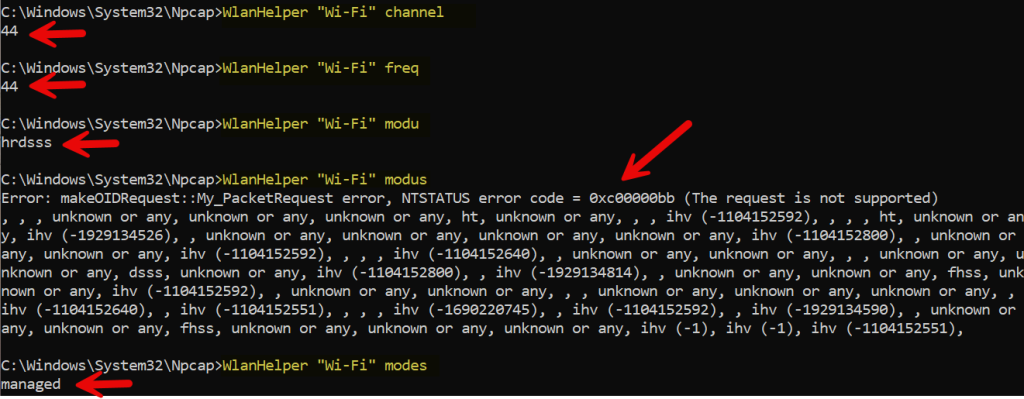
Here is an example output on my system: Wi-Fi first
Now Wi-Fi 2:
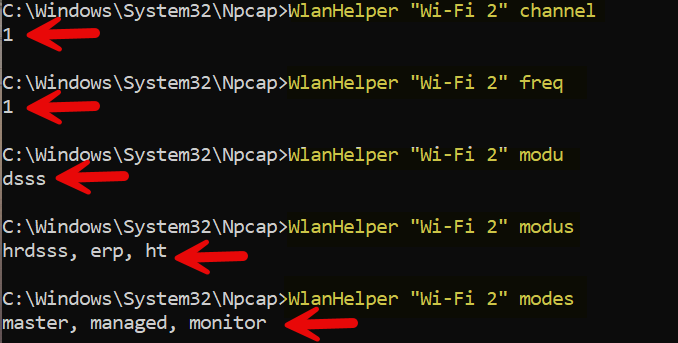
You can see that the outputs are not perfect. Much of this has to do with the drivers and interfaces, etc. Just by trying to display these various settings will help you to understand what you can mess with and what you can’t on your system.
Changing What channel the Interface is On
Assuming you can do this, issue the following command (I have chosen Channel 11):
WlanHelper "Wi-Fi 2" channel 11
In the 2.4GHz range you have to be on a channel between 1 and 14. If the interface supports 5GHz or 6GHz, then make sure you use a known channel number for those frequencies.
Important Notes
- Not all options are supported by all Wi-Fi adapters or drivers. As stated above, what your system and interface are capable has a lot to do with your environment. You can’t really hurt anything that a reboot can’t solve. So play around.
- Changes may persist only until the system reboots or the adapter is reset.
- Primarily designed for testing/debugging, not regular end-user configuration.
- Linux systems have a lot more capabilities and the commands are slightly different. So make sure you look at the help when you are playing on those systems.
If you would like to help support the continued development of independent networking, broadband, Wi-Fi, VoIP, and packet analysis content, please consider joining our Patreon community where you will gain access to exclusive technical resources, downloadable labs and PCAPs, bonus course content, troubleshooting guides, and additional member-only material. Comments and technical discussion are always welcomed at our Patreon community or on our Discord server. You can also support our work by simply buying us a coffee — every contribution helps us continue creating practical, real-world network science education for professionals and enthusiasts alike.