
Say it isn’t true! For the first time in the world (for me) I can put a Wi-Fi interface on a Windows 10 machine into Monitor mode!!!!! Monitor Mode in Windows At Last!
I know, this is boring to a few of you because you have been capable of this. You are spoiled. You are lucky.
But today – all that changed. First, I updated my self to the latest version of npcap (v1.30). You can get that right here: https://nmap.org/npcap/
Of course I am running the latest version of Wireshark: https://www.wireshark.org
Then, I installed an external Wireless adapter that I know supports Monitor Mode (I previously tested this in Linux). So now I have two wireless adapters:

“Wi-Fi 2” is the one I am interested in.
A quick note: if you want to see if you have what is needed to actually use Monitor Mode – check our my post on WlanHelper here.
Now – let’s fire up Wireshark, and then select Capture> Options:
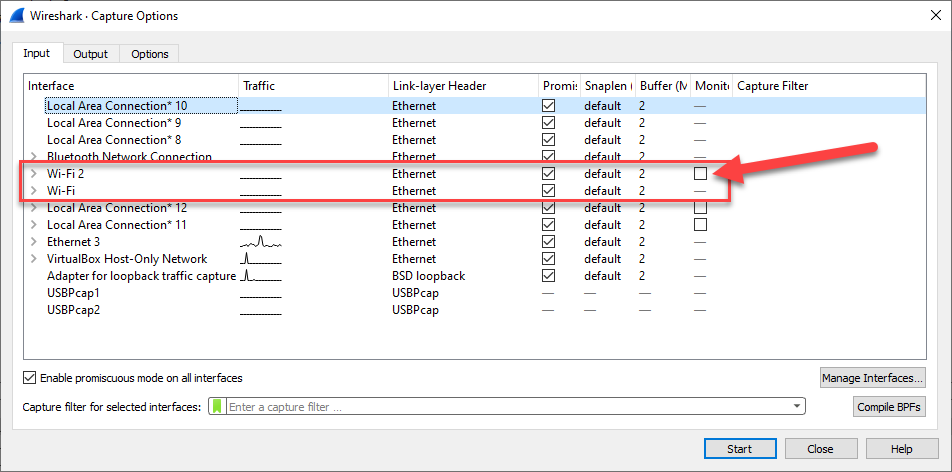
Look at that! The Wi-Fi2 interface has the Monitor Mode check box!!!! Picture me doing a happy dance!
So Let’s select it, and capture:

Do we have 802.11 traffic????
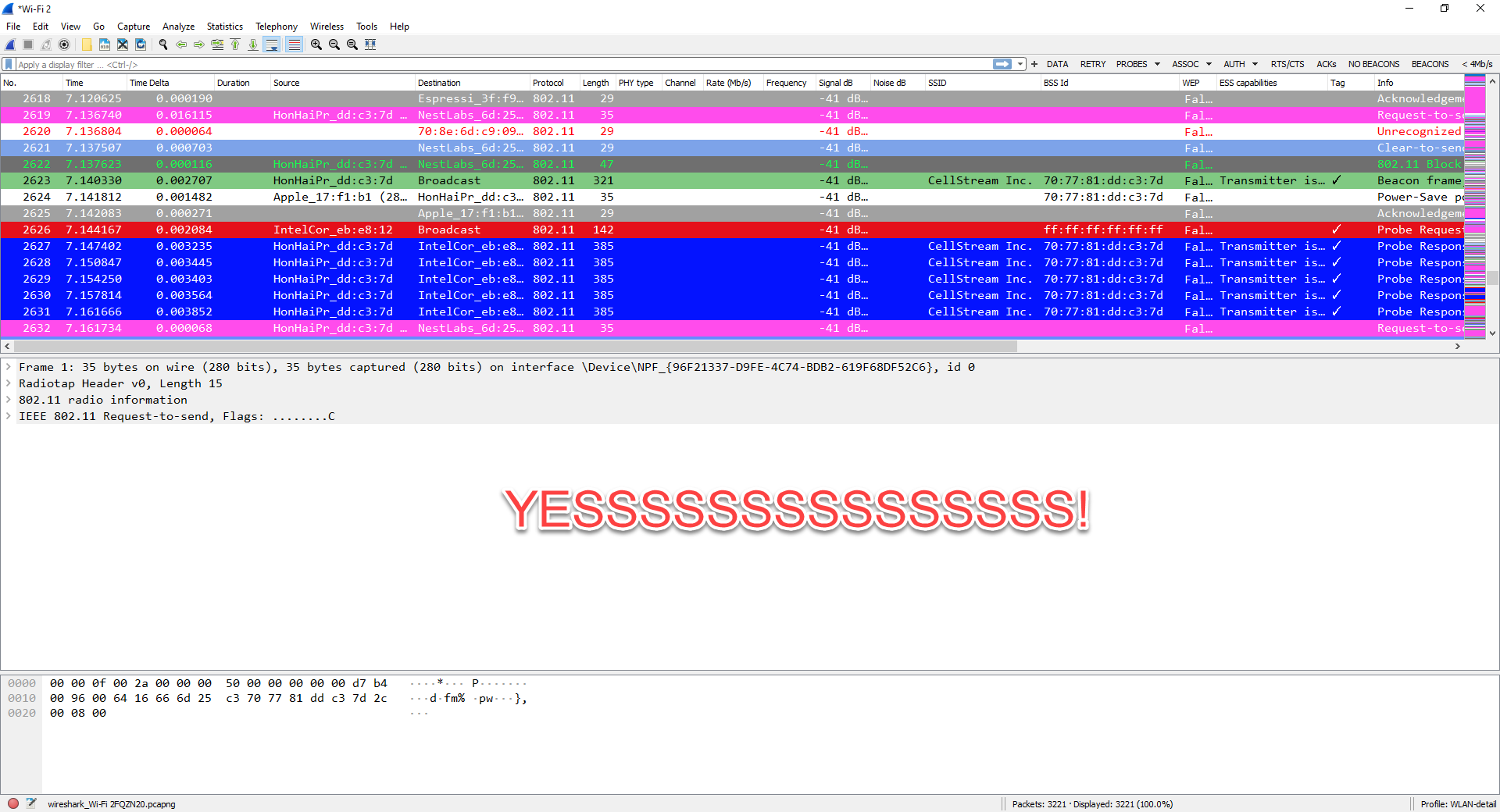
Much more happy dancing!
So thankful to the great folks at nmap and npcap, and Wireshark, of course.
Such a long time coming.
Comments are welcomed below from registered users. You can also leave comments at our Discord server.
If you would like to see more content and articles like this, please support us by clicking the patron link where you will receive free bonus access to courses and more, or simply buying us a cup of coffee!