
If you have upgraded Wireshark to the latest version 4.6.5 and later, you will note a big change to the “welcome” screen, or home screen of Wireshark. It now looks like this:
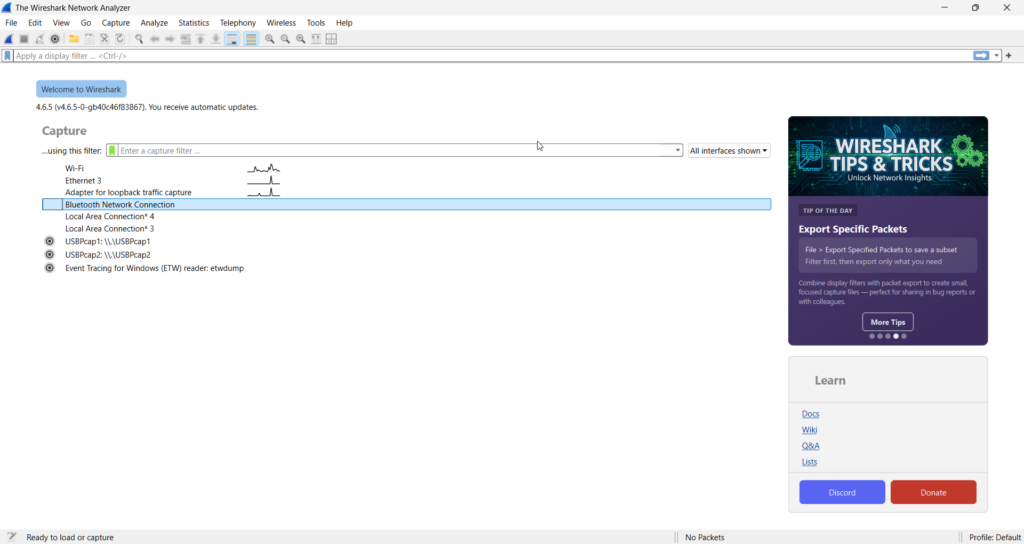
The two “boxes” on the right are new and bold. The tips and tricks is great for new Wireshark users, and that area also shows sponsors of Wireshark, as well as Wireshark messages advertising their Sharkfest conference, etc. The Learn box replaces what used to be shown in a couple of lines at the bottom of the home screen. These go away once you actually capture or open a capture.
For experienced users, this enhancement to the home screen is (at least from what I have loudly heard) quite annoying. I was immediately asked, can this be returned to normal or turned off? A little digging and here is what I found.
******************************************************************************************************************************
UPDATE!
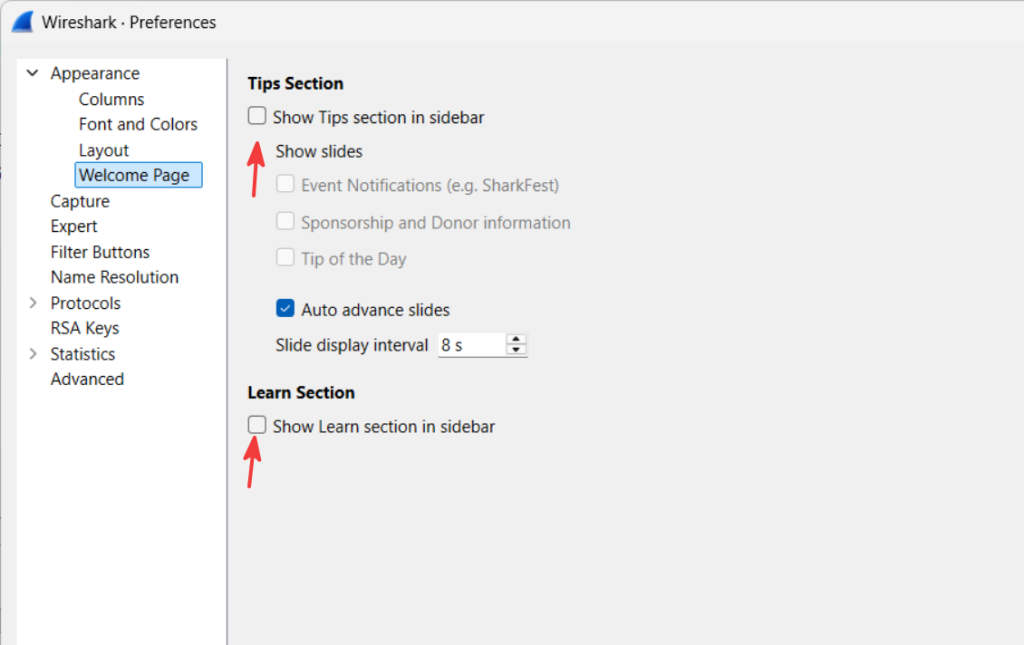
If you upgrade to 4.6.6 or later – this is now editable through the Preferences menu: Edit> Preferences> Welcome Page: simply uncheck the show tips and show learn options to completely remove the new items. New users may find the Tip of the Day to be good.
******************************************************************************************************************************
In the Windows 4.6.5 there is no preference to change any of this:
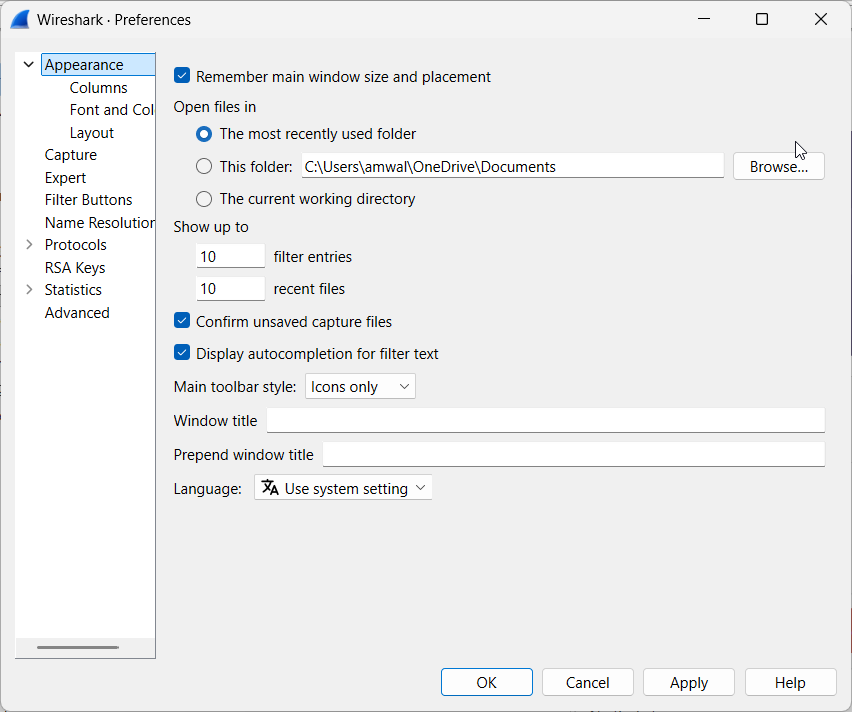
I even dug deeper into the Advanced area and then scrolled to the gui settings area, and found nothing:
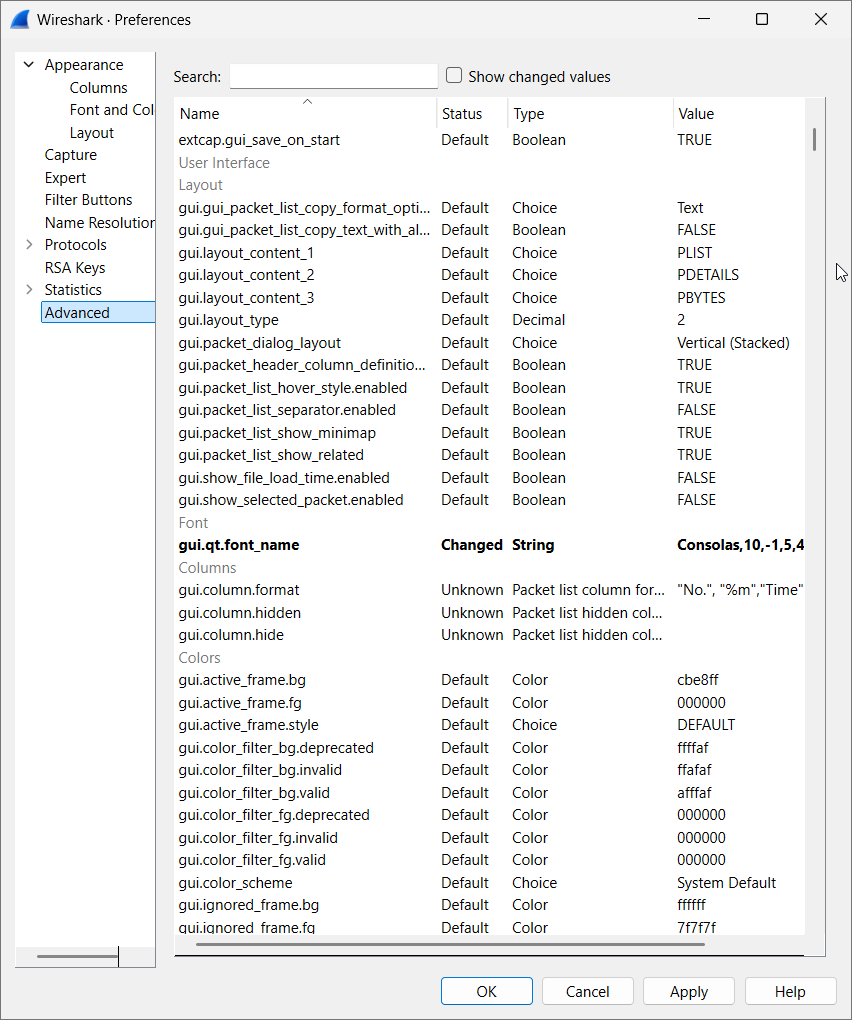
I know, it is more that what I show in the screen shot above, as it scrolls, but there is nothing there.
OK – close all that.
Click on Help> About Wireshark> then select the Folders tab:
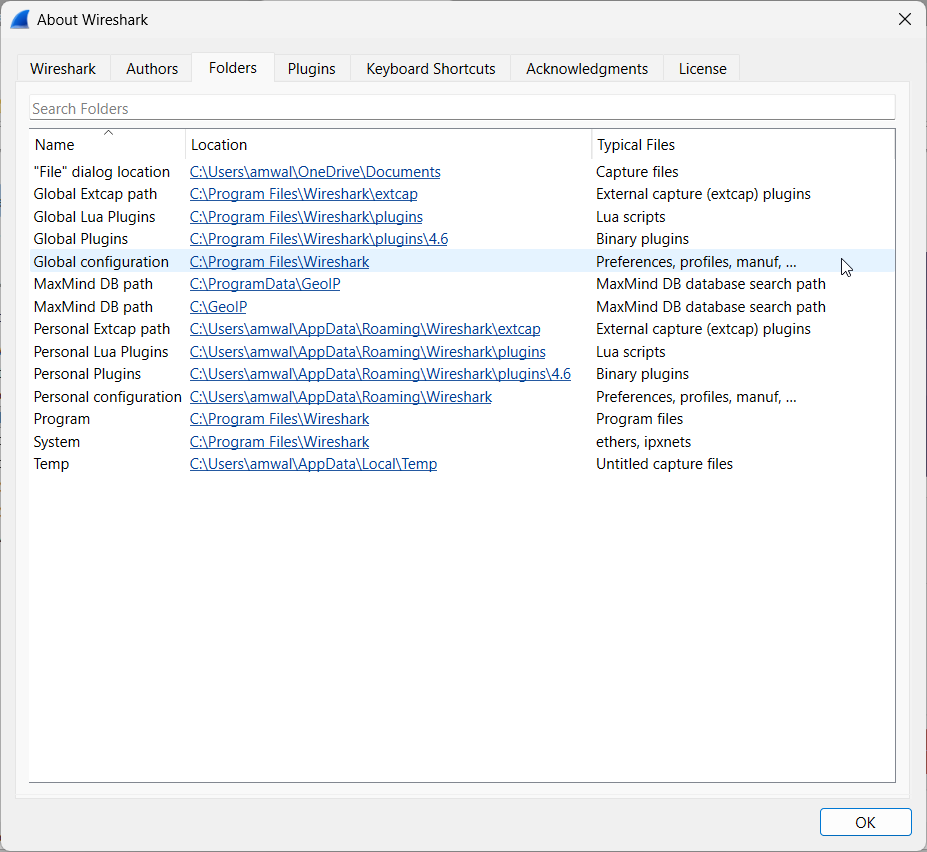
Double click on Personal configuration and your File Explorer should open that subdirectory. Look closely for a file called recent_common. Now, before you open it, close all Wireshark windows, including the program itself while leaving this File Explorer window open.
From this point forward, I encourage my reader to be very careful. Editing these types of files this way and making a mistake can cause Wireshark to become inoperable and require you to re-install it.
Now right click on the file recent_common and select edit with Notepad:
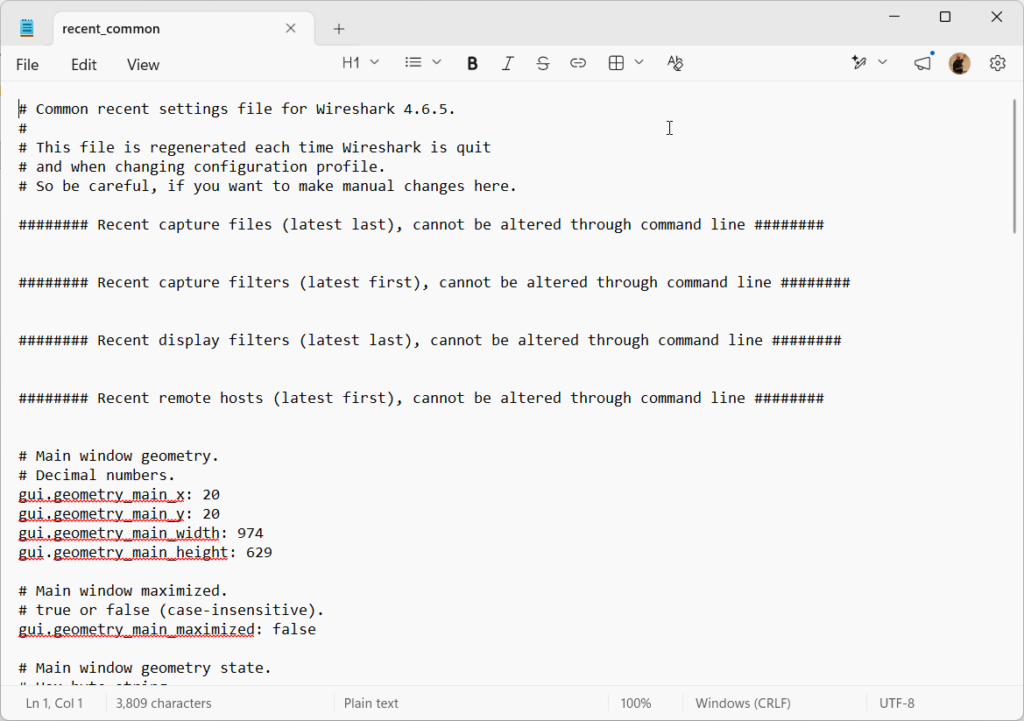
OK – scroll down until you find the following:
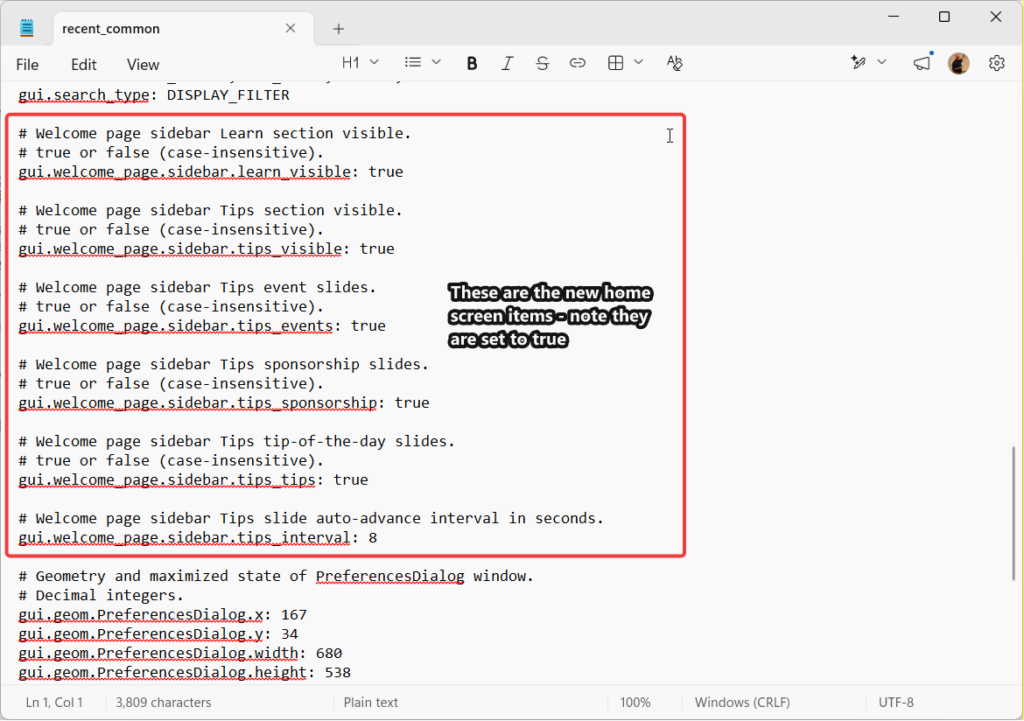
To turn off any of those items simply change the word “true” to “false” and that particular item will no longer appear on the home screen:
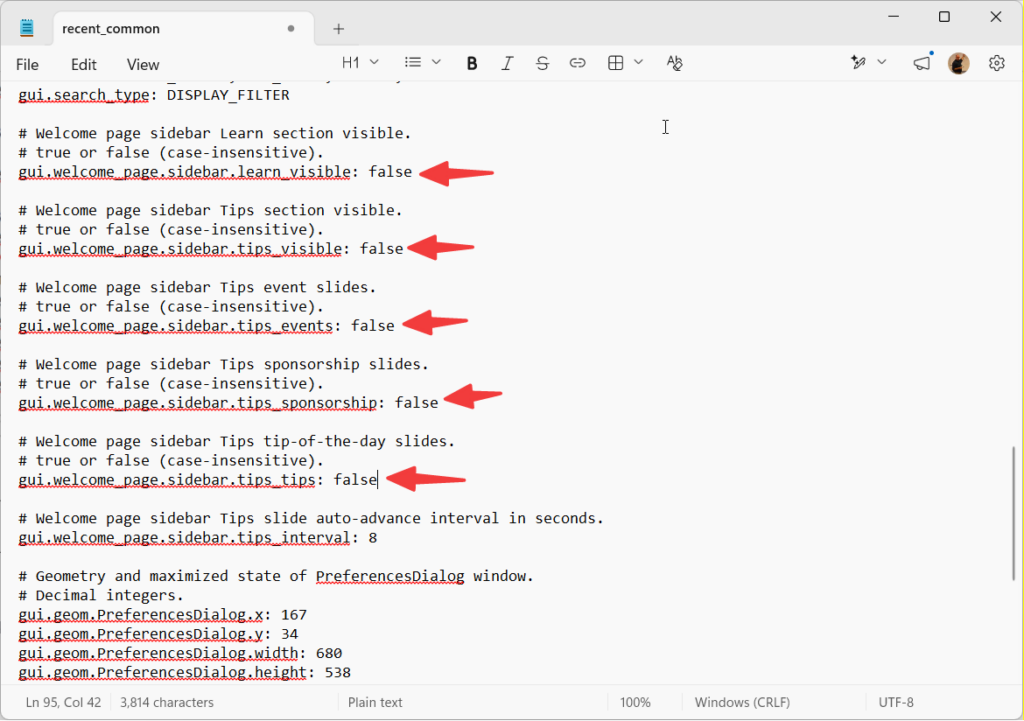
Once configured to the way you prefer, save the file and close the editor.
Now restart Wireshark:
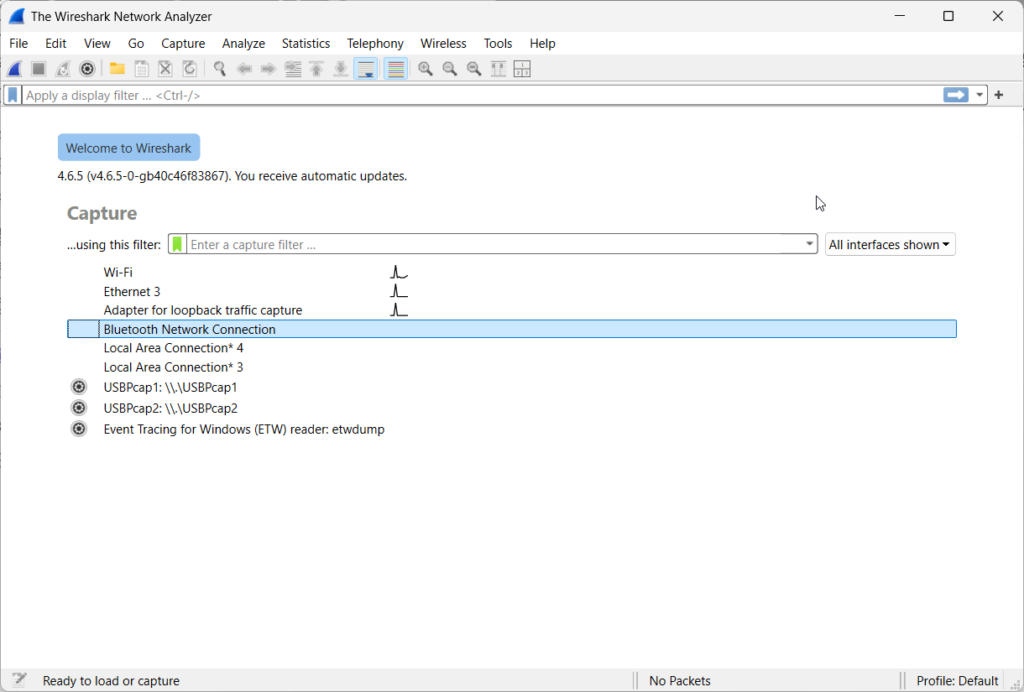
Done!
But are you? One really annoying thing is that if you are a big believer in Wireshark Profiles, the above only modifies the profile you were in or your default profile. As soon as you change to another profile these home screen boxes will reappear. You will have to change the recent_common file again, but so far once you do that it seems to stick no matter what profile you are in. Just an FYI.
If something goes wrong, make sure Wireshark is closed. Navigate back to the path in your File Explorer and delete the recent_common file completely. Then re-open Wireshark. It should be back to it’s default display. I tested this and it worked perfectly. Worst case is you have to reinstall Wireshark.
Now with that all said, let me be clear on a matter of opinion. Wireshark has always been free. It has depended on sponsorships, and more recently contributions to the Wireshark Foundation to pay for it’s development and maintenance. I have donated and I urge everyone to do the same by clicking on the donate button. I am certainly not against the changes to the home screen, and I am hoping my eyes get used to it as I teach Wireshark to others. New users will of course accept this as default. I hope this helps, anyway.
If you would like to help support the continued development of independent networking, broadband, Wi-Fi, VoIP, and packet analysis content, please consider joining our Patreon community where you will gain access to exclusive technical resources, downloadable labs and PCAPs, bonus course content, troubleshooting guides, and additional member-only material. Comments and technical discussion are always welcomed at our Patreon community or on our Discord server. You can also support our work by simply buying us a coffee — every contribution helps us continue creating practical, real-world network science education for professionals and enthusiasts alike.