

Windows 10 has several interesting WLAN/Wi-Fi commands you can run from the Windows 10 and later command or Powershell. One of them is the WLAN Report.
The Windows WLAN Report is a detailed, automatically generated diagnostic report that provides a comprehensive history of Wi-Fi activity on a Windows system. It is produced using the command (shown below) and compiles data from the Windows WLAN AutoConfig service, event logs, driver telemetry, and connection state transitions. The report is rendered as an HTML file and includes a timeline view of connection attempts, successful associations, authentication events, DHCP exchanges, disconnections, roaming activity, and failure reasons. It is particularly useful for identifying issues such as authentication failures, driver instability, signal degradation, roaming interruptions, or intermittent disconnects.
From a troubleshooting perspective, the WLAN Report correlates layer-2 Wi-Fi events (association, 802.11 authentication, deauthentication reasons, signal strength changes) with higher-layer connectivity outcomes (IP assignment, gateway reachability, internet access status). It provides structured breakdowns of each session, including SSID, BSSID, radio type, security method, and error codes when failures occur. This makes it an effective first-level diagnostic artifact for analyzing client-side wireless issues before moving to packet captures or RF-level analysis.
It takes two steps to view this information.
Step 1.
Run Windows CMD as Administrator.
Then enter the command:
netsh wlan show wlanreport
Here is an example output:
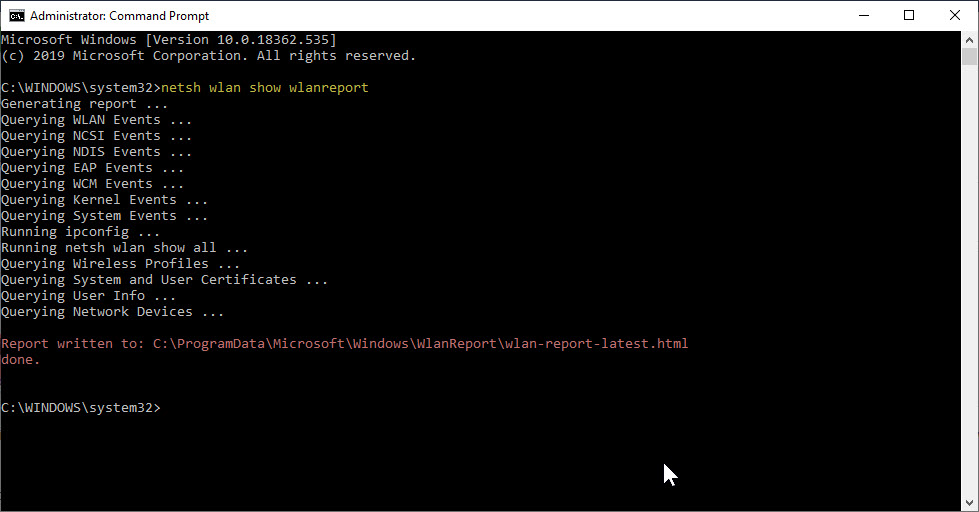
Note that the report is written to the following location (highlighted in red):
C:/ProgramData/Microsoft/Windows/WlanReport/wlan-report-latest.html
Step 2.
Paste the link into your web browser.
You will get something that starts like this:
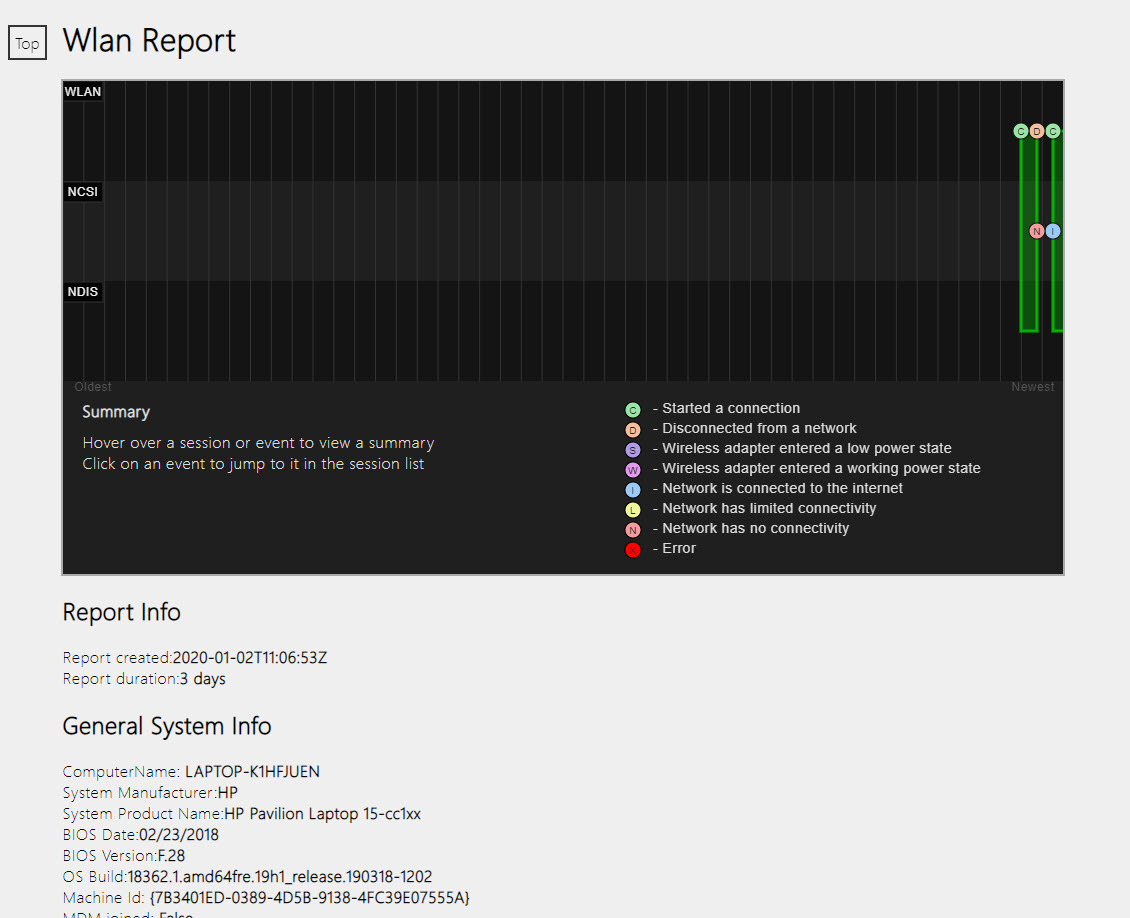
It is a long report, and you will have to scroll through it.
Some of the content has scrolling windows.
For details on the output, read more here: https://support.microsoft.com/en-us/help/4000462/windows-10-analyzing-wireless-network-report
You can read other similar articles by clicking on the Tags below.
If you would like to help support the continued development of independent networking, broadband, Wi-Fi, VoIP, and packet analysis content, please consider joining our Patreon community where you will gain access to exclusive technical resources, downloadable labs and PCAPs, bonus course content, troubleshooting guides, and additional member-only material. Comments and technical discussion are always welcomed at our Patreon community or on our Discord server. You can also support our work by simply buying us a coffee — every contribution helps us continue creating practical, real-world network science education for professionals and enthusiasts alike.