

As most of my readers, students, and clients know, I absolutely love Wireshark. I am deeply infatuated with Wireshark’s Profiles, more properly called configuration profiles. So much so that many years ago now, I set up the first Wireshark Profiles Repository. Hundreds of thousands of downloads have resulted, and I hope I have helped the community to improve and extend their Wireshark Skills as well as shorten their troubleshooting journeys.
That said, with version 4.4.0 and later, Wireshark has introduced a funky and cool new feature, that allows you to set up Wireshark to “automatically” switch configuration profiles based on a particular display filter matching, and therefore triggering the switch. I put automatically in quotes because it really isn’t automatic per se. It is triggered by matching an argument in the display filter configuration for that profile.
Think:
dns→ DNS profilewlan→ Wi-Fi profilesip || rtp→ VoIP profileospf→ OSPF profilequic→ QUIC profile
Let’s give an example: say you open a capture file containing VLAN traffic, and you want to “automatically” switch to your VLAN profile. Here is how you accomplish this:
First, open Wireshark, then click on Edit> Configuration Profiles
The following pop up will appear:
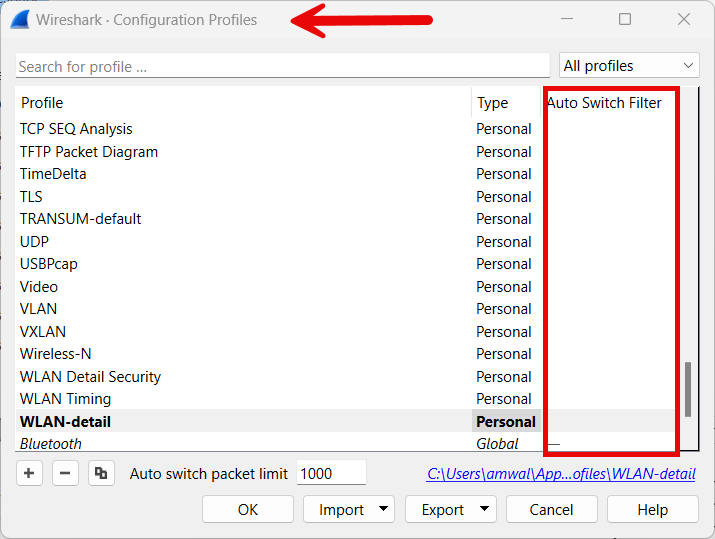
Now yours might look a little different as to what profiles you have. Note in mine, there is a VLAN profile, and note the Auto Switch filter column.
Next, select the VLAN profile, it will turn blue background:
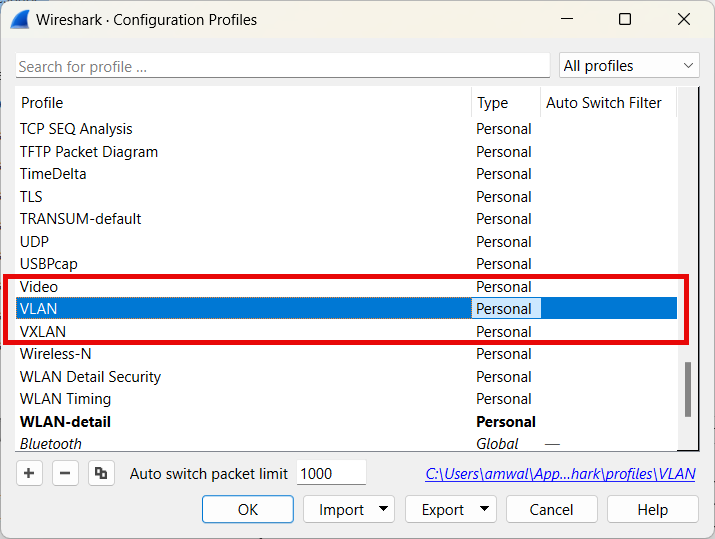
Now double click to the right of the word Personal, in that Auto Switch Filter column. You will get a cursor:

In that display filter box, type “vlan”. The background, as with all filters will turn green if the syntax is correct and understood by Wireshark:
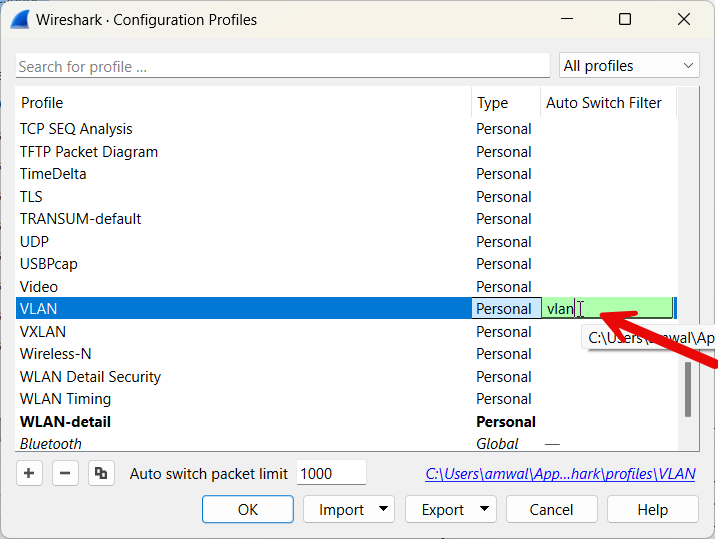
Now click OK.
Now if we open a capture that has VLAN traffic in it, Wireshark will switch to the VLAN profile!
Here is the result:
I start with Wireshark open at the home screen in my Better Default profile:
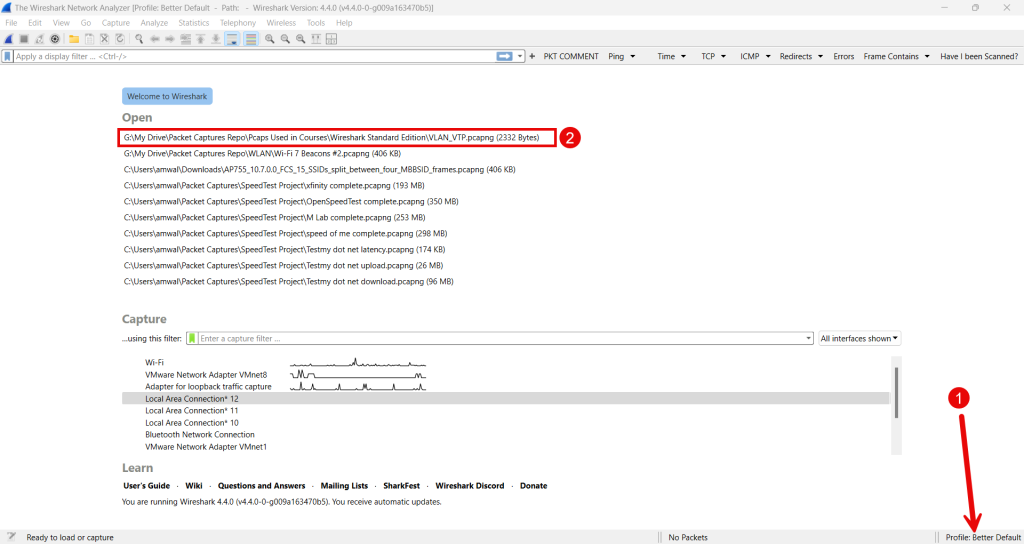
Then I select the VLAN_VTP.pcapng file to open, and poof, the file opens and I am in my VLAN profile:
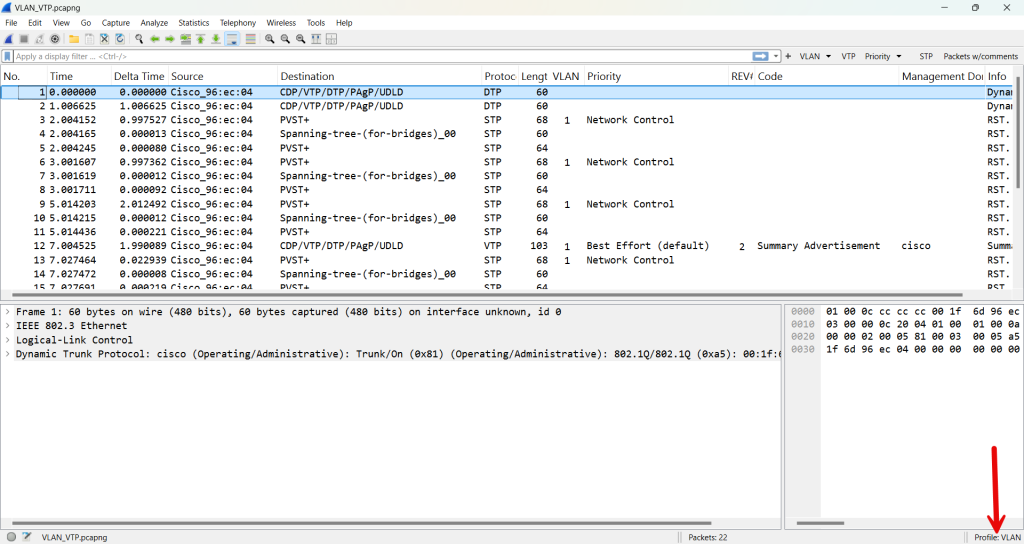
Pretty cool. But let’s talk about a couple of important things.
First, let’s say you have a capture that matches multiple of the profiles (like VoIP and VLAN). The first matching profile wins – so a capture could easily match several profiles. Here is another example, a capture containing IPv6 DNS over a VLAN might match:
vlan, ipv6, and dns
Therefore, the Auto Switch Filters should be designed carefully, especially if the you have many specialized profiles.
Second, let’s illustrate a Good Trigger vs. Bad Trigger: Lets say we want to trigger our BGP profile, and since we know BGP runs over TCP, we use the trigger: tcp That could match almost anything. So instead we would want to trigger on the assigned tcp port for bgp: tcp.port == 179
The best Auto Switch Filter is not necessarily a filter that appears frequently. It is a filter that uniquely identifies the type of analysis for which the profile was designed.
Third, you will note that there is a setting called the Auto Switch packet limit. This is the number of packets to check for automatic profile switching. Setting this to zero disables automatic profile switching.
Fourth, consider overlapping profile triggers. Suppose you have:
IPv6 Profileipv6
DNS Profiledns
DNS over QUIC Profilequic && dns
A packet capture might satisfy all three conditions. Since Wireshark switches to the first matching profile, trigger design becomes important. Therefore, you have to think of Auto Switch Filters as classification rules, not ordinary display filters.
If this this triggering perfect? Well, at the time of this writing, no. Wireshark does not necessarily inspect the entire capture looking for a trigger. It checks only the number of packets specified by the Auto switch packet limit. Therefore, if the protocol that should trigger your profile does not appear until later in the capture, Wireshark may not select that profile. Setting the limit higher increases the chance of finding the trigger, while setting it to zero disables automatic switching.
One behavior to understand is that manually selecting another configuration profile disables automatic profile switching for the capture you currently have open. Automatic switching becomes active again when you open a different capture file.
An Auto Switch Filter isn’t being used to decide which packets Wireshark displays. Instead, Wireshark uses the filter as a test to classify the capture and determine which configuration profile should be loaded. Thinking about Auto Switch Filters this way makes it easier to design good triggers and avoid conflicting profile matches.
Also, choosing the correct filter trigger is extremely important. I chose some simple ones above. But in other cases, this may be more difficult. After I played with this feature some more, I have created a list of great display filter triggers for various profiles and published it as a follow on to this post. Let us know what triggers you use.
If you would like to help support the continued development of independent networking, broadband, Wi-Fi, VoIP, and packet analysis content, please consider joining our Patreon community where you will gain access to exclusive technical resources, downloadable labs and PCAPs, bonus course content, troubleshooting guides, and additional member-only material. Comments and technical discussion are always welcomed at our Patreon community or on our Discord server. You can also support our work by simply buying us a coffee — every contribution helps us continue creating practical, real-world network science education for professionals and enthusiasts alike.